Triggers
A trigger decides when a run starts: on a schedule, when another system calls a webhook, or when someone starts it. One automation can have several triggers.
Which trigger types work
Section titled “Which trigger types work”The Trigger Type list in the editor shows nine types. Five of them start runs today.
| Type | Status |
|---|---|
| Manual | Available. No settings. |
| Schedule | Available. See Schedule. |
| Webhook | Available. See Webhook. |
| Slack | Available in the editor and in my.studio. It starts a run for the trigger owner’s own messages in the Slack channel you pick. See Slack and Incoming Message. Setup › Triggers › New Trigger still marks it Coming soon; add it from the editor. |
| Incoming Message | Available in the editor. It starts a run for a message captured from a connected platform, such as GitHub. See Slack and Incoming Message. |
| Microsoft Teams | Coming soon. It’s shown but can’t be chosen, because it doesn’t start runs yet. To work with Teams today, use Messaging. |
| AWS SQS | Not available yet. It’s marked Coming soon. |
| AWS SNS | Not available yet. It is built on the same queue polling as AWS SQS. |
| VoIP / Phone | Not available yet. It never starts a run. |
Every saved automation also has an API endpoint, which isn’t a trigger you add.
Add a trigger
Section titled “Add a trigger”-
Open the automation and select Triggers in the toolbar. Trigger Management opens: “Choose what starts this automation”.
-
Select Create Your First Trigger, or Add Trigger if the automation already has one.
-
Enter a Trigger Name and pick the Trigger Type. You can’t change the type later.
-
Leave Active checked so the trigger starts runs once it’s saved.
-
Fill in the type’s settings (see below), and optionally the Run Inputs.
-
Select Create Trigger.
You can also add triggers from Setup › Triggers, which lists the triggers of every automation. See The Setup pages.
Schedule
Section titled “Schedule”A schedule runs the automation at set times.
- Cron Expression: six fields, starting with seconds: second, minute, hour, day of month, month, day of week. For example,
0 0 9 ? * MON-FRIruns at 9:00 every weekday. A five-field expression without seconds, such as0 9 * * *, also works: Flow adds0seconds in front. - Quick Presets fill in common schedules: Every minute, Every hour, Every day at midnight, Every Monday at 9am, Every weekday at 9am and First of month at midnight.
- Timezone: the time zone the schedule follows. The default is UTC.
Flow checks for due schedules once a minute, so a run can start up to about a minute after its time. If a run was missed, the schedule runs once when it catches up, not once for every missed time.
If three scheduled firings in a row fail, the schedule pauses itself and shows Paused after failures. See When a trigger keeps failing.
A scheduled run’s input has triggerType, scheduleId, executionCount and executedAt, so {{input.executedAt}} is the time it fired.
Webhook
Section titled “Webhook”A webhook gives the automation a URL. Another system sends an HTTP request to it, and each request starts a run.
-
Add a trigger with the type Webhook and select Create Trigger. The Endpoint URL appears once the trigger is saved. It looks like
https://api.work.studio/api/v1/workflow/webhook/ingress/…, and the last part is generated and can’t be changed. -
Copy the signing secret. Right after you create the trigger, a Webhook trigger created dialog shows the Endpoint URL and the Signing secret, each with Copy. The secret is shown once, within an hour of creating the trigger, to the person who created it or to an admin, and never again. If you missed it, open the trigger and select Rotate Secret next to Signing secret.
-
Copy the URL with Copy endpoint URL on the trigger’s card, and give it and the secret to the system that will call it.
-
Set up the sender to sign each request (see below).
-
Publish the automation if you haven’t.
To change the webhook’s security, response and limits, select Edit trigger. The form edits the webhook itself. See Webhook settings.
Signing
Section titled “Signing”New webhook triggers check a signature and a timestamp on every request. A request without both is refused with 401.
To sign a request:
- Take the current time in Unix seconds. Send it in the
X-Webhook-Timestampheader. - Compute the HMAC-SHA256 of
<timestamp>.<raw body>(the timestamp, a dot, then the exact body bytes) with the signing secret, as hex. - Send it in the
X-Webhook-Signatureheader, with or without asha256=prefix.
The timestamp must be within 5 minutes of the server’s clock. If the calling service signs its own way, choose it under Sender: GitHub, Stripe, Slack or Shopify. For shell, Python and Node samples and the Authentication options, see Webhooks.
Send an Idempotency-Key header (or the sender’s own delivery id) so a retried delivery runs once. A repeat is answered with the first delivery’s ids and "duplicate": true.
What the automation receives
Section titled “What the automation receives”A JSON object body becomes the run’s input, with its fields at the top level: a body of {"order": {"id": 42}} is read as {{input.order.id}}. There is no input.body. A form body arrives field by field the same way. Next to the body fields:
input._headersholds the request headers, with lower-case names. Credentials, signatures and the platform’s own headers are left out.input._queryholds the query parameters.input._bodyholds a body that is a JSON array (or another JSON value that isn’t an object).input._rawholds any other body, such as plain text or XML, as text.
The trigger’s form lists these paths under In the automation.
The exact rules, including which headers are left out, are in Webhooks.
The response tells the caller that the run started and gives its IDs (with Acknowledge immediately, only the delivery’s executionId and status). It doesn’t include the automation’s output. To collect a result from your own code, see Run automations from your code.
While the webhook trigger is paused
Section titled “While the webhook trigger is paused”A paused Webhook trigger keeps accepting signed, authenticated deliveries and queues them. The card shows “N deliveries are waiting. Resume to run them in order”, with Discard. Resume trigger asks whether to Run N waiting or Discard and resume; the waiting deliveries run one at a time, in the order they arrived. In the trigger’s form, under While this trigger is paused, Keep for (days) (7 by default), At most (deliveries) (1,000) and At most (MB) (50) set how long and how many; past the limit, the sender gets 503 and retries later. See When the trigger is paused. A paused Slack, Teams or Incoming message trigger queues its messages the same way and runs them in order when you resume it; see Deliveries.
Select View deliveries on the card for the trigger’s last 30 days of deliveries: what ran, what waited, and what was refused and why. From there you can replay a delivery, use one as a sample for the trigger’s input fields, or listen for the next one. See Deliveries.
For the request size limit and other details, see Webhooks. Every webhook trigger is also listed under Setup › Triggers. See The Setup pages.
Slack and Incoming Message
Section titled “Slack and Incoming Message”A Slack or Incoming Message trigger starts a run for each message captured from the channel, repository or account you pick.
A person-to-person message (Slack and Teams messages, WhatsApp, Telegram and Discord messages, and Instagram, Messenger and Twitter direct messages) starts a run only for its own person. The trigger fires only when its owner, the person who set it up, wrote the message or brought it in through their own consented capture. Nobody else’s messages reach it, admins’ included. The run it starts is private to the owner, and the trigger’s history keeps a reference to the message, never its text. The exception is a Slack or Teams channel an admin has marked shared: there, every trigger on the channel receives everyone’s messages, and the runs are readable like any other run.
Public comments, mentions and replies, and developer tools such as GitHub, GitLab and Linear, aren’t personal, and reach every matching trigger.
Someone else who edits the trigger must take it over and use their own account.
The optional filter (Filter Expression for Slack, Keyword filter for Incoming Message) limits which messages start a run: a message starts one only when its text contains the filter, ignoring case. Separate alternatives with commas: invoice, receipt matches a message containing either word. Leave it empty for every message. The filter is plain text: an expression such as text:contains:help is matched as those exact characters.
The API endpoint
Section titled “The API endpoint”Every saved automation has an API endpoint, shown at the top of Trigger Management with the label API endpoint and Created automatically. “Anyone with your tenant API key can run this automation at the URLs below.”
POST /api/v1/workflow/execute/{endpoint}uses the automation’s readable endpoint name.POST /api/v1/workflow/execute/id/{globalUniqueId}uses the automation’s global ID, which Flow labels portable across environments.
Send your tenant API key in the X-API-Key header. Automation Details in the toolbar shows both paths under External API Endpoints, as Endpoint (Human-Readable) and Endpoint (Portable ID).
To turn the endpoint off, select Pause on the card; both URLs are then closed until you select Resume. Deleting the automation removes its endpoint too. Other triggers keep working. See Run automations from your code and API keys.
Run Inputs
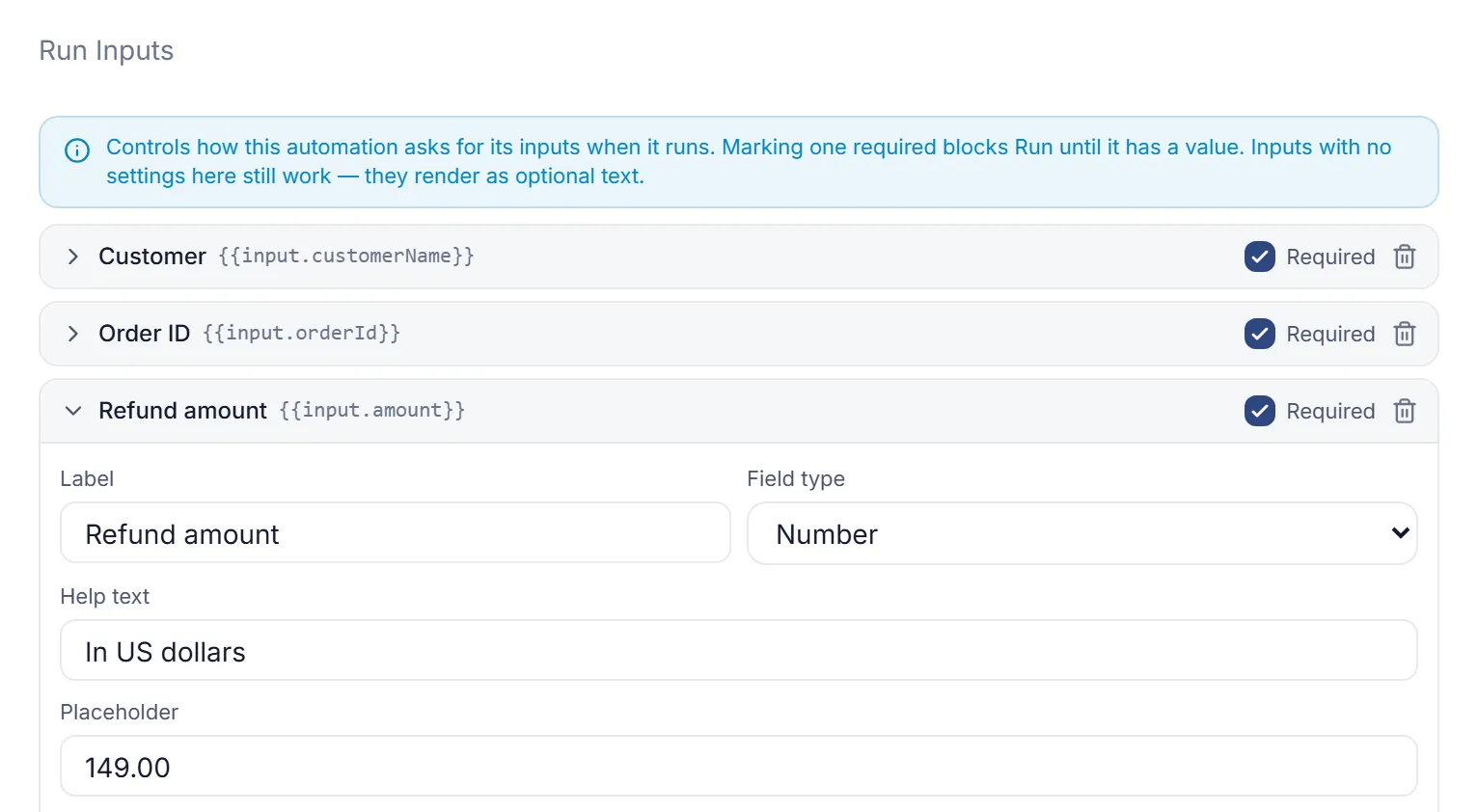
Section titled “Run Inputs”Run Inputs, at the bottom of the trigger form, lists every {{input.…}} value your steps use. For each one you can set a Label, a Field type, Help text and a Placeholder, and mark it Required. Inputs no step uses are tagged unused. Add one with Add an input key (e.g. projectKey) and Add.
Flow uses these to build the form people fill in when they run the automation by hand, for example in the test panel and in Run with test input. Required applies only to those runs. It doesn’t stop a schedule or a webhook.
Turn a trigger on or off
Section titled “Turn a trigger on or off”Each trigger’s card shows its state: Active, Paused, Paused after failures or Not published: won’t run. Use Pause trigger and Resume trigger on the card to switch it. The change takes effect right away, and it does what it says: pausing a trigger that’s already paused leaves it paused.
Saving the automation doesn’t change its triggers. A trigger you paused, edited or deleted in the Triggers panel stays that way when you press Save.
To delete a trigger, select Delete trigger. You can’t undo it. A deleted Webhook trigger’s URL answers 410 Gone.
When a trigger keeps failing
Section titled “When a trigger keeps failing”If a trigger fails to start a run three times in a row, it pauses itself, whatever its type. This happens, for example, when the automation has never been published. The card shows Paused after failures with the last error, and the automation’s owner gets a notification in work.studio. Fix the cause, for example publish the automation, then select Resume trigger. Resuming clears the failure count; a schedule then runs at its next time.
Only failures to start a run count. A run that starts and then fails in a step doesn’t pause the trigger.
Run with test input
Section titled “Run with test input”Select Run with test input on the card to try a trigger. The input editor starts from the trigger’s Run Inputs. Edit it and select Run: the automation runs with that input at the top of input, the way a real delivery arrives (a Webhook trigger’s test also gets empty _headers and _query). The dialog shows whether the run started or failed, with the reason and a link to the run.
Run trigger now starts one run straight away, with no input.
Who sees what
Section titled “Who sees what”People who can only view an automation see its triggers and their state, but not a webhook’s URL or any run input and output from the trigger’s history. In Deliveries they see times, statuses and reasons, never content. Run with test input and Run trigger now are shown only to people who can run the automation.
Deployments and versions
Section titled “Deployments and versions”When you promote an automation to another environment with Deployments, its triggers arrive in the same state as in the source: an active trigger is set up and starts runs, a paused one arrives paused. A Webhook trigger gets a new URL and a new signing secret in each environment, so update the sending service. Promoting to another environment of your own organization creates a copy of the automation with its own ID, and its triggers start the copy; later promotions update that copy (see Environments).
Revert to version keeps triggers that exist in both versions in their current state, brings back the old version’s triggers in the state they had, and removes triggers the old version didn’t have.
See what reached a trigger
Section titled “See what reached a trigger”Every trigger keeps its deliveries for 30 days: webhook requests, captured messages, schedule times and runs started by hand, with what became of each. See Deliveries.
See a trigger’s runs
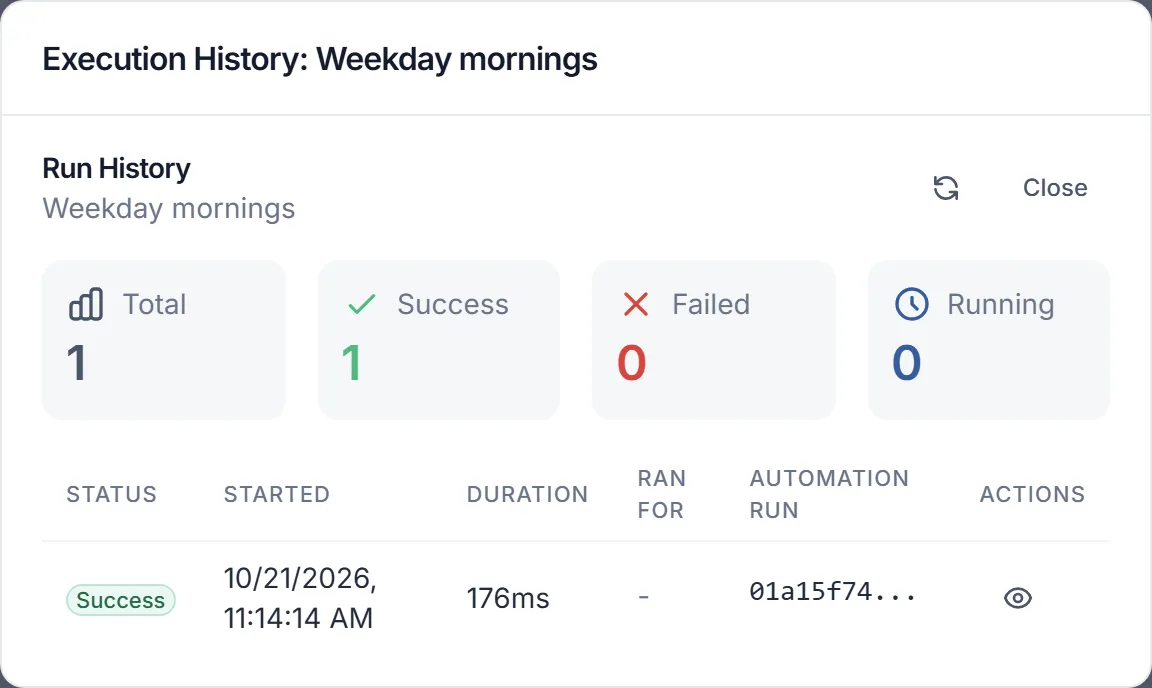
Section titled “See a trigger’s runs”Select View run history on a trigger’s card. Run History lists the runs that trigger started, with Status, Started and Duration. Select a run for its Run Details, including its Input Data and Output Data. Every run also appears in Logs.