

Create an automation
You can start an automation from a blank canvas, from a template, or describe it in a sentence and let the AI generator build the steps.
| Start from | Where | What happens |
|---|---|---|
| A blank canvas | Automations › New Automation | You name it, then add the trigger and steps yourself. |
| A template | Start from template on a Home example | Flow copies a ready-made automation into your environment as a draft and opens it. |
| A description | Home, or Automations › AI Assist | Flow creates the automation and the generator builds it from your sentence. |
| A plan | Plan it first on Home, or Automations › Plans | Flow lays out every automation the work needs, and you build each one from its card. |
| The editor | Generate with AI in the toolbar | The generator adds to or changes the automation you have open. |
Start from a template
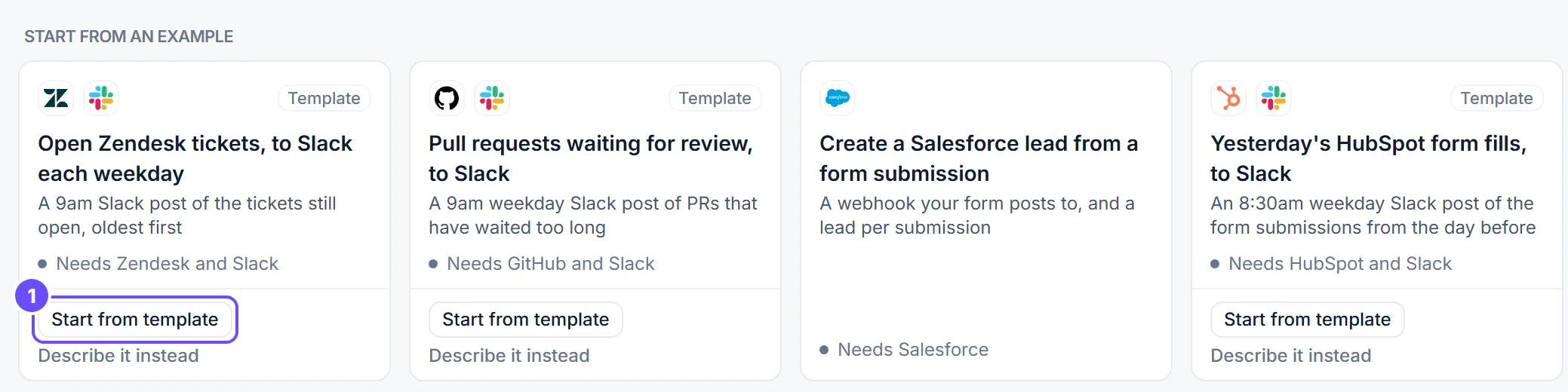
Section titled “Start from a template”Some examples under Start from an example on Home are marked Template. They are ready-made automations, such as a weekday Slack post of open Zendesk tickets.
-
On Home, find an example marked Template and select Start from template.
-
Flow copies the automation into your own organization and environment and opens it in the editor. The copy is a draft: its connector steps have no connection chosen yet, and its trigger is off. A schedule runs at its hour in your browser’s time zone.
-
Pick a connection on each connector step (see Connections), and change anything you like.
-
Test and publish it, then turn its trigger on in Triggers.
Starting from a template needs permission to create automations. If the template can’t be copied, Home says why, with “You can describe it instead”: Describe it instead puts a full request for the same automation in the box for the generator.
Start from a blank canvas
Section titled “Start from a blank canvas”-
In the sidebar, select Automations, then New Automation.
-
Enter an Automation Name. It must be 4 to 255 characters, start with a letter, and use only letters, numbers and hyphens, so
invoice-remindersworks andInvoice remindersdoesn’t. -
Optionally, add a Description.
-
Select Create Automation. The editor opens with the AI Automation Generator panel open and empty.
-
To build by hand, close the generator panel. Then add a trigger and add steps.
The new automation is a Draft v1. Nothing runs from a trigger until you publish it.
Describe it and let the generator build it
Section titled “Describe it and let the generator build it”-
On Home, type what you want under What do you want to automate?, for example “Post new Zendesk tickets to Slack”. Press Enter.
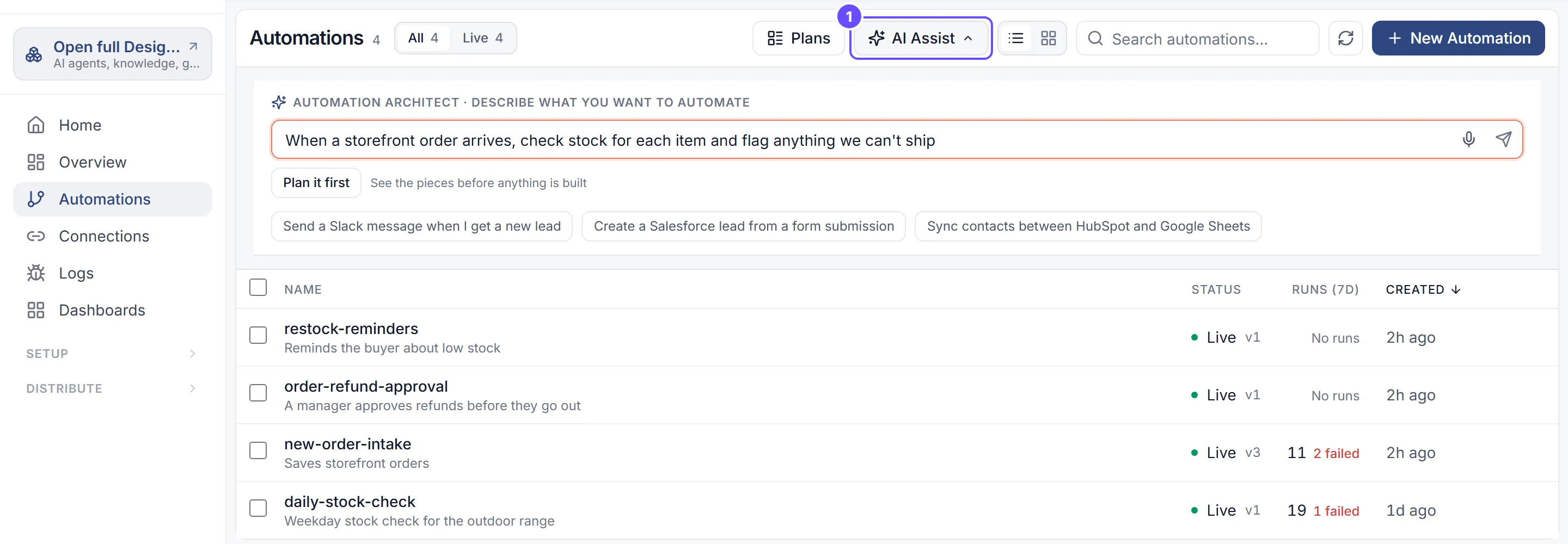
Or, on Automations, select AI Assist, type your description in the Automation Architect box, and select Send.
-
Flow creates the automation, names it after the first words of your description, and opens it. The AI Automation Generator starts on your description by itself.
-
Watch the steps appear on the canvas. If the generator asks a question, answer it in the box at the bottom of the panel.
-
When it finishes, select Done. The button shows how many steps were built, such as Done (5 steps).
If the generator needs a connection you don’t have yet, the panel shows Setup Required with Check Again and Setup Guide. Add the connection, then select Check Again.
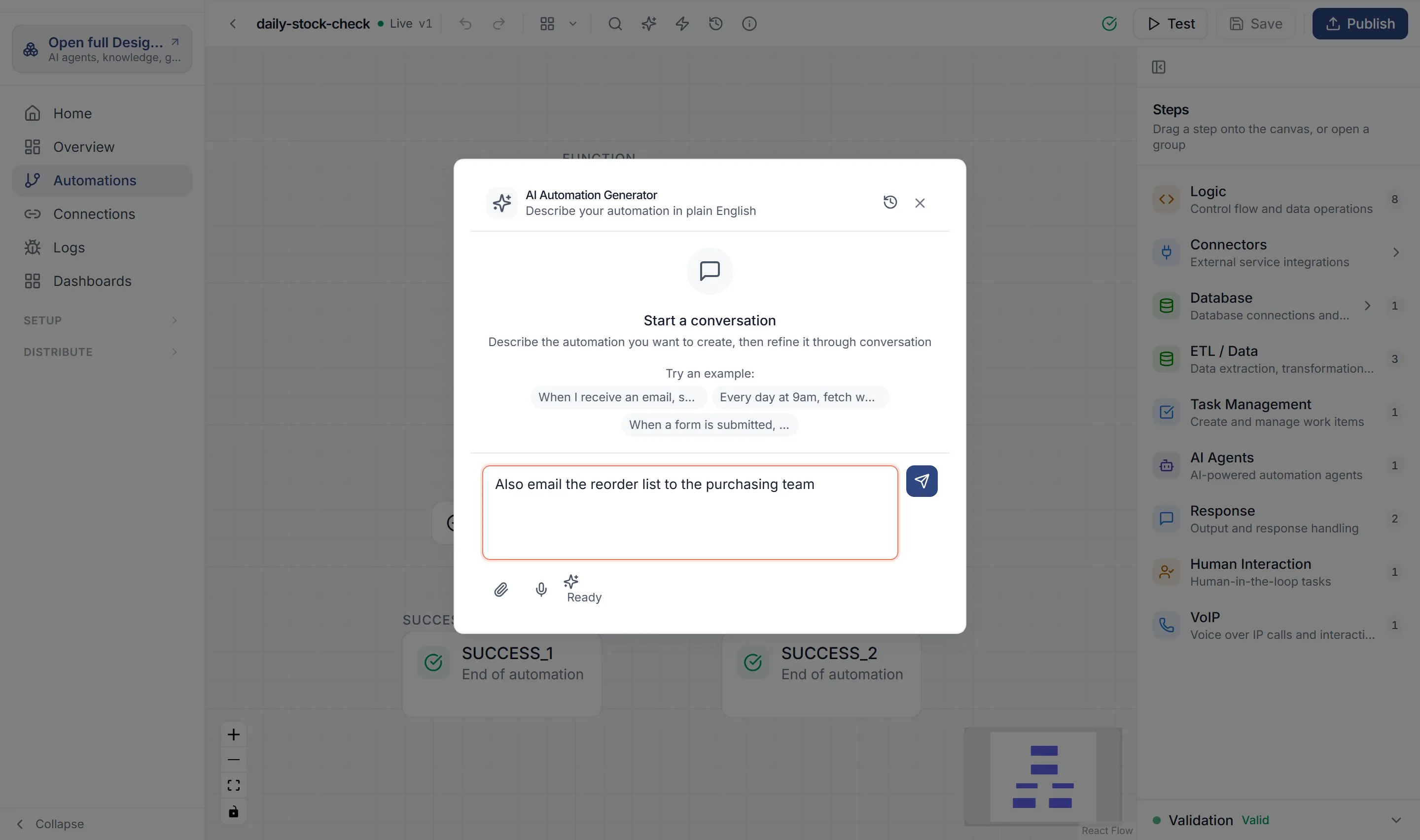
To refine an automation later, open it and select Generate with AI in the toolbar. Describe the change in plain English. The generator sees the steps you already have and changes them.
The panel also has:
- Attach an image or document, to give the generator a diagram or a spec.
- Previous conversations, to pick up an earlier conversation about this automation.
- Ctrl+Enter (⌘+Enter on a Mac) to send.
Start from a plan
Section titled “Start from a plan”When one piece of work needs several automations, such as one that reacts to an event and another that other systems call, plan it first. See Automation plans.
Delete an automation
Section titled “Delete an automation”On Automations, open the row’s menu and select Delete. The automation and its versions are deleted. Runs already recorded are kept.