The Setup pages
The Setup group in the Flow sidebar holds things you configure once and rarely revisit. It is closed by default; select Setup to open it.
| Item | What it’s for | Covered on |
|---|---|---|
| Connectors | The catalog of systems you can connect to. | Connections |
| Triggers | Every trigger on every automation. | Triggers, below |
| Messaging | Slack and Microsoft Teams. | Messaging, below |
| ETL | Jobs that copy data between systems. | ETL, below |
| Explorer | A SQL client for your databases. | Explore and store data |
There is no Webhooks page. Webhook URLs come from Webhook triggers on the automation, and their signing, authentication and limits are set on the trigger. The old Setup › Webhooks address opens Triggers with a note, and URLs made on the old page answer 410 Gone. See Webhooks.
In the full Designer view, the same pages are under Workspace › Connect (Messaging, Triggers), Workspace › Operate (Data Explorer) and Settings › Catalog (Connectors, ETL Jobs).
Triggers
Section titled “Triggers”A trigger starts an automation. You usually add one in the automation editor (see Triggers). The Triggers page lists every trigger across your automations, so you can check, pause or run them in one place. It lists the triggers people added; the API endpoint every automation has isn’t listed (see Run an automation from your code).
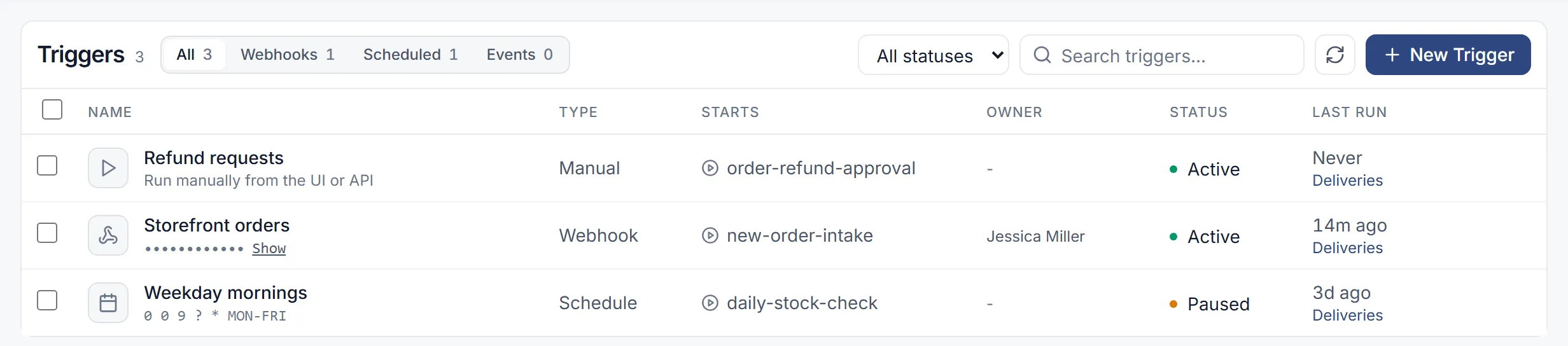
- Tabs: All, Webhooks, Scheduled and Events. Filter by status: Active, Paused, Error or Setting up (a trigger still waiting for its provider to finish setting it up).
- Columns: Name, Type, Starts, Owner (the person a trigger runs for, such as a Slack trigger’s owner; - when it has none), Status and Last run, with a Deliveries link under the last run.
- Each row’s menu has View details, Deliveries, Run now, Copy webhook URL (webhook triggers), Pause or Resume, and Delete. Every action works on any automation in the list, however many you have.
- View details opens Overview, Deliveries, History and Config. Overview shows the webhook URL (masked, with Copy, for people who can edit the automation). Deliveries lists what reached the trigger: what ran, what waited and what was refused, with the reason (see Deliveries). History lists the trigger’s past runs.
- A trigger that paused itself shows Paused after failures with the reason and Resume. A trigger on an automation that was never published shows Not published: won’t run. A paused trigger with waiting deliveries shows how many on Overview, with Discard.
- Edits made here keep the trigger’s other settings, such as its Run Inputs. Errors are shown in words.
Add a trigger from this page
Section titled “Add a trigger from this page”-
Select New Trigger.
-
Under “Choose how you want your workflow to be triggered”, pick the type: Manual, Schedule or Webhook. Microsoft Teams is shown as “Coming soon”.
-
On Select Automation, pick the automation it should start.
-
On Configure Trigger, fill in the settings for that type, such as the cron expression and timezone for a schedule.
-
Select Create Trigger.
Slack, AWS SQS, VoIP / Phone and Microsoft Teams are shown as “Coming soon” here and can’t be chosen. Slack and Incoming Message triggers can be added in the automation editor; see Triggers.
Messaging
Section titled “Messaging”Messaging brings Slack and Microsoft Teams into work.studio: “capture conversations as tasks, send approvals to a channel, and start workflows from messages.” The page has a card for each, marked Not set up until someone installs it.
-
Open Setup › Messaging and select Set up Slack or Set up Microsoft Teams.
-
Follow the steps: What you get, Which app signs in (work.studio’s app, recommended, or your own app saved in Connections), Admin approval where the platform needs it, Choose channels, Add the bot for Microsoft Teams, and Tell people.
What each piece is for:
- Capture turns messages in the channels you choose into tasks. It’s set per team or workspace, on this page.
- Approvals in Slack or Teams are chosen per app when it’s activated, under task delivery. Each person can also turn on “Approvals in Microsoft Teams” for their own approvals, in my.studio’s Settings.
- Starting an automation from a message takes a Slack or Incoming Message trigger. The Microsoft Teams trigger is coming soon. See Triggers.
- Captured messages are private to their own person: what you wrote, and what your own opted-in capture brought in. Nobody else sees them, admins included.
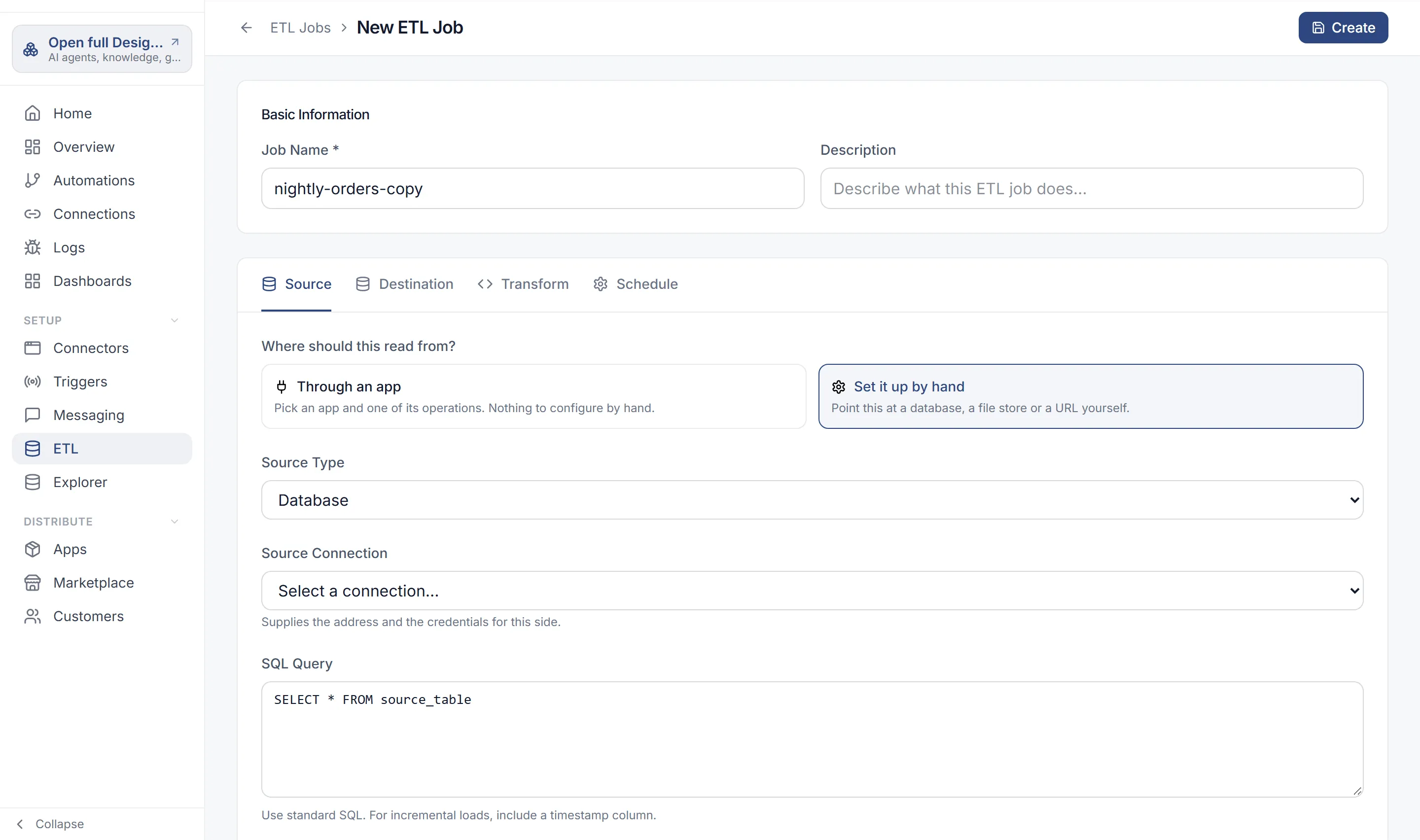
An ETL job copies data from a source to a destination on a schedule. Open Setup › ETL and select New ETL Job.
| Tab | What you set |
|---|---|
| Source | Where it reads from: Database, REST API / GraphQL or Cloud Storage (S3), through a connection. |
| Destination | Where it writes: Database, Data Warehouse, Data Lake (S3) or REST API, with a Write Mode of Append, Overwrite or Upsert for tables. |
| Transform | Lists the available transformations. |
| Schedule | A cron expression, or a preset: Manual, Hourly, Daily or Weekly. |
Save the job, then select Deploy to Glue to make it runnable. After it’s deployed, the Runs and History tabs appear. Start a run with Run Now on the Runs tab.
An ETL job’s output can feed a dashboard widget through the ETL Dataset data source. See Dashboards.