

Apps and customers
An app packages connectors and automations together so your customers can use them. A customer is a company or person using your apps. Each customer gets their own connections, runs and keys, kept apart from every other customer’s.
In Flow, these pages are in the sidebar under Distribute: Apps, Marketplace and Customers. In the full Designer view they are in the Apps area, which appears once your organization has an app of its own.
Create an app
Section titled “Create an app”-
Open Distribute › Apps and select New App.
-
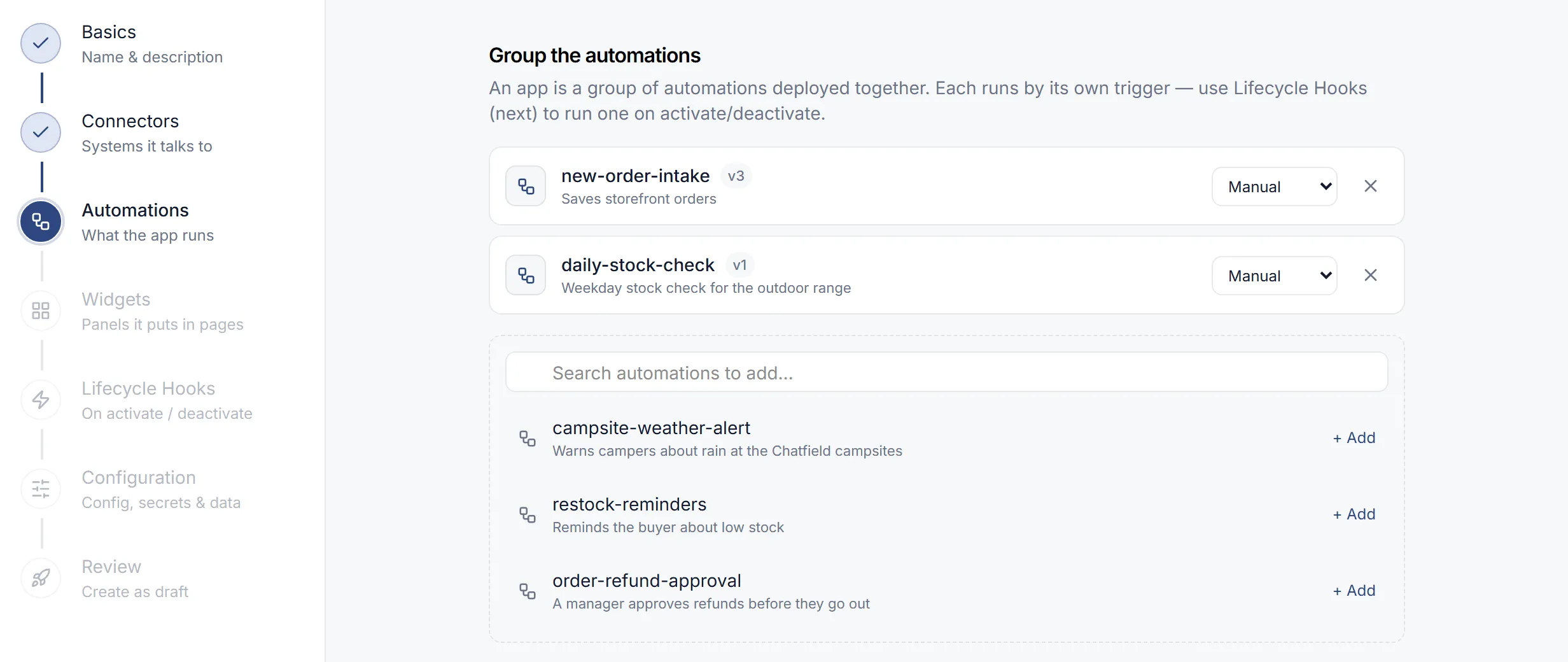
Work through the seven steps. Connectors is optional; skip it for an app that only uses webhooks.
Step What you set Basics App name, Slug (a URL-safe identifier), Tagline, Description, Icon. Connectors The systems the app talks to. For an OAuth connector you can pick the OAuth app customers see on the consent screen; otherwise it carries work.studio’s name. Automations The automations the app runs, each with a trigger: Manual, Scheduled (with a cron expression) or Webhook. Components Panels the app puts inside your product’s pages. Lifecycle Hooks An automation to run On Activation and On Deactivation. It must be one of the app’s automations. Configuration Configuration values customers fill in (String, Number, Boolean, JSON, URL, Email or Cron), Secrets bound per environment, and bundled configs and data tables. Review A summary. -
Select Create App. The app is created as a draft. Its page then opens, with a menu for each job: Overview; Build (Details, Agents, Automations, Connectors, Widgets, Configuration); Sign-in (Sign-in page, Where it runs); Business (Plans & billing, AI budget, Sharing, Notifications); and Ship (Releases, Distribution). Insights appears after the first release; it shows how the App’s own pages are used (see App usage). The Business pages and Where it runs open once sign-in is turned on for the app.
AI Assist on the Apps list opens the App Builder, which drafts an app from a description.
Release, then list it
Section titled “Release, then list it”An app version is Draft, Released or Deprecated (In review where your organization reviews apps first). Being listed in the Marketplace is a separate choice: releasing an app doesn’t list it.
-
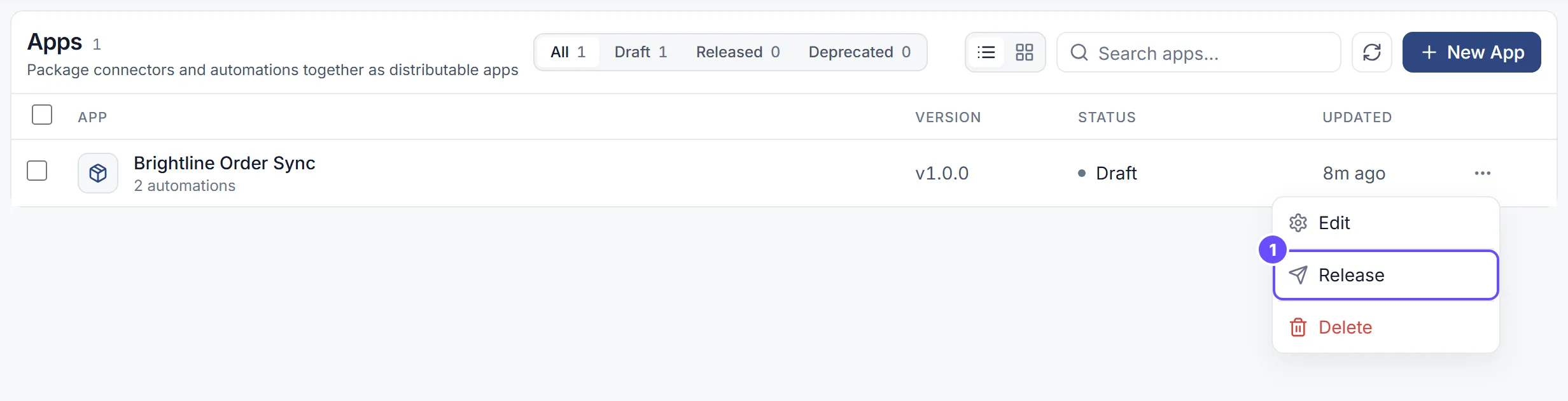
On Apps, open the draft’s row menu and select Release, or select Release vN on the app’s page.
-
In “Release version N?”, describe the change under What changed? (release notes) and select Release vN. Releasing freezes the version and pins the current versions of its automations. Installs and people signing in get it, and later edits start a new draft. It doesn’t list the app anywhere.
-
To list the app, open its row menu and select List in marketplace, or use the app’s Distribution page. Withdraw from marketplace removes the listing. An app that isn’t listed is Private: only your organization can install it.
-
Deprecate retires a released app.
Whoever can change an app’s lifecycle releases it; there is no separate approval unless your organization reviews apps first.
Activate an app for a customer
Section titled “Activate an app for a customer”The Marketplace has two tabs: Catalog (apps you can activate) and My Activations (apps already activated for the selected customer).
-
Open Distribute › Marketplace.
-
Pick the customer with the customer selector at the top. To try an app yourself, select Add Test Customer and enter a Customer ID.
-
On the app’s card, select Activate.
-
Follow the steps: Connect Services, Configure, Approvals (where human approvals appear) and Activate. Steps the app doesn’t need are skipped.
An activation shows one of these statuses:
| Status | Meaning |
|---|---|
| Active | Running. |
| Needs Setup | Activated, but required settings are missing. Select Complete Setup. |
| Needs Auth | Activated, but a connection still needs signing in. Select Complete Setup. |
| Suspended | Paused. Resume turns it back on. |
| Error | Something failed. |
Deactivate (on My Activations) removes everything the activation set up, such as triggers and webhooks. It can’t be undone.
To offer apps inside your own product, select Embed Settings on the Marketplace. See Embed.
Customers
Section titled “Customers”Customers appear on Distribute › Customers when they start using your apps. A customer is created the first time an app is activated for them, or when one of your app’s end users first signs in. You can also add a test customer from the customer selector.
The list shows each customer’s Activity, Apps, Connections, API Keys, Runs (24h) and Last Activity. Filter it with All, Healthy, Warning, Error and Pending.
Open a customer to see the Overview, Apps and API Keys tabs and the customer’s identifiers. The Connections tab isn’t available yet (“Connection listing coming soon”).
| Action | Effect |
|---|---|
| Suspend | New operations for this customer are blocked. Activate resumes them. |
| Archive (in More actions) | Keeps the data but stops it being used. Activate brings the customer back. |
| Delete Customer (in More actions) | Permanent. Revokes the customer’s credentials, deletes their secrets, and removes their connections, runs, tasks and triggers. You type the customer’s ID to confirm. |
Customer API keys
Section titled “Customer API keys”A customer API key lets an outside tool act for one customer, for example to run that customer’s automations. Customer keys start with svx_ck_.
-
Open the avatar menu and select API Keys.
-
Pick the customer under Customer Scope. Until you do, the page says “Select a scope”.
-
Under Customer API Keys, select New API Key.
-
Fill in Acts as (by default nobody: service-to-service only), Description, Environment, Expires in (days) (1 to 730, default 365), Permissions and, optionally, Allowed IP Addresses.
-
Select Create Key and copy the key. It isn’t shown again.
Each key’s menu has Rotate Key and Revoke Key. Rotating keeps the old key working for a Grace period (days), 7 by default, so you can switch over.
Organization-wide keys (svx_tk_) and how to send a key are covered in API keys.