

Designer overview
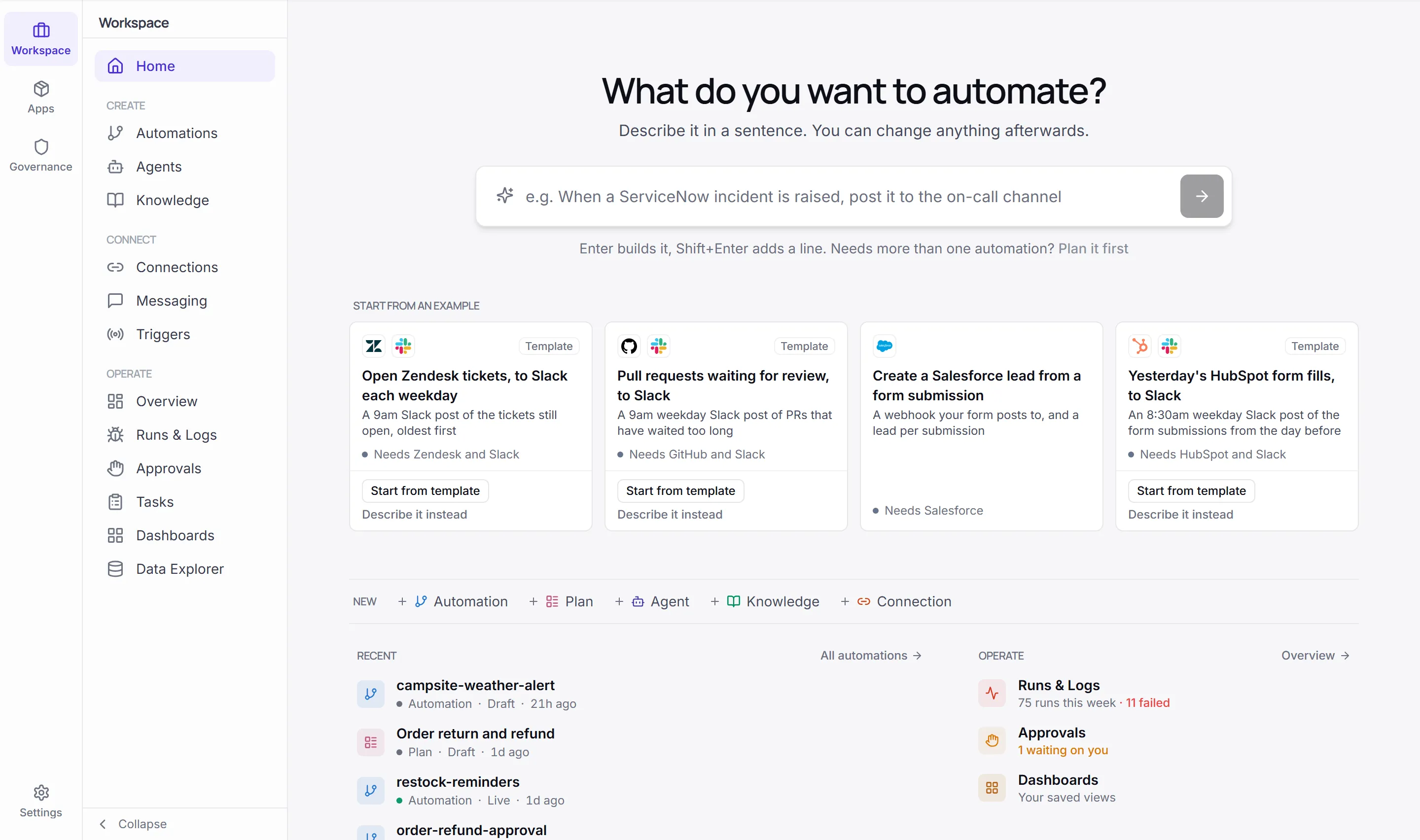
Designer is the full view of Flow. It’s the same app, with the same organization, data and sign-in, but it shows every area instead of the essentials. Flow is for building and running automations. Designer is where you also build the AI that runs inside them, and where administrators set the rules.
Open Designer
Section titled “Open Designer”In Flow, select Open full Designer near the top of the sidebar. Designer opens at designer.work.studio in a new tab, and you stay signed in.
You can also go straight to designer.work.studio and sign in with your work.studio account.
What Designer adds
Section titled “What Designer adds”Designer groups its menu into areas on a rail: Workspace, Governance and Settings. An Apps area appears once your organization has an app of its own.
| Area | What’s there beyond Flow |
|---|---|
| Workspace | Agents, Knowledge, Approvals and Tasks, next to the automation pages. The menu is grouped into Create, Connect and Operate, and Logs is called Runs & Logs here. |
| Governance | Guardrails, AI Policies, Access Control, Cost Policies, Audit Log, Guardrail Activity, Team Activity, User AI Usage and AI Memory |
| Settings | Your organization’s settings |
| Apps | The apps you package for your customers. Flow shows these under Distribute. |
Pages in this section
Section titled “Pages in this section”AgentsCreate an agent, give it instructions, tools and knowledge, test it, and use it in an automation.
KnowledgeAdd documents, sites and connected apps as knowledge an agent can search.
GuardrailsRules every AI call is checked against: block, mask or flag what shouldn't go through.
ApprovalsSteps waiting on a person, and where each person answers them.