

Approvals and other human steps
A Human Interaction step pauses a run until a person responds. The person can approve or reject, pick from choices, type an answer or fill in a form. Then the run continues, and later steps can use the answer.
While a run waits, Logs show it as Waiting, and the test panel shows Waiting for Input.
Add a human step
Section titled “Add a human step”-
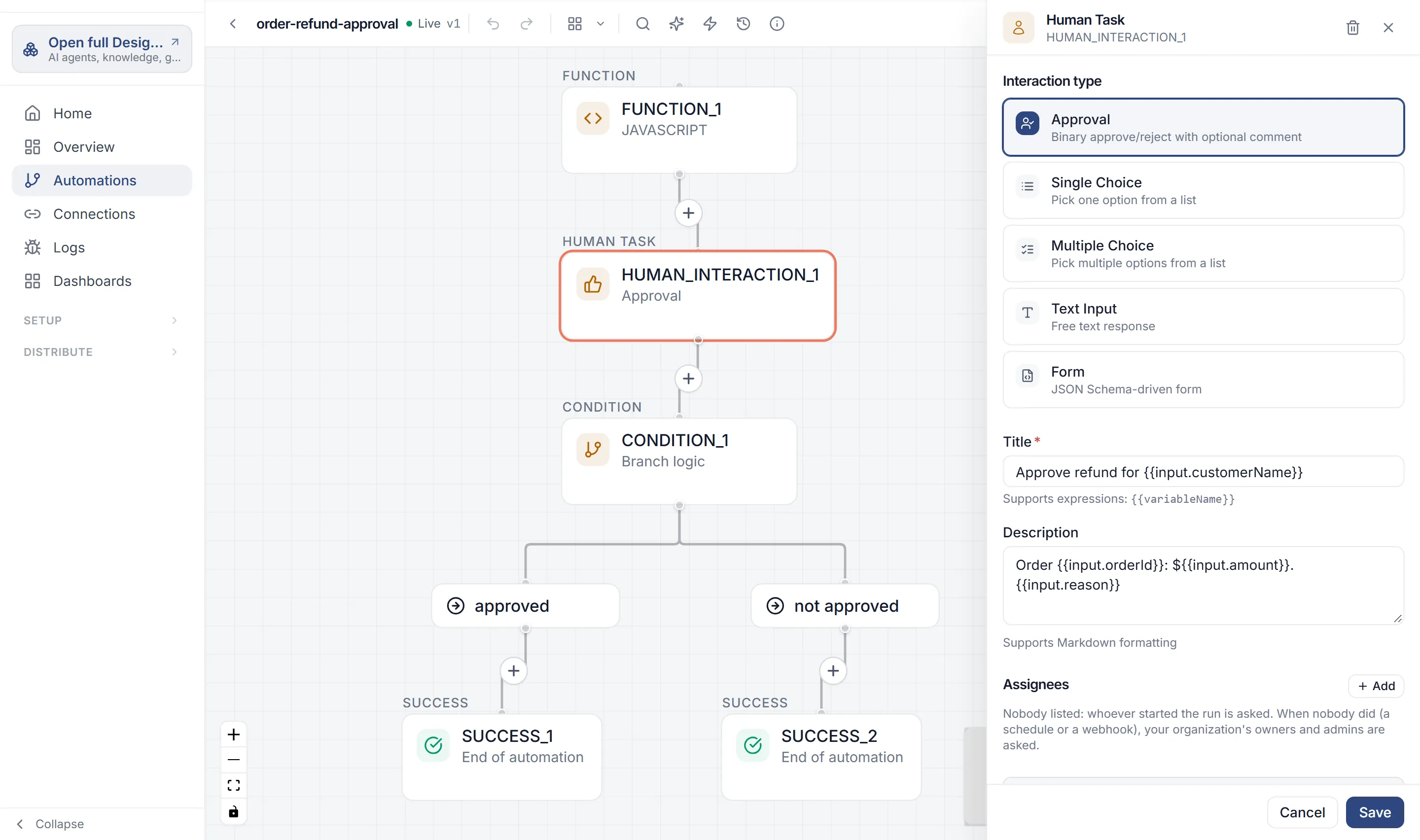
Add a step from the Human Interaction group. Pick Custom Task, or one of your task templates if your organization has them. The Human Task panel opens.
-
Under Interaction type, pick what the person does:
Type The person… Approval approves or rejects, with an optional comment. Single Choice picks one option. Multiple Choice picks one or more options. Text Input types an answer. Form fills in a form you describe with a JSON Schema. -
Enter a Title, such as “Approve refund for
{{input.customer.name}}”. The title can use expressions. Add a Description with the details the person needs; it can use Markdown. -
Fill in the type’s own fields:
- Single Choice and Multiple Choice: under Choices, give each option a value (such as
approved) and a label (such asApprove). You need at least two. Add Choice adds more, and Default marks the preselected one. - Text Input: an optional Placeholder, and Use multiline text area for longer answers.
- Form: the Form schema (a JSON Schema) and, optionally, a UI schema.
- Single Choice and Multiple Choice: under Choices, give each option a value (such as
-
Under Assignees, choose who is asked (see Who is asked). Leave it empty to ask whoever started the run.
-
Optionally, set a Timeout (see Timeouts). For a choice, text or form step, you can also turn on Collect responses anonymously under Responses.
-
Select Add Step.
Who is asked
Section titled “Who is asked”Each row under Assignees is one of:
| Choice | Who it asks |
|---|---|
| Whoever started the run | The person who started this run. |
| Everyone in a role | Every member of a role in your organization, such as ADMIN or OWNER, or a role you created. |
| A person (email) | One person in your organization, by the email they sign in with. |
| From the run (expression) | Whoever an expression names when the step starts, such as {{input.approverEmail}}. It can name one person or several, each by email or user ID. A role, or “initiator”, that an expression produces is ignored, so a run’s input can’t choose a role or the person who started the run. |
Only people in your organization are ever asked. A person or address that isn’t a member is left out: they don’t see the request and aren’t notified. If nobody you list is in your organization, the request goes to your organization’s owners and administrators. If every row is empty when the step starts, for example an expression that reads an empty field, the step fails.
If your organization’s member list can’t be checked when the step starts, the people you listed are kept as you wrote them, so the request is never moved to someone else. They aren’t notified, and the request on Approvals says so.
Only the people you list, and the members of the roles you list, see the request and can answer it. Anyone else who tries is told “This request is assigned to someone else”. Once someone claims a request that went to a role, only they can answer it.
On an Approval or Confirmation step that lists assignees, The person who started the run can’t approve it is on by default: they can’t answer their own request, even if they’re listed or hold a listed role. Turn it off only for a request someone may sign for themselves. If Whoever started the run is the only row, the panel warns you: nobody listed can answer, so the request goes to your organization’s owners and administrators instead. If the person who started the run is your only owner or administrator, the step fails and says why.
In Slack or Teams, an answer counts only from someone you listed whose chat account is linked to work.studio and who is still a member of your organization, unless you turn on Anyone in a Slack or Teams channel can answer. If the member list can’t be checked at that moment, the answer isn’t accepted; they can try again or answer in my.studio.
Members with the Viewer role can’t answer in my.studio or Flow, because their role can’t act on runs. They can still answer from Slack or Teams. The panel warns you when you list the Viewer role.
When you test an automation, you can answer its requests yourself if you’re allowed to edit the automation.
If you list nobody, the request goes to whoever started the run. If nobody started it, as with a schedule or a webhook, it goes to your organization’s owners and administrators.
Everyone a request goes to is told about it: it shows in their Tasks in my.studio and in Needs you on their phone, which also sends a push notification, and they get an email where email is set up for your organization. When a request goes to a role, every member is notified, up to 50 people. Past that, everyone still sees the request in their list, and the request on Approvals says how many were notified.
Timeouts
Section titled “Timeouts”The panel has a Timeout section with Wait for (a number of minutes, hours or days) and Then, what happens when nobody has answered in time:
| Then | What happens |
|---|---|
| Fail the automation | The run fails at this step. |
| Skip and continue | The run goes on without an answer. |
| Approve automatically / Reject automatically | The run goes on as if the step had been approved or rejected. Approval steps only. |
| Use the default choice | The run goes on with the choices marked Default. If none is marked, the run fails. Choice steps only. |
| Remind them and wait again (up to 3 times) | Everyone the request went to is reminded, and the step waits as long again. After the third time, the run fails. |
Timeouts are checked about once a minute. Whatever happens, the request shows Timed out on Approvals, and the step’s output has timedOut set to true, so a later Condition can tell a timeout from an answer.
Anonymous answers
Section titled “Anonymous answers”For a choice, text or form step, turn on Collect responses anonymously under Responses to record the answer without who gave it. The run, its outputs and Approvals show the answer as given by “anonymous”. Only the people the request goes to can still answer it, and an anonymous request can’t be claimed, because claiming records who took it. Approval steps can’t be anonymous, because an approval records who accepted responsibility; the platform refuses it even if a step asks.
Where people answer
Section titled “Where people answer”| Where | How |
|---|---|
| The test panel, while you test | The panel shows Waiting for a response: “This run is paused until someone responds.” Answer right there, for example with Approve or Reject. |
| Approvals, in the full Designer view | Workspace › Operate › Approvals lists “Steps in your automations waiting on a person”. Select Respond on a request. A Form step shows its fields. |
| my.studio | Tasks shows Waiting for your approval, with Approve and Reject. See Tasks and approvals. |
| The work.studio mobile app | Needs you shows approvals with Approve and Reject. Only Approval steps can be answered on the phone; the others ask the person to use a laptop. See Approvals on your phone. |
| Slack or Microsoft Teams | For an app your customers activate. The activation’s Approvals step (“Where human approvals appear”) sends requests to Slack, Microsoft Teams, Amazon SNS or an HTTPS endpoint. |
Approvals isn’t in the simplified Flow sidebar. Open it with Open full Designer, or go to /tasks/human-interactions in Flow.
On Approvals, a request shows Waiting until someone responds, then Completed. Other statuses are Claimed, Failed, Timed out and Cancelled.
Use the answer in later steps
Section titled “Use the answer in later steps”The person’s answer becomes the step’s output. With a step ID of HUMAN_INTERACTION_1:
| Type | Read it with |
|---|---|
| Approval | {{step.HUMAN_INTERACTION_1.output.approved}} is true or false, and decision is APPROVED or REJECTED. A note the person added is in comment. |
| Single Choice | {{step.HUMAN_INTERACTION_1.output.selected}} is the chosen value. |
| Multiple Choice | {{step.HUMAN_INTERACTION_1.output.selected}} is the list of chosen values. |
| Text Input | {{step.HUMAN_INTERACTION_1.output.text}} |
| Form | Each form field by its name, such as {{step.HUMAN_INTERACTION_1.output.amount}}. |
respondedBy tells you who answered (anonymous for an anonymous step, SYSTEM_TIMEOUT when a timeout answered), status how the request ended, and timedOut whether nobody answered in time.
To branch on an approval, add a Condition with Expression {{step.HUMAN_INTERACTION_1.output.approved}}, Operator equals and Value true.
decision is APPROVED or REJECTED wherever the person answered: Flow, my.studio, the phone, Slack or Teams. A Condition on {{step.<id>.output.decision}} written earlier against APPROVE or REJECT still matches. For now, decisionLegacy also carries the value the step gave before (APPROVE or APPROVED, depending on where the person answered), for a Function step that compares the text itself.