

Deliveries
A delivery is one thing that reached a trigger: a webhook request, a captured message, a schedule tick or a run started by hand. Each trigger keeps its deliveries for 30 days. The list tells you what ran, what waited, what was refused and why, and lets you run a delivery again.
Open a trigger’s deliveries
Section titled “Open a trigger’s deliveries”-
Open the automation and select Triggers in the toolbar.
-
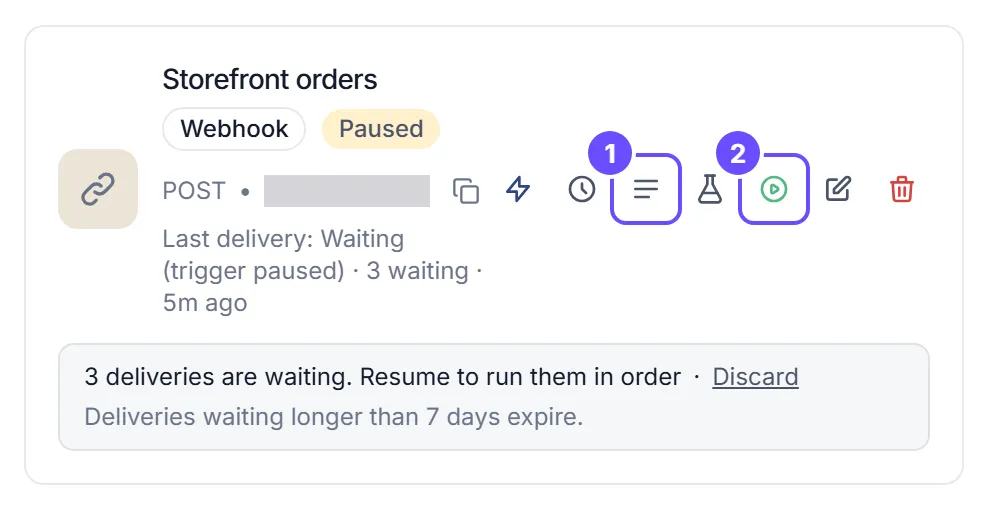
On the trigger’s card, select View deliveries. Deliveries: and the trigger’s name open. You can also select Deliveries under the trigger’s Last run in Setup › Triggers, or on its row menu.
-
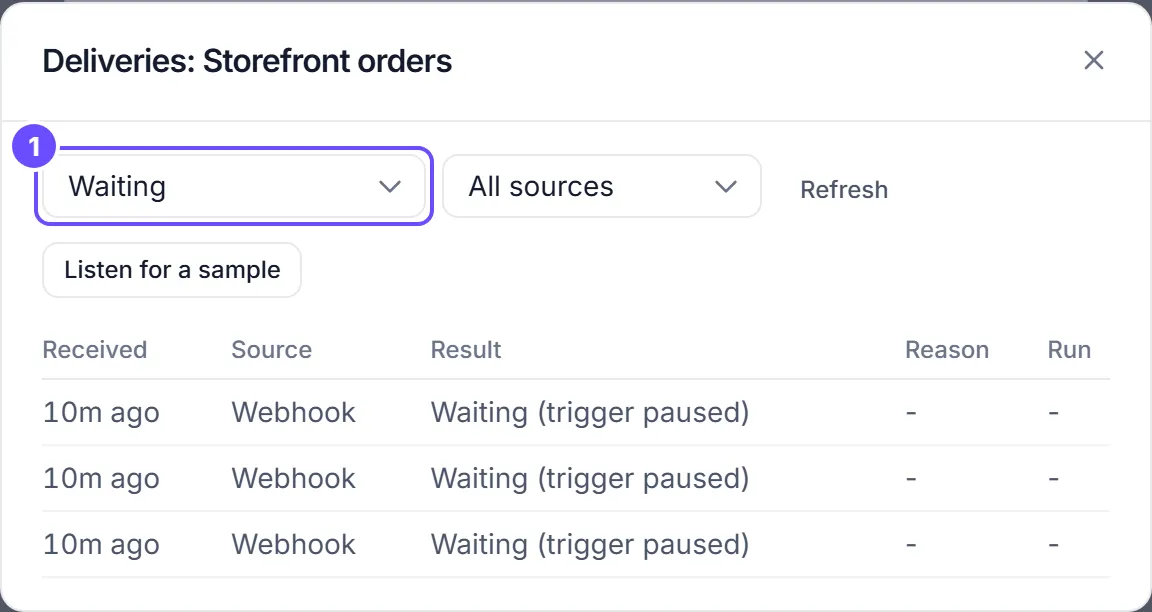
Each row shows when it was Received, its Source, the Result, the Reason and a link to the Run. Filter by Result (for example only Refused) or by Source (Webhook, Schedule, Message or Run now) if you’re looking for something specific.
-
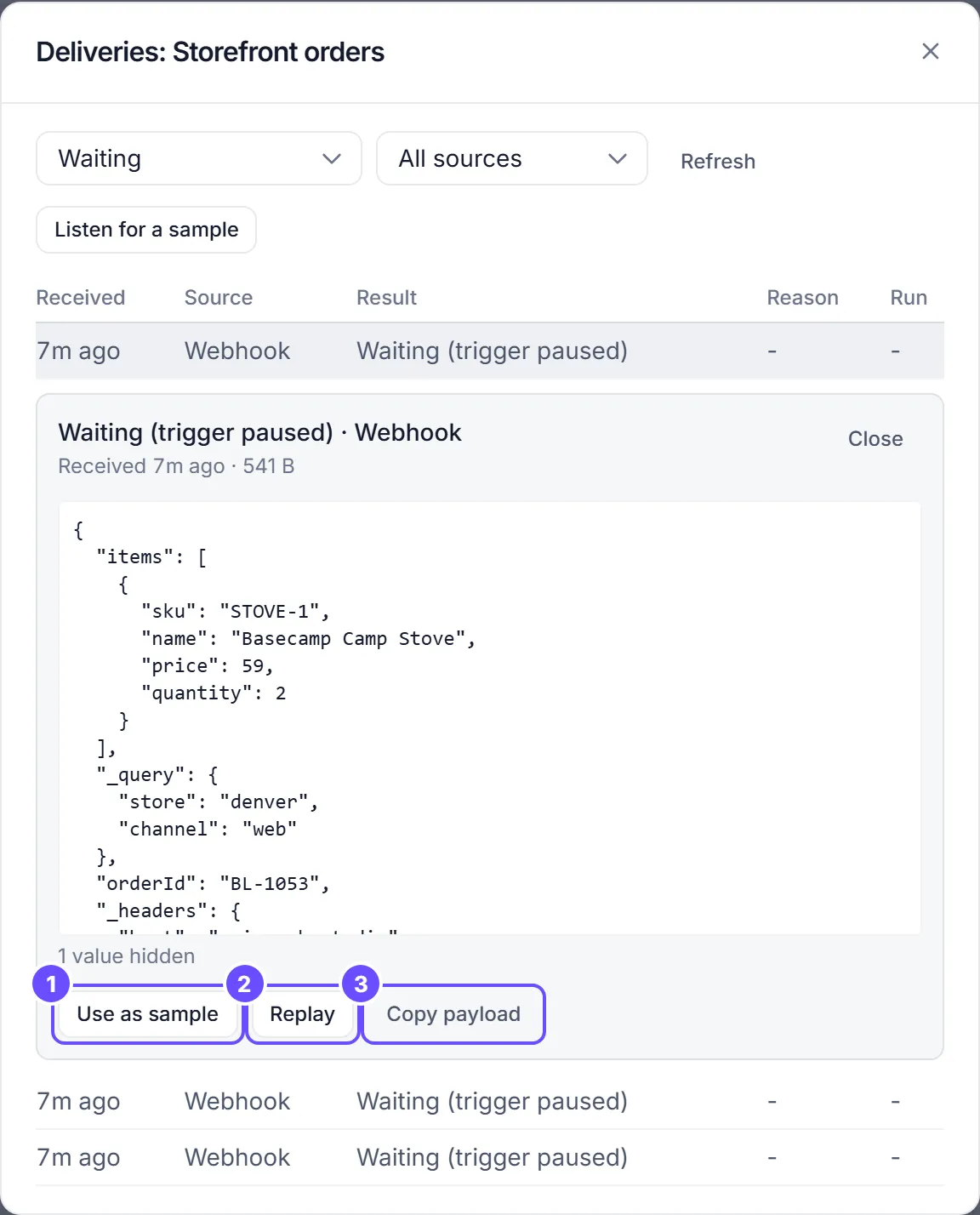
Select a row to open its details: the masked preview, and Use as sample, Replay and Copy payload, described below. A replayed delivery’s source reads “replay”.
The trigger’s card also shows its last delivery and, while it’s paused, how many deliveries are waiting.
Statuses
Section titled “Statuses”| Status | What happened |
|---|---|
| Received | It arrived and is being handed to the automation. This lasts a moment. |
| Ran | It started a run. The row links to the run. |
| Waiting (trigger paused) | The trigger was paused, so the delivery is queued. It runs when you resume the trigger. |
| Already received | The sender sent the same delivery again. It didn’t run a second time. |
| Refused | It was turned away. The reason says why (see Refusals). |
| Expired while waiting | It waited in the queue longer than the trigger keeps deliveries, and never ran. |
| Discarded | Someone discarded it from the queue, or the trigger was deleted while it waited. |
| Retrying | Handing it to the automation failed for now. It’s tried again. |
| Failed | Handing it to the automation failed for good. The reason says why. |
| Skipped | A schedule time that didn’t start a run, for example because the automation has no published version. Repeats in a row are counted on one row. |
| Sample only (not run) | It was captured by Listen for a sample and didn’t start a run. |
Refusals
Section titled “Refusals”A refused delivery is listed with its reason: for example, the signature didn’t match, the signed timestamp was too old, the sender didn’t authenticate, there were too many deliveries in a minute, the body was over the size limit or of an unsupported type, the HTTP method isn’t allowed, the trigger was paused and its queue was full, or the automation has no published version.
A refused request’s body is never stored. During a flood, at most 20 refusals a minute are listed per trigger. The rest are counted on the latest row with the same reason, shown as “× N”.
While the trigger is paused
Section titled “While the trigger is paused”A paused Webhook trigger keeps accepting deliveries that pass its checks, and queues them:
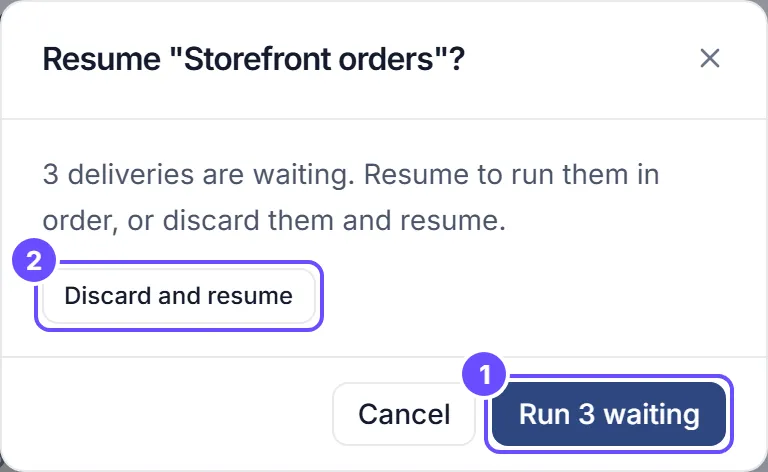
- The card says “N deliveries are waiting. Resume to run them in order”, with Discard.
- Resume runs them one at a time, in the order they arrived, on the published version.
- A delivery waits 7 days by default (1 to 30, in the trigger’s settings), then expires and never runs.
- At most 1,000 deliveries or 50 MB can wait. Past that, the sender gets 503 with
Retry-After: 300and tries again later. - Deleting the trigger discards what’s waiting, and its URL answers 410 Gone.
See When the trigger is paused for what the sender gets back.
A paused Slack, Teams or Incoming message trigger queues its messages the same way: the same limits (7 days, 1,000 messages or 50 MB), in the order they arrived, and Resume or Discard. The same message is queued only once, even if it arrives twice. A personal trigger’s messages wait privately: only the trigger’s owner sees them in the list, and they run privately for the owner when the trigger is resumed. If someone else takes the trigger over while messages are waiting, those messages are refused and never run for the new owner. Over the limit, a message is refused (“The trigger was paused and its queue was full”); there is no sender to tell.
Replay a delivery
Section titled “Replay a delivery”Replay runs a past delivery again, with the same input it carried.
- It runs the automation’s current published version, not the version that ran the first time.
- The new run is marked as a replay: its Trigger in Logs is Replay, and a new row appears in the trigger’s deliveries.
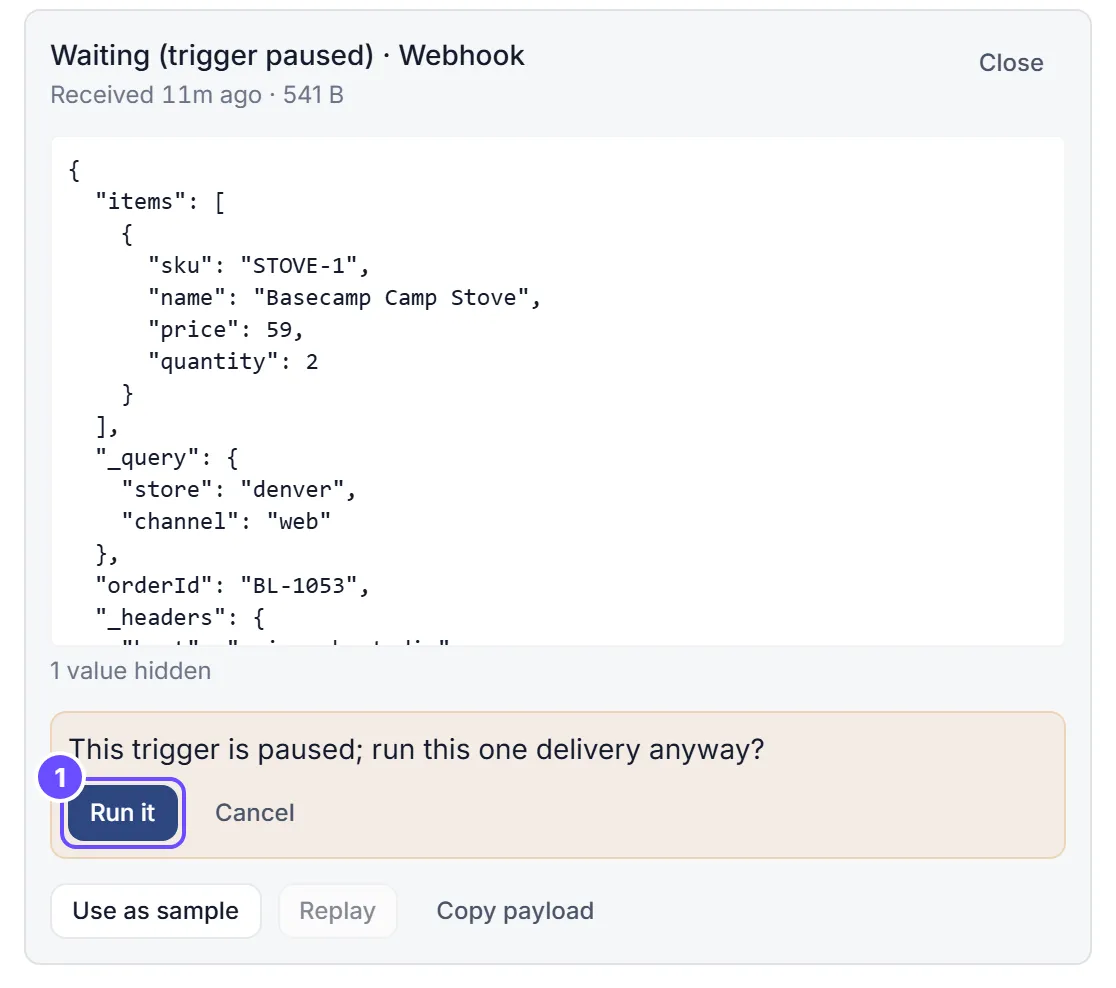
- If the trigger is paused, Flow asks “This trigger is paused; run this one delivery anyway?” and runs it only when you select Run it. Replaying a delivery that is waiting in the queue runs it now and takes it out of the queue.
- You can replay deliveries that ran, failed, expired, were discarded, were already received, were captured as a sample, or are waiting.
- You can also replay a delivery that was refused because the automation had no published version: publish it, then replay what was refused.
- You can’t replay a delivery that was refused for any other reason, one refused because the sender failed authentication, or one older than 30 days: its content is no longer kept.
- Each person can replay at most 10 deliveries a minute.
- Replaying needs permission to run the automation and to see the delivery’s content (see Who sees what). Replays are recorded in the audit log.
Use a delivery as a sample
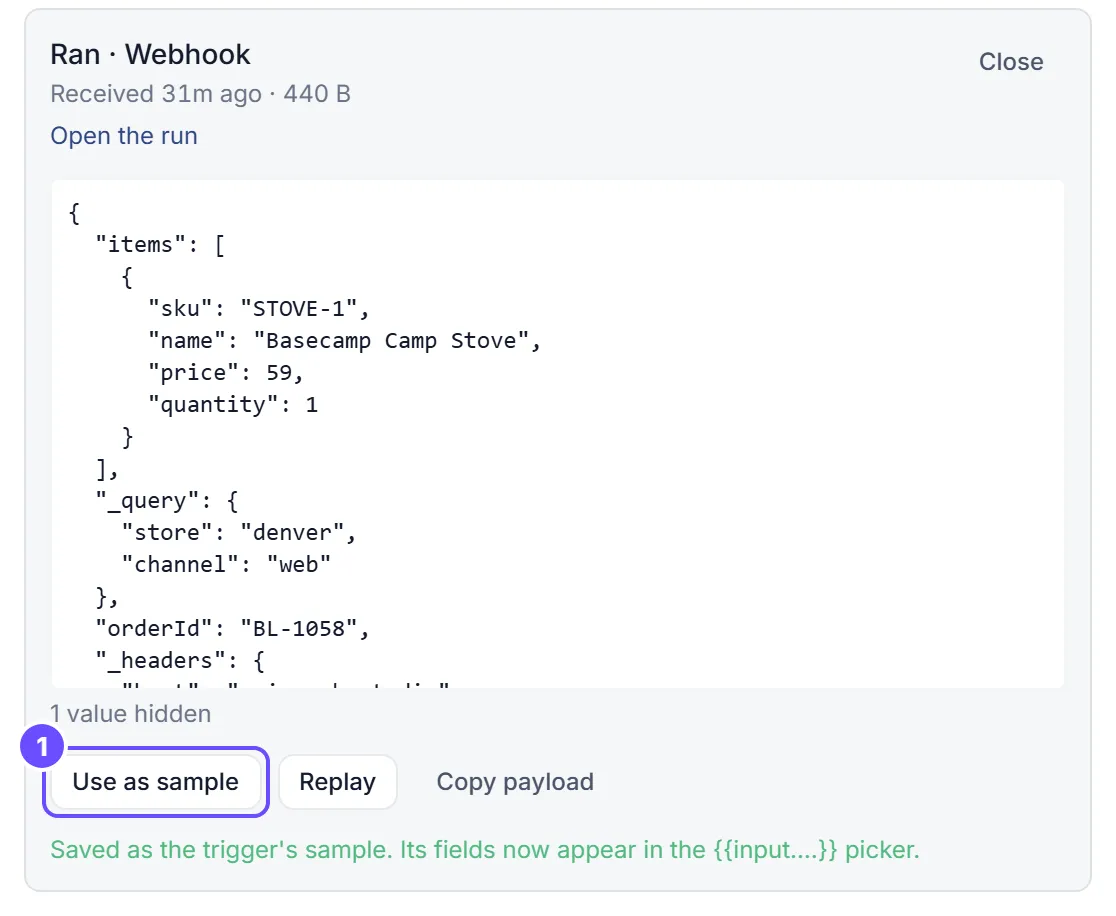
Section titled “Use a delivery as a sample”Use as sample reads a delivery’s content and saves its shape on the trigger as the trigger’s input schema. Flow’s {{input.…}} picker and my.studio’s field mapping then offer the fields the delivery really had, such as {{input.order.id}} or {{input.items[0].sku}}.
The schema holds field names, types (text, number, true/false, list, object) and recognized formats: date and time, date, email address and URL. It holds no values from the delivery: everyone who can view the automation can read the schema, and a sample can be someone’s private message.
Flow confirms with “Saved as the trigger’s sample. Its fields now appear in the {{input.…}} picker.” Using a sample needs permission to edit the automation, and is recorded in the audit log.
Listen for a sample
Section titled “Listen for a sample”Listen for a sample waits up to 10 minutes for the trigger’s next delivery and keeps it as a sample instead of running the automation. It works on a Webhook trigger and on a Slack or Incoming Message trigger.
-
Open the trigger’s Deliveries and select Listen for a sample.
-
Send a real delivery: call the webhook from the other system, or post a message in the channel.
-
While it waits, Flow says “Listening: the next delivery is kept as a sample and not run”, with Stop. When one arrives, it reads “Sample caught. Open it below to use it as the trigger’s sample.” and the delivery appears with the status Sample only (not run). Listening stops after that one delivery, or after 10 minutes (“Stopped listening: nothing arrived.”).
-
Select it, then Use as sample. Listen again waits for another one.
Listening works while the trigger is paused and on an automation that was never published, so you can capture a sample before anything goes live. The webhook’s sender gets 202 with "status": "SAMPLED". Sending the same delivery again gets the same answer and doesn’t run it.
Copy payload
Section titled “Copy payload”Copy payload copies the delivery’s full content, as the automation received it, so you can paste it into Run with test input or your own tools. It’s there only for people who may see the content.
What the preview hides
Section titled “What the preview hides”The details show a preview, not the full content. Before it’s saved, these are masked:
- Headers that carry credentials:
Authorization,Cookie,Set-Cookie,Proxy-Authorization, and any header whose name contains token, secret, key, signature, password, auth or session. A signature header reads “present”. - Fields whose names look like secrets (token, secret, key, password and so on) or hold identifiers such as SSN, card, CVV, IBAN or account number.
- Values that look like secrets wherever they appear: JWTs,
Bearertokens, AWS access keys, private keys and card numbers. - Email addresses and phone numbers.
- Messages: a captured message shows who sent it, where and when. Its text is never in the preview.
The preview is at most 4 KB (“Preview shortened to 4 KB”) and says how many values were hidden, for example “3 values hidden”. People who can’t see the content read “The payload is shown to people who can edit this automation.”
Who sees what
Section titled “Who sees what”| Who | Sees |
|---|---|
| People who can view the automation | The list: times, sources, statuses and reasons. No content, no preview and no buttons. |
| People who can edit the automation | The preview, Copy payload, Use as sample and Listen for a sample. Replay also needs permission to run it. |
| The owner of a private delivery | Its preview and content. Deliveries of a personal automation, and captured messages from a person’s own account, are private to that person. |
| Everyone else, admins included | Only a count of private deliveries, such as “3 private deliveries (somebody’s personal automation; shown only to them)”. |
How long it’s kept, and where
Section titled “How long it’s kept, and where”Deliveries and their content are kept for 30 days, then deleted. Waiting deliveries are kept until they run, are discarded or expire.
The full content is kept in your organization’s storage: your own storage bucket when your organization has one set up, otherwise work.studio’s. Refused requests never have their content kept.