

Build a dashboard
A dashboard puts the numbers you watch, such as runs, connections and data, on one page.
Dashboards is in the Flow sidebar and in the full Designer view (Workspace › Operate).
Create a dashboard
Section titled “Create a dashboard”-
In the sidebar, select Dashboards, then New Dashboard. An empty dashboard named “Untitled Dashboard” opens in the editor.
-
Select the name at the top and type a new one.
-
Select Add Widget and pick a widget from the Widgets panel. You can search the panel or filter by category.
-
Select the widget on the canvas, then Configure widget. On the Data tab, give it a Title and choose a Data Source (see below).
-
Optional: on Display, set a Subtitle and Accent Color. On Layout, set the position and size, or pick one of the Quick Sizes.
-
Select Save & Close, then Save in the toolbar (or Ctrl+S / Cmd+S).
AI Assist on the Dashboards list opens the Dashboard Architect: describe the metrics you want and it builds the dashboard. In the editor, AI Generate does the same, and always creates a new dashboard rather than changing the one you’re editing.
Widgets
Section titled “Widgets”| Category | Widgets |
|---|---|
| KPI & Metrics | KPI Card, Gauge |
| Charts | Line Chart, Bar Chart, Pie Chart, Donut Chart, Funnel Chart, Heatmap |
| Tables & Lists | Data Table, Leaderboard |
| Status & Alerts | Status Card, Alert List |
| Text & Layout | Markdown Text, Heading, Divider |
Data sources
Section titled “Data sources”| Data Source | What it reads |
|---|---|
| Connection Query | A connection. For a database connection, write a SQL Query and select Test Query. For an app connection, pick an operation under Select Operation, select Test, and give a Value Path (JMESPath) to the number you want. |
| Analytics API | work.studio’s own metrics. Use Preset Metrics (platform overview, AI and agents, cost, automations, errors and APIs, connections, user activity) or a Custom Query. |
| ETL Dataset | The output of one of your ETL jobs. |
| Aggregate Sources | Several sources combined: Merge (combine all fields), Join (on common key) or Union (stack rows). |
| Static Value | A fixed Value you type, with an optional Unit/Suffix. |
For Connection Query, Connection Type offers Direct Connection or Binding (Portable). A binding lets the same dashboard read a different connection per environment or per customer.
Variables in a SQL query
Section titled “Variables in a SQL query”A SQL query can use the dashboard’s filters and time range as {{variables}}, such as WHERE created_at >= '{{startDate}}' or WHERE region = {{region}}. Each variable is sent to the database as a value, never pasted into the SQL, so a viewer can’t change what the query does. That has a few consequences:
- Where the database can’t tell a value’s type on its own, give it one with a cast:
SELECT '{{label}}'::text,{{region}}::text IS NULL. - Typed literals work and run as a cast:
DATE '{{startDate}}',TIMESTAMP '{{startDateTime}}',INTERVAL '{{timeRangeDays}} days'. On MySQL,INTERVAL '{{timeRangeDays}}' DAYworks too. - A variable can’t name a table, column or type. A query that tries is refused.
IN ({{ids}})binds one value, not a list.- Variables that start with
user.orscope.are reserved. Viewers can’t set them; work.studio fills them:{{user.email}}with the signed-in person’s email,{{scope.externalId}}(acme) and{{scope.key}}(customer:acme) with the customer the dashboard is shown to. A reserved variable with nothing to fill is empty.
Only members of your organization and your organization’s API keys can create or change a dashboard. Customers viewing a dashboard run its queries read-only, only on the connections the dashboard itself uses: your organization’s connections, or that customer’s own through a binding.
SQL over Platform databases needs an Owner or Admin
Section titled “SQL over Platform databases needs an Owner or Admin”Your environment’s built-in data store holds your Apps’ people’s records, so a widget that runs SQL over a Platform database needs your organization’s Owner or Admin:
- Only an Owner or Admin can save SQL over a Platform database. Saving it approves the dashboard’s SQL as it’s saved.
- When someone else changes the dashboard, the editor shows “Widgets that read your environment’s built-in data store (your Apps’ people’s records) are shown only once an organization owner or admin approves this dashboard’s SQL.” An Owner or Admin opens the saved dashboard and selects Approve SQL.
- Until then, those widgets show that they need approval, and run nothing. Widgets over other connections work as usual.
- Any later change to the SQL needs a new approval. A copy of a dashboard starts unapproved.
Each save or approval of such SQL is recorded in the audit log.
Share with customers
Section titled “Share with customers”Customers see a dashboard only after you share it with them. Save the dashboard, then choose Share with customers in the editor’s toolbar. Sharing approves the dashboard’s queries as they’re saved, so you’re asked to confirm first. The button then reads Shared with customers; choose it again to stop sharing. A customer who opens a dashboard that isn’t shared is told “This dashboard is not shared with customers”.
Only members of your organization and your organization’s API keys can share a dashboard. If a shared dashboard’s queries are later changed with no member or API key of your organization behind the change (the AI assistant working on its own, or a release import that names no one), customers stop seeing it and the button reads Approve for customers until someone approves the new queries. A release imported by a member or by your organization’s API key keeps the dashboard approved. A copy of a dashboard nobody approved isn’t approved either, and copies are never shared.
A customer’s API key that views dashboards needs the View Dashboards (dashboard:read) permission. It sees only shared dashboards, as its own customer.
View and share
Section titled “View and share”- Time range: once the dashboard is saved, the toolbar offers Today, Last 7 days, Last 14 days, Last 30 days and Last 90 days. Refresh Data reloads the widgets.
- Preview shows the dashboard as viewers see it. Edit switches back.
- Test As Customer on the view page shows the dashboard as one customer sees it: with their connections, and with
{{scope.externalId}}set to their ID. - The list’s Visibility column shows Private, Organization, Published or Built in. Built-in dashboards come with work.studio.
On the list, each row’s menu has View, Edit, Add to Favorites and Duplicate. To delete, tick the dashboards and select Delete in the header. Deleting can’t be undone.
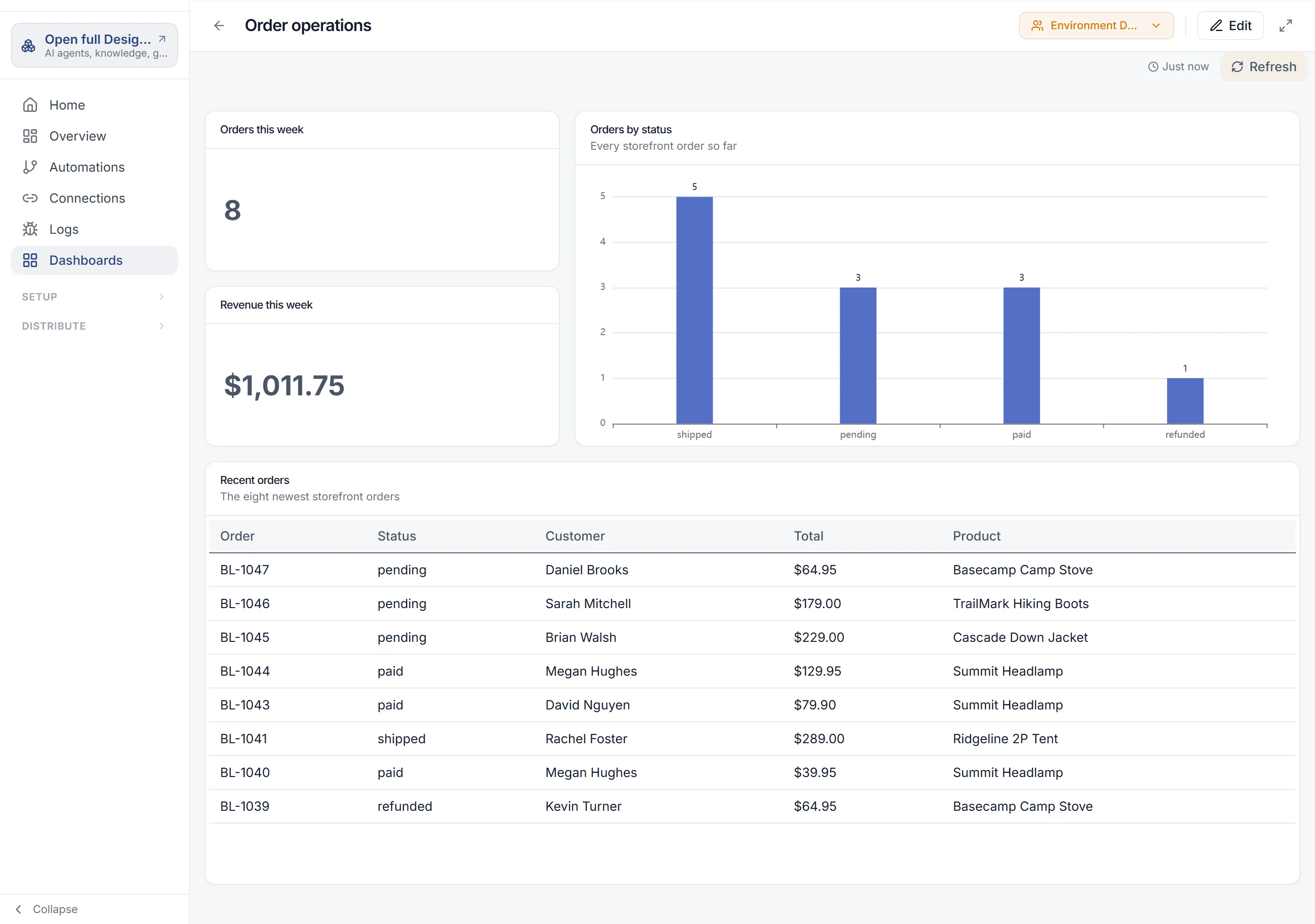
Embed a dashboard in another product
Section titled “Embed a dashboard in another product”-
Save the dashboard, then select Embed in the toolbar.
-
On Security, turn embedding on. Under Allowed Origins, add each site that may show the dashboard, such as
https://example.com. Wildcards likehttps://*.example.comcover subdomains. -
Choose the Authentication Type:
- Host JWT Token (recommended): your product sends its user’s JWT, and work.studio checks it against your JWKS URL, Expected Issuer and Expected Audience. Under Customer Scope Claims, name the claims that carry the customer and user IDs (by default
customerIdandsub), so each customer sees only their own data. - API Key: one long-lived token per dashboard. Select Generate New Token and copy it; it isn’t shown again. Every viewer sees the same data.
- Host JWT Token (recommended): your product sends its user’s JWT, and work.studio checks it against your JWKS URL, Expected Issuer and Expected Audience. Under Customer Scope Claims, name the claims that carry the customer and user IDs (by default
-
Select Save Security Settings.
-
On Embed Code, choose Full Dashboard or a single widget, set the size and Theme, and copy the Embed Code or Direct Link.
The Overview page
Section titled “The Overview page”Overview in the sidebar opens a page titled “Operations”. In Flow it starts on Automation Runs (runs, success rates and run times). Its view picker also offers Executive Overview, Connections Health, Social Inbox and your own dashboards under Custom Dashboards.