

Runs and logs
Every time an automation runs, Flow records the run: when it started, how long it took, what each step did and whether it finished. You find runs in Logs.
In Flow the page is called Logs. In the full Designer view the same page is Runs & Logs, with more tabs.
The Logs page
Section titled “The Logs page”Logs has two tabs in Flow: Runs, one row per run, and Events, the individual events those runs logged.
At the top:
- Live means the list refreshes every 10 seconds. Pause live updates stops that, and Refresh now reloads once.
- The time range: All time, Last 5 minutes, Last 15 minutes, Last hour or Last 24 hours.
- Export downloads the runs or events you’re looking at as JSON.
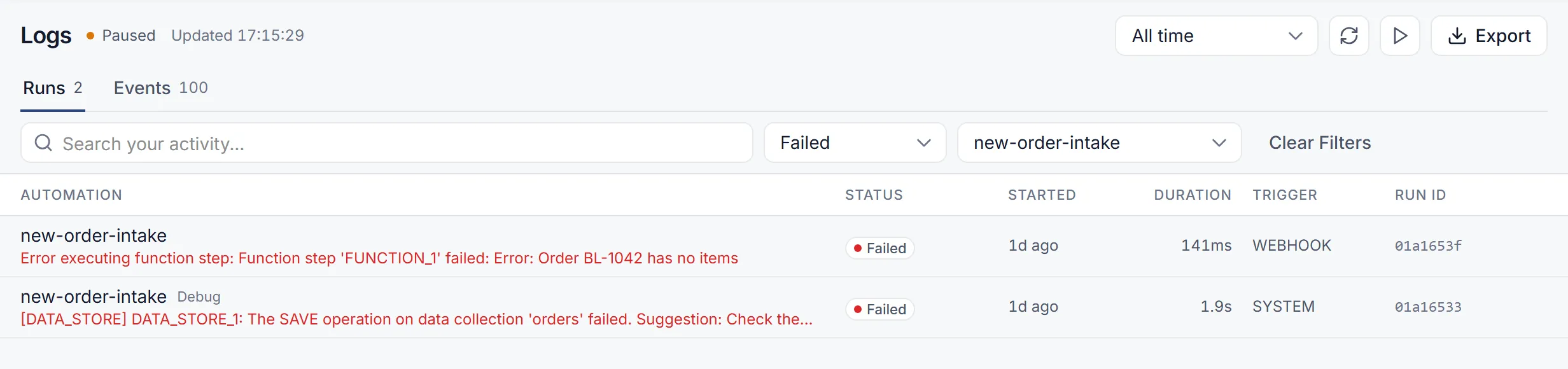
The Runs tab lists Automation, Status, Started, Duration, Trigger and Run ID. Runs from the test panel are tagged Debug.
To narrow the list, use the status filter (All statuses, Finished, Failed, Running, Queued, Paused, Cancelled, Terminated), the automation filter (All automations), or Search your activity…. Clear Filters resets them.
Run statuses
Section titled “Run statuses”| Status | Meaning |
|---|---|
| Queued, Pending, Parsing | The run is about to start. |
| Running | Steps are running. |
| Waiting | The run is paused at a human step until someone answers. |
| Finished | The run reached the end. |
| Failed | A step failed and the run stopped. |
| Cancelled | The run was cancelled. |
| Terminated | The run was stopped before it finished. |
Look inside a run
Section titled “Look inside a run”-
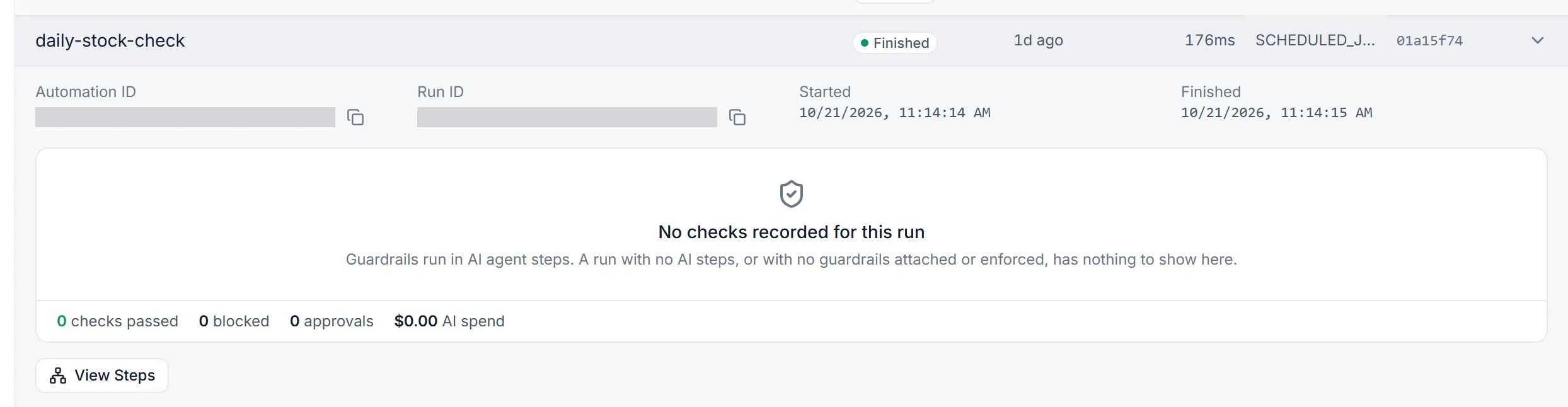
On the Runs tab, select a run to expand it. You see its Automation ID, Run ID, Started, Finished and, for a run started by another automation, its Parent run.
-
Below that is a summary of the run’s checks: which guardrails ran on its AI steps, any approvals, and its AI spend.
-
Select View Steps for the step timeline: each step, its status and how long it took. If the run started other automations, they’re listed under Child runs.
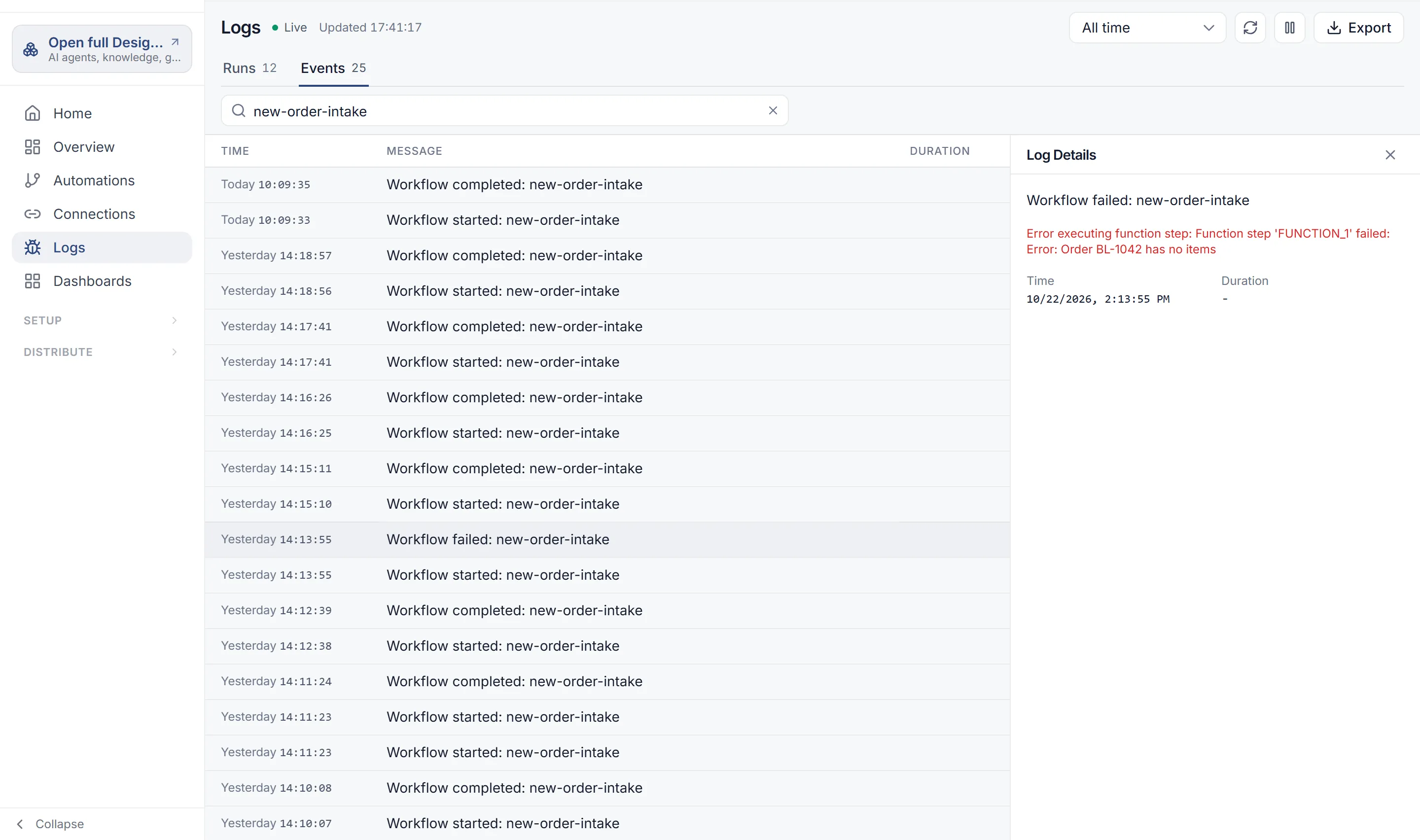
On the Events tab, select an event to open Log Details. It shows the run the event belongs to, with its Input and Output. View Full Run opens that run with its step timeline.
Read a failed run
Section titled “Read a failed run”-
In Logs, set the status filter to Failed. The error shows on each row.
-
Expand the run and select View Steps to see which step failed.
-
On the Events tab, open the run’s events. Log Details shows the run’s Input, which you need to try it again.
-
Open the automation, select Test, paste that input on the JSON input tab, and select Run Test. Select the failed step on the canvas: the Step tab shows its error and output.
-
Fix the step, save, test again, and publish.
Common causes:
- A blank value. An expression that points at nothing is empty. Check the editor’s Problems for misspelled names. See When an expression points at nothing.
- “Workflow has no deployed version.” The automation was run through the API or by hand before it was ever published. A trigger on such an automation starts no run at all: its Deliveries say “The automation has no published version”. See Triggers.
- A connection that needs signing in again. See Connections.
Other places to see runs
Section titled “Other places to see runs”- A trigger’s runs: in Trigger Management, select View run history on the trigger. See Triggers.
- The Automations list: Runs (7d) shows each automation’s runs in the last seven days, and how many failed.
- Overview: the Automation Runs view charts runs across your automations.