Test and publish
You test the draft you’re working on, then publish it. Publishing freezes that version and makes it the one your triggers run. Later edits go into a new draft.
Draft, Live and Edited
Section titled “Draft, Live and Edited”The toolbar and the Automations list show where an automation stands:
| Label | Meaning |
|---|---|
| Draft vN | Never published. Triggers can’t run it yet. |
| Live vN | Version N is published and is what triggers run. |
| Edited | Next to Live: there are changes since the live version that aren’t published yet. |
| Archived | This version is archived. |
In the Automations list’s card view, the same states read Deployed, Draft and Changes.
Test an automation
Section titled “Test an automation”-
Select Save. A test runs the last saved version, so unsaved changes on the canvas aren’t tested.
-
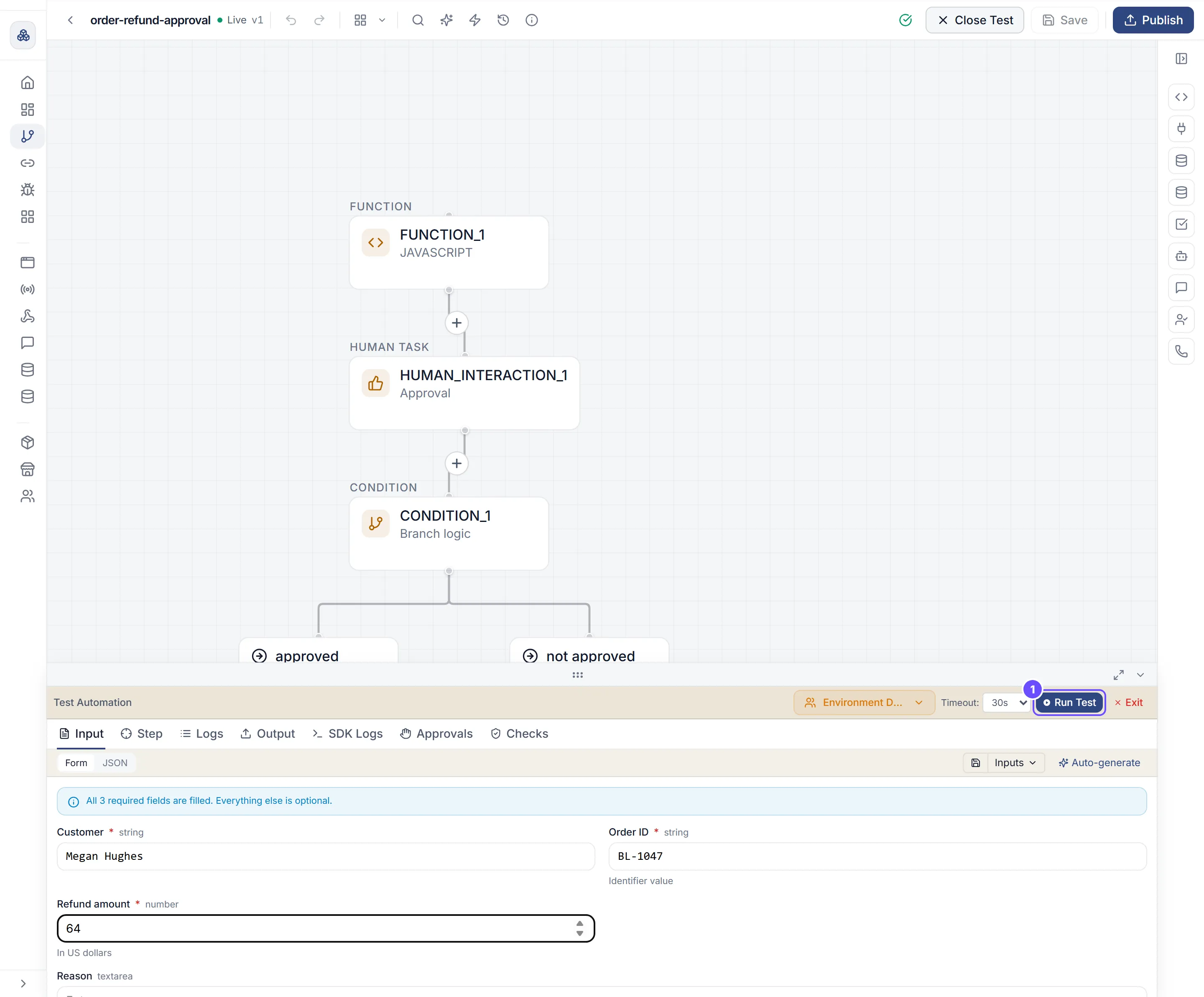
Select Test in the toolbar. The Test Automation panel opens.
-
On the Input tab, give the run its input:
- Form shows a field for each input the automation uses.
- JSON takes the input as JSON, such as
{"customer": {"email": "dana@example.com"}}. It becomes{{input.…}}for the steps. - Auto-generate fills in sample input based on the automation.
- Inputs lists inputs you’ve saved. Save the current one to reuse it.
-
If the automation uses connections, check the Connections strip at the top of the Input tab. It says All ready, or how many connections need setup. Select Connect on a row to set one up.
-
Select Run Test. If a required input is empty, Flow asks for it first.
-
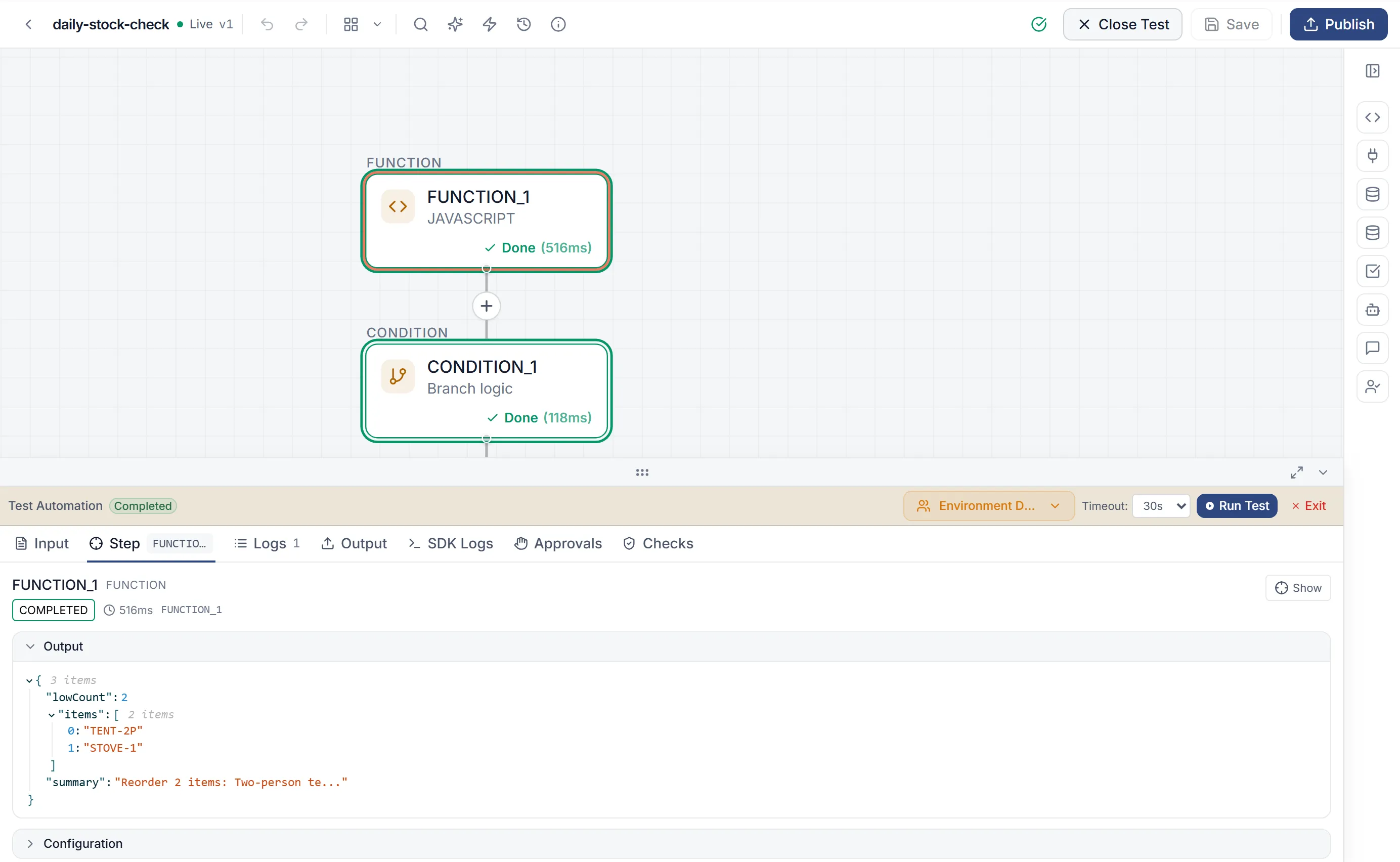
Watch the run. Each step on the canvas shows its status, and the header ends with Completed or Failed.
-
Select Exit to leave test mode.
Test as a customer
Section titled “Test as a customer”If you build apps for your customers, pick a customer in the test panel’s customer menu, labeled Environment Default until you change it. The run then uses that customer’s connections. Add Test Customer creates one for testing. The Connections strip shows what that customer still needs, with Connect for this customer.
The test panel’s tabs
Section titled “The test panel’s tabs”| Tab | Shows |
|---|---|
| Input | The input for the next run, and the connections it needs. |
| Step | The step you select on the canvas: its status, duration, Output and any error. |
| Logs | A timeline of the run and one line per event. |
| Output | Each step’s output, after the run. |
| SDK Logs | Lines written with sdk.log.info() and similar by Smart Function steps. |
| Approvals | Who was asked to decide, what they decided, and how long it took. |
| Checks | Which guardrails checked each AI step, what they did, and the run’s AI spend. |
When the run reaches a human step, the panel shows Waiting for a response and lets you answer there.
Timeout
Section titled “Timeout”Timeout sets how long the panel waits for the run, from 30s (the default) to 30m. If time runs out, the run keeps going on the server and the panel keeps following it.
Test runs also appear in Logs, tagged Debug.
Publish
Section titled “Publish”-
Save your changes. Publish is turned off while there are unsaved changes (“Save changes before publishing”).
-
Select Publish. The dialog Publish Automation? says what will happen: “Make version N live” and “Create a new draft (vN+1) for future edits”.
-
Select Publish. Flow confirms with “is now live. You’re now editing draft vN+1.”
“A published version cannot be changed - later edits go into the new draft.” Your triggers keep running the published version until you publish again.
Publishing can be refused. Flow won’t publish a version that is already published, or one whose steps don’t fit together. Fix the problems shown next to the Test button, then try again.
Publish appears only on a draft, and only if you’re allowed to change the automation’s lifecycle.
To move an automation to another environment, see Environments.
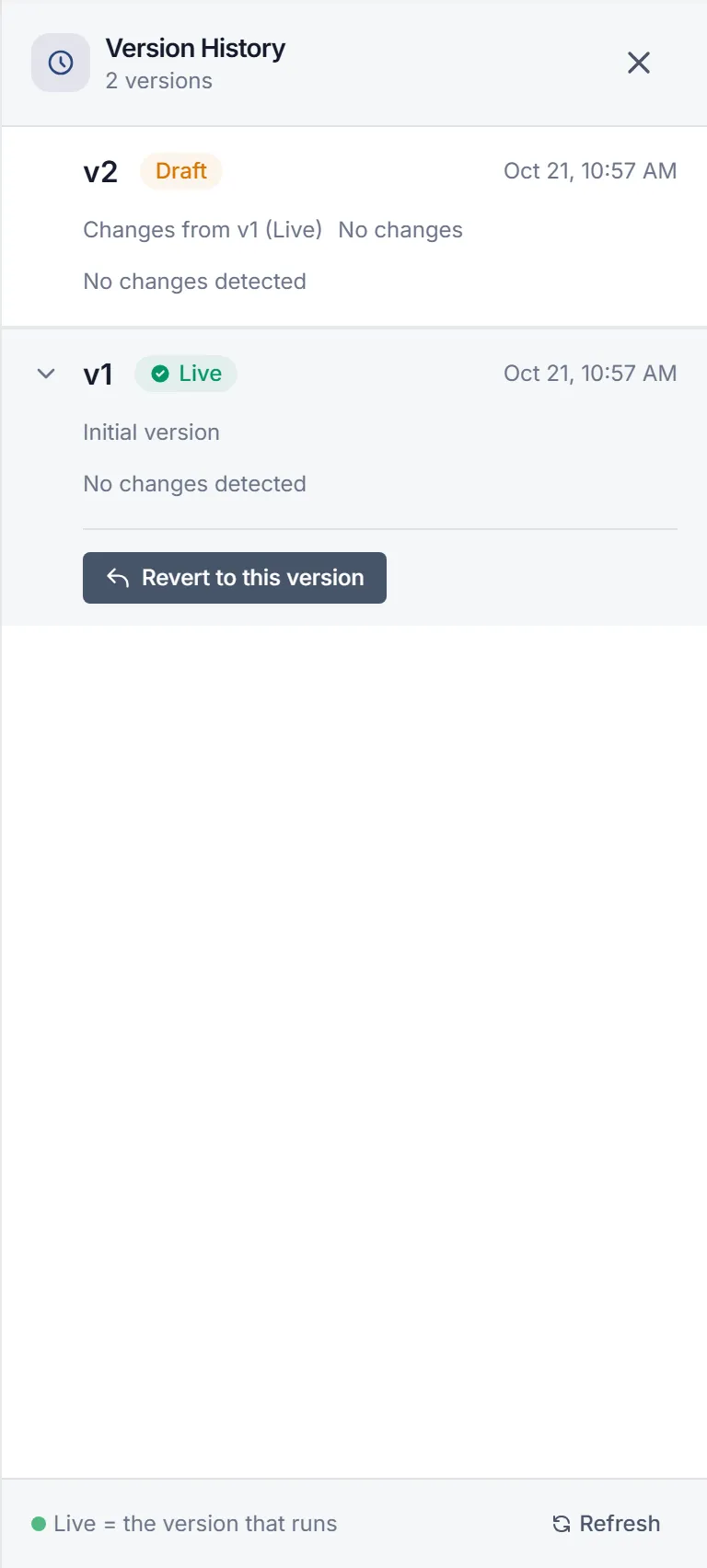
Version history
Section titled “Version history”Select Version History in the toolbar to see every version.
- Live marks the version your triggers run: “Live = the version that runs”.
- Draft marks the version you’re editing.
- Each version lists its changes from the one before, such as “+2 steps, ~1 modified”. The draft is compared with the live version.
Go back to an earlier version
Section titled “Go back to an earlier version”-
In Version History, find the version and select Revert to this version.
-
Confirm with Revert. Your current draft is replaced with that version’s steps. If there is no draft, Flow creates one.
-
Check the draft, then publish it.
Reverting doesn’t publish anything. The version in production keeps running until you publish the draft.