

Conditions and loops
A Condition step picks a path based on a value. A Loop step repeats a set of steps, for each item in a list or a set number of times. Both are in the Logic group of the step palette.
Condition
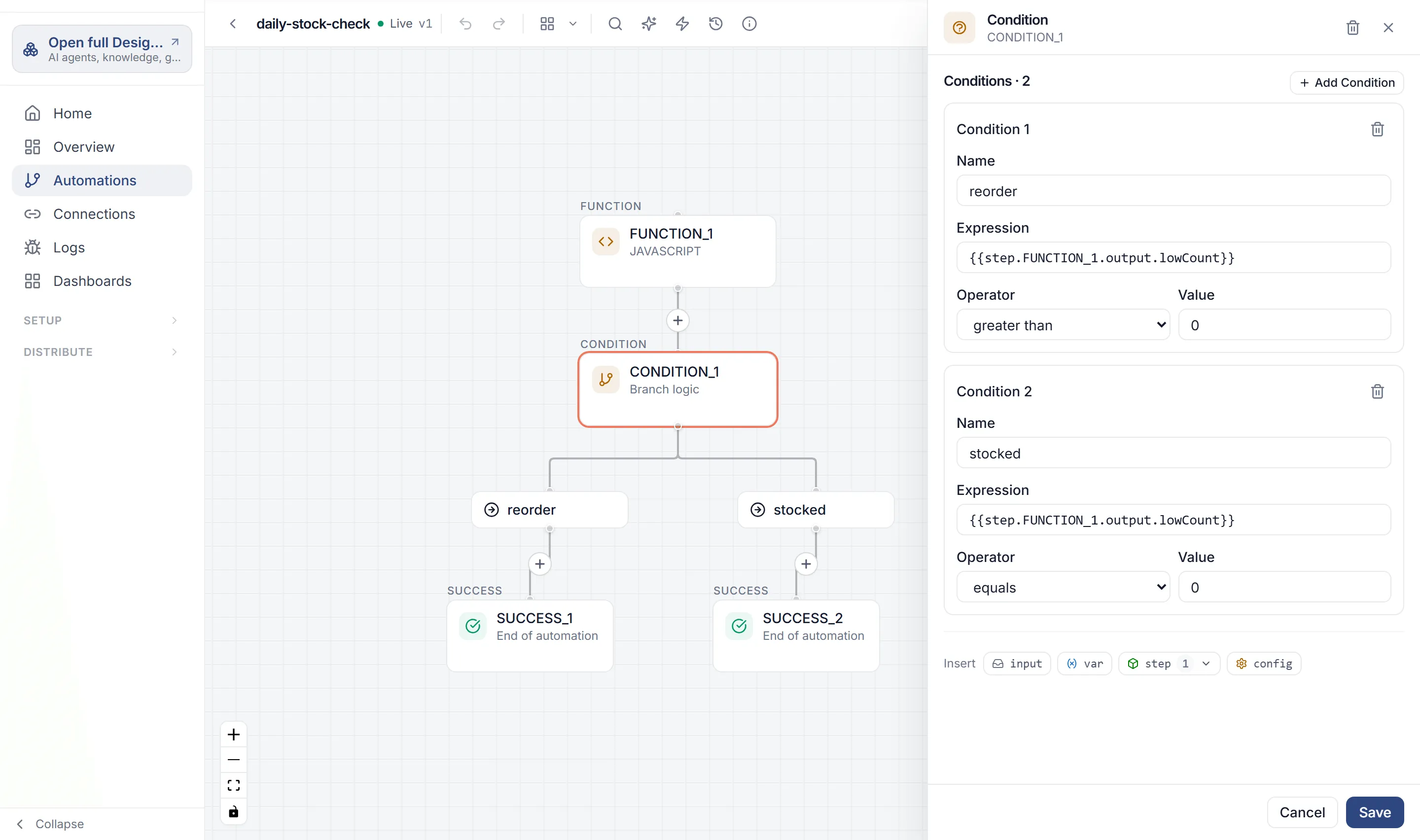
Section titled “Condition”A Condition step holds a list of conditions. Each condition is one branch, drawn on the canvas as its own Condition Branch with its own + for the steps on that path.
Add a condition
Section titled “Add a condition”-
Add a step from Logic › Condition. Add it at the end of the automation, before the steps that should depend on it. (Inserting it between two existing steps adds an Otherwise branch that keeps the steps after it connected; see below.)
-
For the first branch, fill in:
- Name: a label that’s unique in this step, such as
large. - Expression: the value to test, such as
{{input.total}}. - Operator: how to compare it, such as greater than.
- Value: what to compare it with, such as
1000.
- Name: a label that’s unique in this step, such as
-
Select Add Condition for each further branch.
-
Select Add Step. Then add the steps for each branch with the + under its Condition Branch.
How branches are chosen
Section titled “How branches are chosen”- The conditions are checked from top to bottom, and the first one that matches wins. Its branch runs; the others don’t.
- If none matches, the Otherwise branch runs, if the step has one (see The Otherwise branch). Without one, none of the branches runs.
Both sides are filled in first, then compared as text. That affects some operators:
| Operator | Matches when |
|---|---|
| equals, does not equal | The text is exactly the same, including capital letters. |
| contains | The Value appears anywhere in the Expression. |
| matches | The Expression matches the Value as a regular expression, from start to end. |
| greater than, less than, greater than or equal to, less than or equal to | Compared as numbers when both sides are numbers, otherwise in alphabetical order. |
| is one of, is not one of | The Expression is (or isn’t) one of the items in the Value. The Value is a list from an expression such as {{var.tiers}}, a JSON list such as ["gold","platinum"], or items separated by commas: gold, platinum. Items are compared whole, so gold matches and gol doesn’t; numbers compare as numbers, so 3 matches 3.0. An empty list holds nothing: is one of is false and is not one of is true. |
| has no value, has a value | The Expression points at nothing, is null, or is empty text. |
| is empty, is not empty | As has no value, and also an empty list [] or an empty object {}. |
has no value, has a value, is empty and is not empty don’t use the Value field.
A Variable whose value is one expression that points at nothing, such as {{input.event.thread_ts}} when the event has no thread, has no value. So has no value on {{var.threadTs}} is true, and the variable is empty wherever you use it in text.
To branch on a true/false value, such as an approval’s result, use equals with the Value true: Expression {{step.HUMAN_INTERACTION_1.output.approved}}, equals, true.
A misspelled name in the Expression is listed under Problems with the name to use. Like a right name with a missing field, it is empty when the automation runs, and the condition is checked against an empty value. If the wrong branch runs, check the expression first. See When an expression points at nothing.
The Otherwise branch
Section titled “The Otherwise branch”If you insert a Condition between two existing steps, Flow adds a branch named Default that leads to the steps that were already there. The panel shows it as Otherwise: it runs when none of the conditions above it match. New conditions you add go above it.
Any branch whose condition is always true (Expression true, equals, Value true) works the same way: it is checked after all the others, wherever it sits in the list.
Add a loop
Section titled “Add a loop”-
Add a step from Logic › Loop.
-
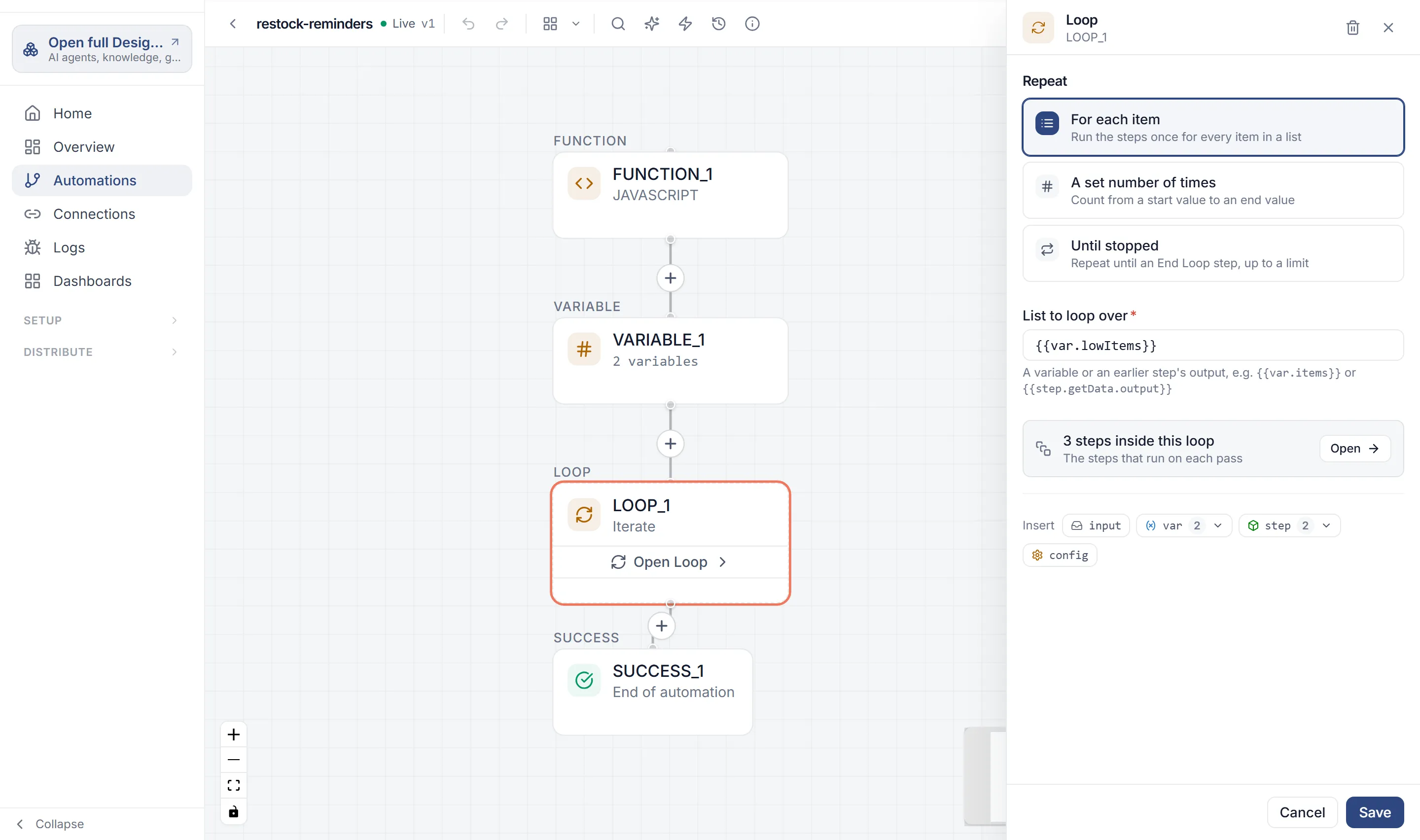
Under Repeat, pick one:
- For each item: “Run the steps once for every item in a list”. Enter the List to loop over, such as
{{step.CONNECTOR_1.output.tickets}}or{{var.items}}. - A set number of times: “Count from a start value to an end value”. Enter From and To.
- Until stopped: “Repeat until an End Loop step, up to a limit”. Enter Stop after, a safety limit in passes (100 unless you change it).
- For each item: “Run the steps once for every item in a list”. Enter the List to loop over, such as
-
Select Add Step.
-
On the canvas, select Open Loop on the loop to open its contents. A bar shows where you are, such as Root ›
LOOP_1(Inside Loop). Add the steps that run on each pass here.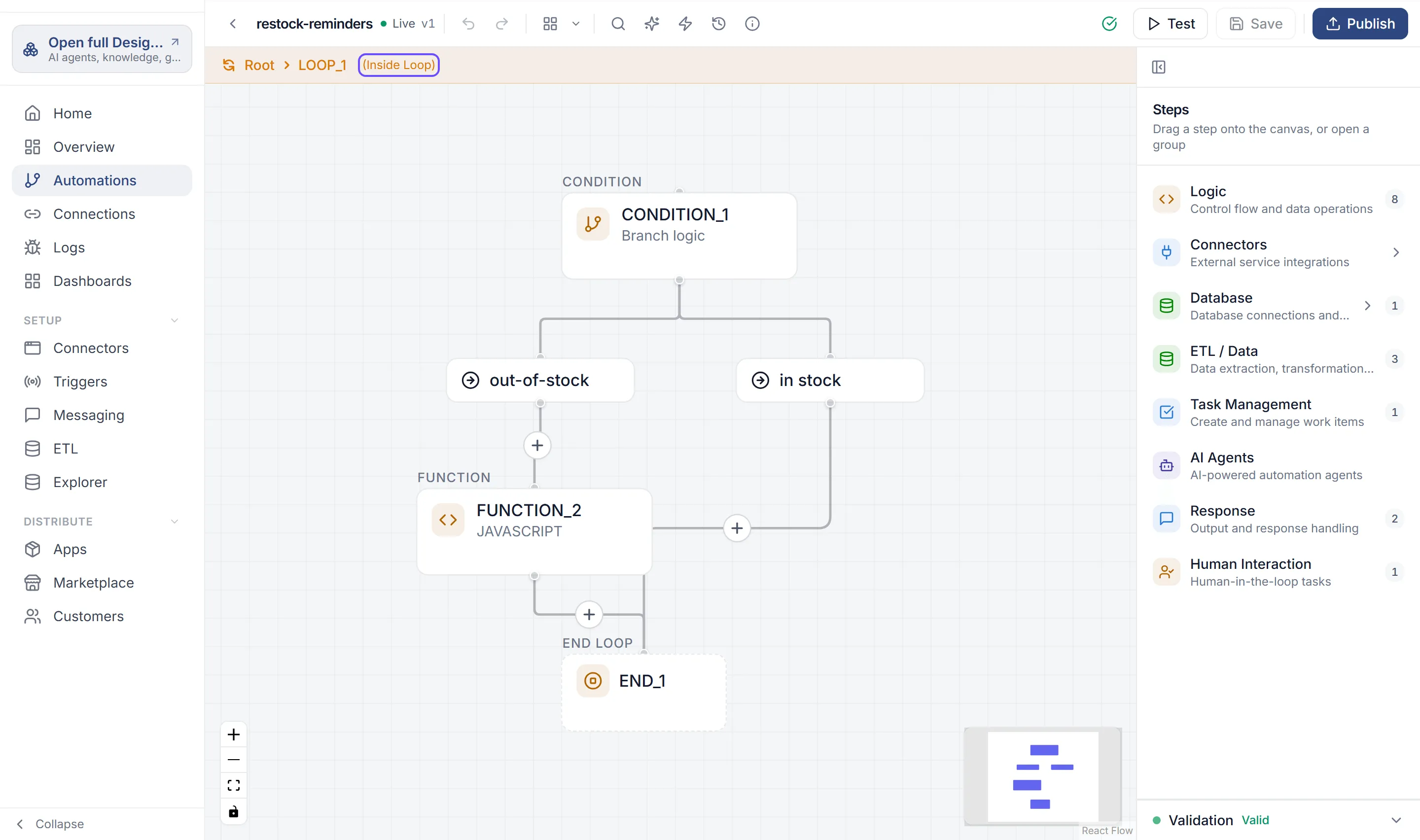
-
Select Root in that bar to go back to the rest of the automation.
Read the current item
Section titled “Read the current item”Inside the loop, these expressions describe the current pass:
| Expression | For each item | A set number of times | Until stopped |
|---|---|---|---|
{{loop.current}} |
The current item | Not set | Not set |
{{loop.index}} |
The position, starting at 0 | The count, from From to To | The pass number, starting at 0 |
{{loop.size}} |
The number of items | The number of passes | Not set |
If the items are objects, read their fields with a dot: {{loop.current.title}}. In a loop inside a loop, loop means the inner one.
A set number of times includes both ends: From 1 and To 3 runs three passes, with {{loop.index}} 1, 2 and 3. If they’re equal, the loop runs once. If To is less than From, the step fails.
Stop a loop early
Section titled “Stop a loop early”Add Logic › End Loop inside the loop, usually at the end of a condition branch. When a run reaches it, the loop stops after this pass and the run continues with the step after the loop. Nothing can follow End Loop on its branch.
An Until stopped loop needs an End Loop. Without one, it runs until it reaches Stop after.
When a loop fails or is skipped
Section titled “When a loop fails or is skipped”- An empty list skips the loop, and the run carries on.
- A List to loop over that is empty because the expression points at nothing fails the step with “The expression ‘…’ returned null.”
- A value that isn’t a list, such as text or an object, fails the step.
Variables and results in a loop
Section titled “Variables and results in a loop”- A Variable step inside the loop changes the variable for the rest of the pass, the passes after it, and the steps after the loop. A running total works: Number variable
total, value{{ var.total + loop.current.amount }}. - After the loop, the steps that follow see the last pass:
{{step.<id>.output}}for a step inside the loop is its output from the last pass, and a variable first set inside the loop keeps its last value. - To use every pass’s result, total it in a variable as above, or process the whole list in a Function step.