

The automation editor
The editor is where you lay out an automation’s steps on a canvas. It opens when you open an automation from Automations.
The toolbar
Section titled “The toolbar”From left to right:
| Control | What it does |
|---|---|
| Back to Automations | Returns to the list. |
| Name and status | The automation’s name, then Draft, Live or Archived with a version number, and Edited if the live version has unpublished changes. See Test and publish. |
| Save state | Saving…, Saved, Unsaved changes or Save failed. |
| Undo / Redo | Ctrl+Z and Ctrl+Shift+Z. |
| Auto Layout | Tidies the canvas (Ctrl+Shift+L). The arrow next to it picks a Layout style: Vertical, wrapped, Vertical or Horizontal. |
| Generate with AI | Opens the AI Automation Generator. See Create an automation. |
| Triggers | Opens Trigger Management. See Triggers. |
| Version History | Every version, with what changed. See Version history. |
| Automation Details | The name, description, IDs and endpoint. |
| Problems | No problems found, or a count such as 2 errors. Select the count to see the problems. |
| Test | Opens the test panel (Ctrl+Shift+D). |
| Save | Saves your changes (Ctrl+S). |
| Publish | Makes this version live. Shown only on a draft. |
On a Mac, use ⌘ where these pages say Ctrl.
Save your work
Section titled “Save your work”Flow does not save to the server by itself. Select Save or press Ctrl+S.
Until you save, your changes are kept only in this browser. If you come back to an automation with unsaved changes, Flow asks Unsaved Changes Found: select Restore Changes to keep them or Discard Draft to drop them. If you try to leave with unsaved changes, Flow asks Leave Page? first.
Add a step
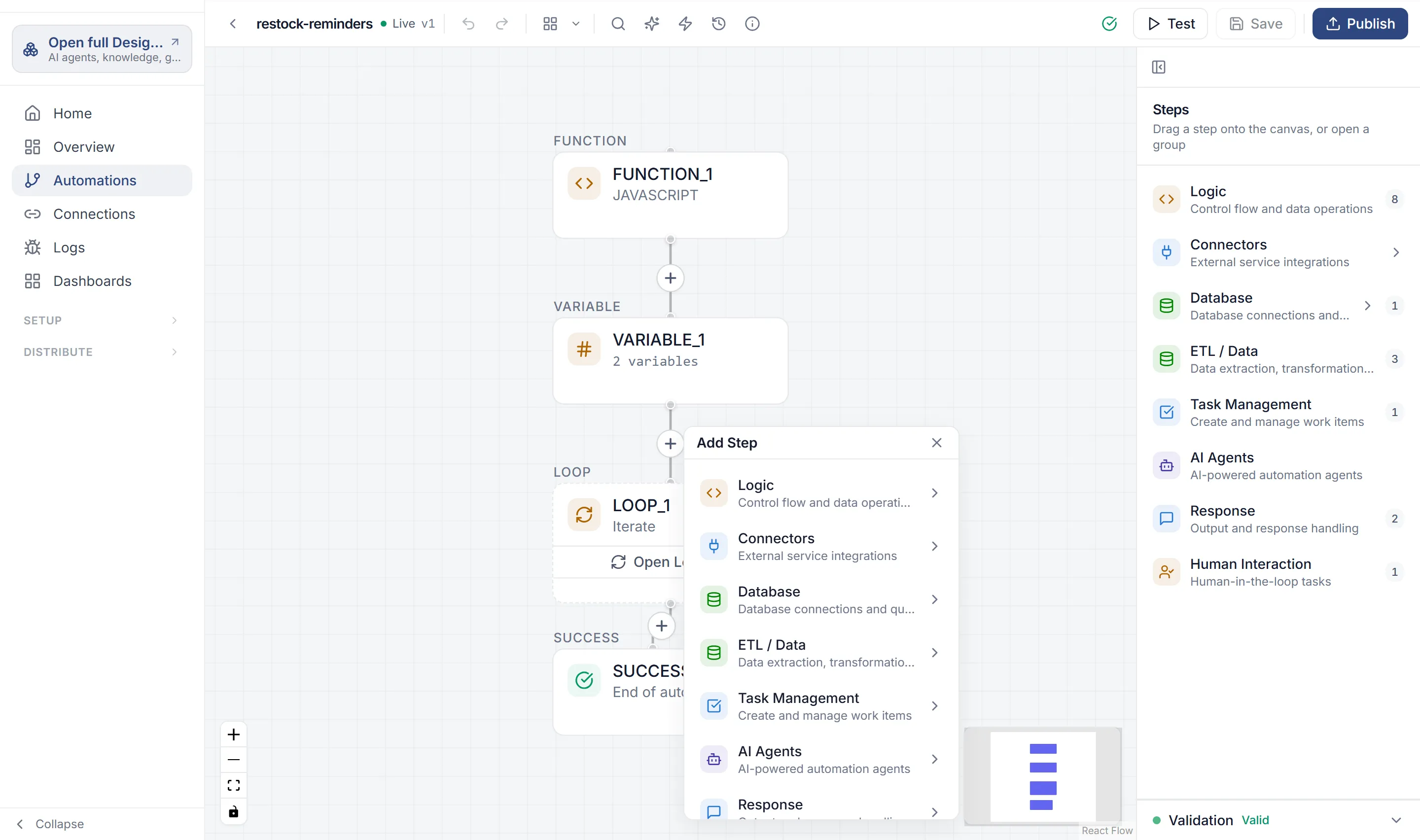
Section titled “Add a step”The Steps palette is on the right of the canvas: “Drag a step onto the canvas, or open a group”.
-
Do one of these:
- Drag a step from the palette and drop it near the step it should follow. Flow shows Drop here when the spot is valid.
- Select the + under a step that has nothing after it, or the + on the line between two steps. The Add Step panel opens.
-
Pick a group, such as Logic or Connectors, then the step. Inside a group you can search, for example Search steps… or Search operations… for a connector.
-
The step’s settings panel opens. Fill it in, then select Add Step. The step isn’t added until you do.
A new step takes the place of the link it was dropped on: the step before it now leads to it, and it leads to the step that came next.
You can’t add a step after Success Response, Error Response or End Loop, because those end a path. To add a step to one path of a condition, drop it on that branch.
Connect steps
Section titled “Connect steps”Steps run in the order the lines on the canvas show. Adding a step between two others connects it for you.
You can also draw a line yourself: drag from the handle at the bottom of a step to the handle at the top of another. Each step has one way out, so a step that already leads somewhere won’t take a second line. To branch, use a Condition.
Open, move and delete a step
Section titled “Open, move and delete a step”- Open a step’s settings: select it on the canvas. While the test panel is open, a single select only picks the step for the Step tab, so double-click it to open its settings.
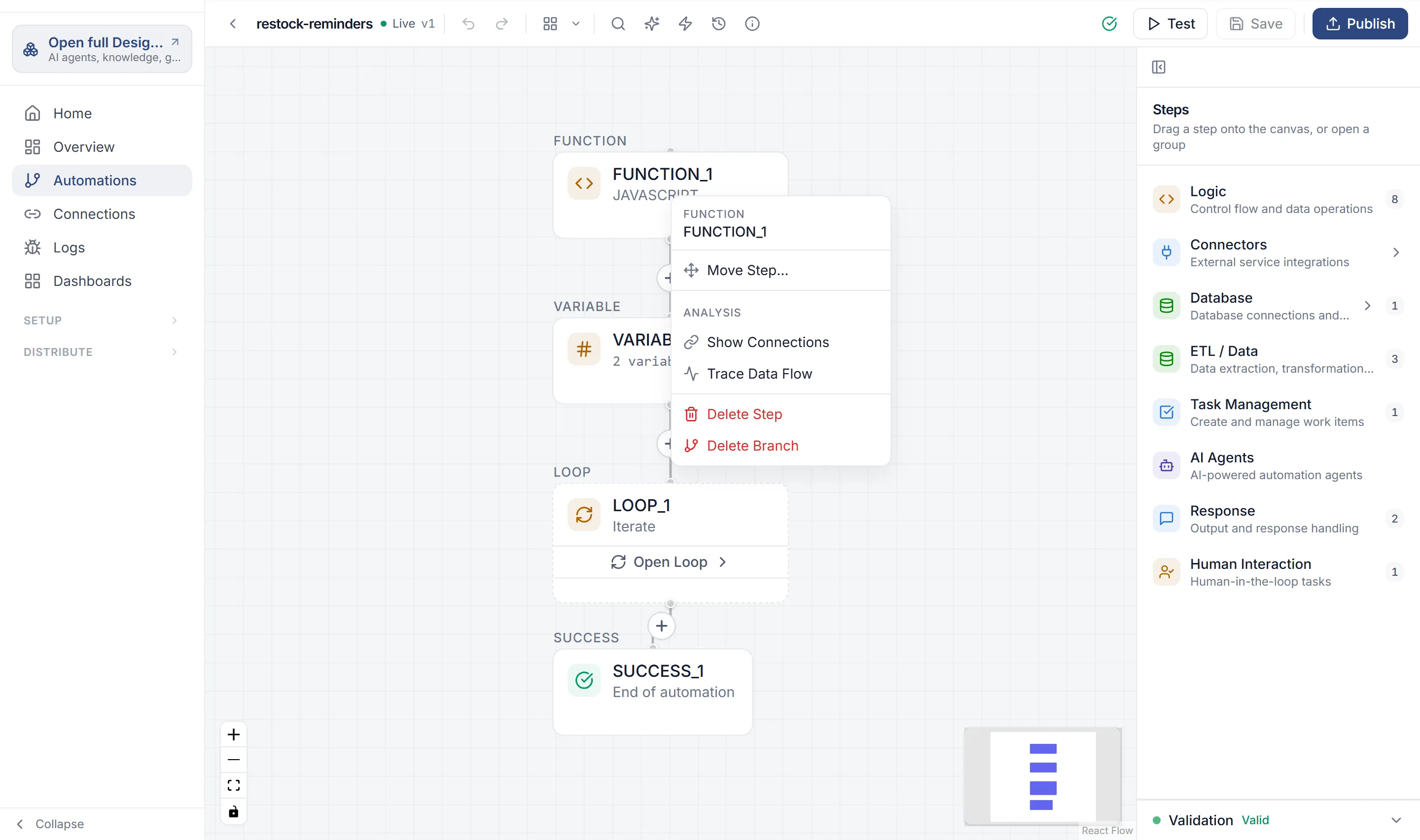
- Move a step: right-click it and choose Move Step…, then select the line where it should go, and confirm with Move Step. If the step uses values from steps before it, check they still come first.
- Delete a step: right-click it and choose Delete Step, or use the trash icon in its settings panel. Delete Branch removes the step and every step after it. Neither can be undone.
The right-click menu also has an Analysis section with Show Connections and Trace Data Flow, which help you see how a step is linked to the rest of the automation.
Step IDs
Section titled “Step IDs”Every step has an ID, such as FUNCTION_1 or CONDITION_2. Later steps use it to read the step’s result, as in {{step.FUNCTION_1.output}}. See Data and expressions.
To see a step’s ID, hover over the step, or open it: the ID is under the panel’s title. A step keeps its ID for good, so references to it don’t break.
The step palette
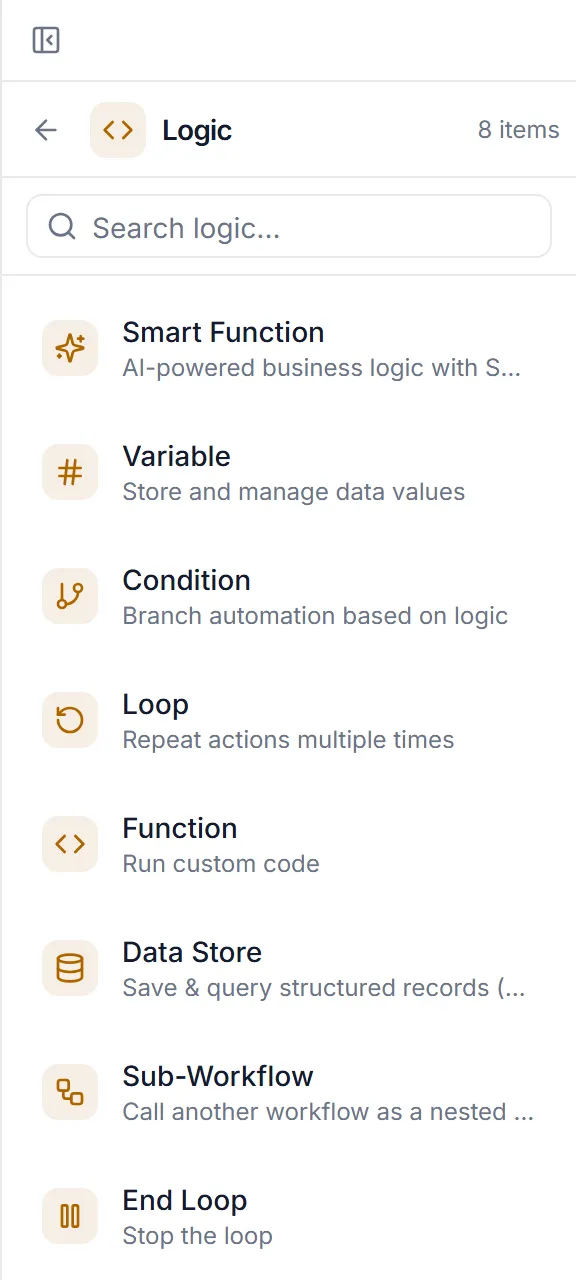
Section titled “The step palette”The palette groups steps like this. The step reference describes each one.
| Group | Steps |
|---|---|
| Logic | Smart Function, Variable, Condition, Loop, Function, Data Store, Sub-Workflow, End Loop |
| Connectors | Each connector in your catalog. Pick a connector, then an operation. |
| Database | SQL Query, and each database connector |
| ETL / Data | Poll Data, ETL Job, Run on Agent |
| Task Management | Create Task |
| AI Agents | Each agent you’ve built, and AI Pipeline in the full Designer view |
| Response | Success Response, Error Response |
| Human Interaction | Your task templates, or Custom Task |
The palette is the same in Flow and the full Designer view, except that AI Pipeline is only in the full view. You build agents in the full Designer view, then use them here from AI Agents. See Agents.