

Environments and deployments
An environment is a separate space inside your organization, such as staging or production. What you build in one environment doesn’t change another, so you can try changes before they reach production.
Switch environments
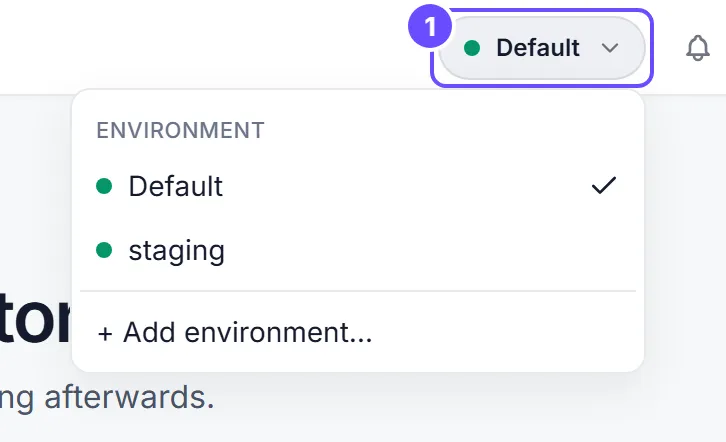
Section titled “Switch environments”The Environment switcher in the top bar shows the environment you’re working in. Select it to pick another.
An environment whose name contains “prod” or “production” is tagged production and colored as a warning. Hovering it shows “You are working in production”.
A new organization starts with one environment, named “Default”.
The switcher is the same in the simplified Flow view and the full Designer view.
What belongs to an environment
Section titled “What belongs to an environment”These are kept per environment:
- Automations. Each automation belongs to one environment, and publishing it there doesn’t affect any other.
- Customers and their data. Deleting a customer covers only the selected environment.
- App secrets, which are bound per environment.
- Enforced guardrails and the standard guardrails you install.
- The built-in data store used by the Data Store step.
To keep a step that talks to another system working in every environment, choose Portable Binding for its connection. The binding resolves to a different connection in each environment. See Connection bindings.
Add an environment
Section titled “Add an environment”-
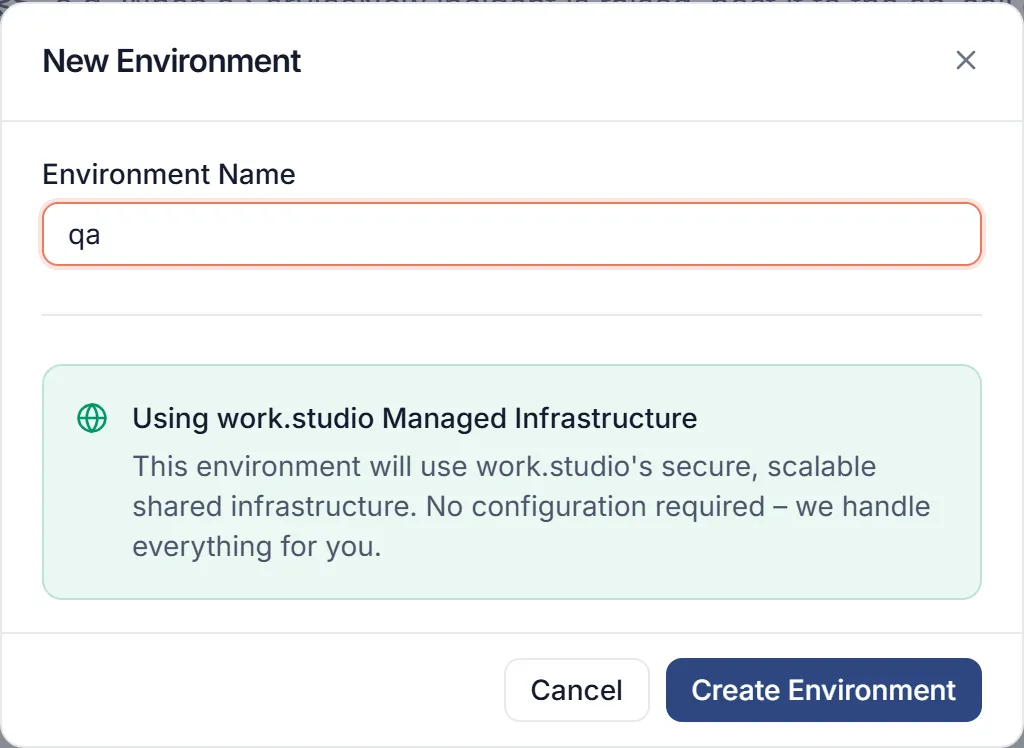
Select the Environment switcher, then + Add environment… at the bottom of the list.
-
In New Environment, enter the Environment Name, for example
staging. -
Select Create Environment. The page reloads.
Creating an environment needs the environment:update permission.
Access is granted per environment, so being in the organization doesn’t put you in all of them. To see every environment and ask for access, open the avatar menu, select Team, and go to the Environments tab. Select Request Access on the one you need.
Move work to another environment
Section titled “Move work to another environment”Moving changes between environments happens on the Deployments page, in the full Designer view only. It is in the Apps area under Platform; if your organization has no app yet, open designer.work.studio/releases directly.
A deployment is a named set of changes. You export it from one environment and import it into another.
Package the changes
Section titled “Package the changes”-
In the top bar, switch to the environment that has the changes.
-
Open Deployments. The banner shows how many changes are pending.
-
Select New Deployment. It’s disabled when nothing has changed since the last deployment.
-
On Select Changes, tick what to include. On Name and Describe, add an optional name, description and tags. On Review and Create, select Create Deployment.
-
Open the new deployment and select Export. A JSON file downloads.
A deployment can include agents, automations, knowledge bases, guardrails, connectors and their operations, ETL jobs, dashboards, apps and environment config.
Import into the target environment
Section titled “Import into the target environment”-
In the top bar, switch to the target environment.
-
Open Deployments and select Import. Choose the JSON file.
-
Import Preview lists what will be created, updated or skipped. Select Import N Resources.
What an import does with each automation and dashboard depends on where the deployment came from:
- Another environment of your own organization: the first import creates a copy with its own ID, and the copy’s triggers point at the copy. Later imports of the same automation update that copy. The source environment’s automation is never changed.
- Another organization: the automation keeps its global ID, so a later import updates the same automation.
An import through the API that names no importMode skips resources that already exist, instead of failing.