

Automation plans
“Most automations are more than one automation.” An automation plan takes a description of the whole job and lays out every piece it needs, before anything is built. You review the pieces, change them, and build each one when you’re ready.
For example, “When a ServiceNow incident is updated, push the status back to our tracker, and raise an incident when an alert arrives” needs an automation that reacts to updates, one that other systems call with alerts, and perhaps a table both of them use.
Create a plan
Section titled “Create a plan”-
Start a plan in one of these ways:
- On Home, describe the work, then select Plan it first instead of pressing Enter.
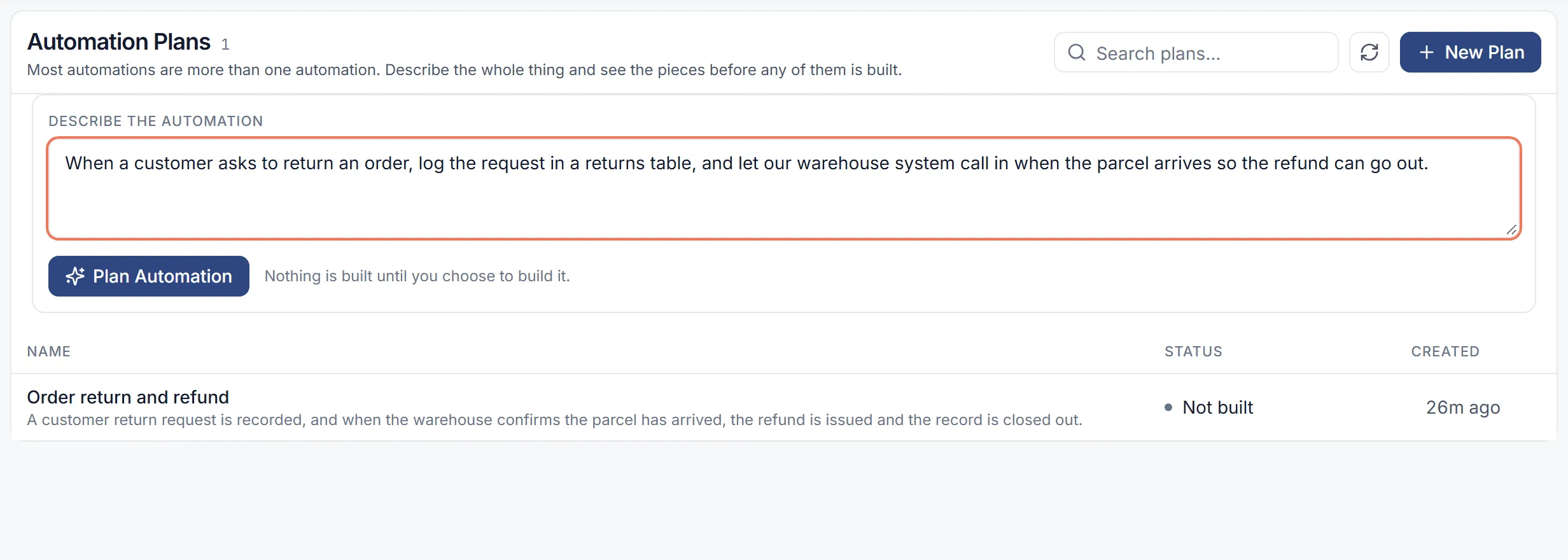
- On Automations, select Plans, then New Plan. Describe the work under Describe the automation and select Plan Automation.
-
Flow shows “Laying it out…” while it works, then opens the plan. “Nothing is built until you choose to build it.”
Read a plan
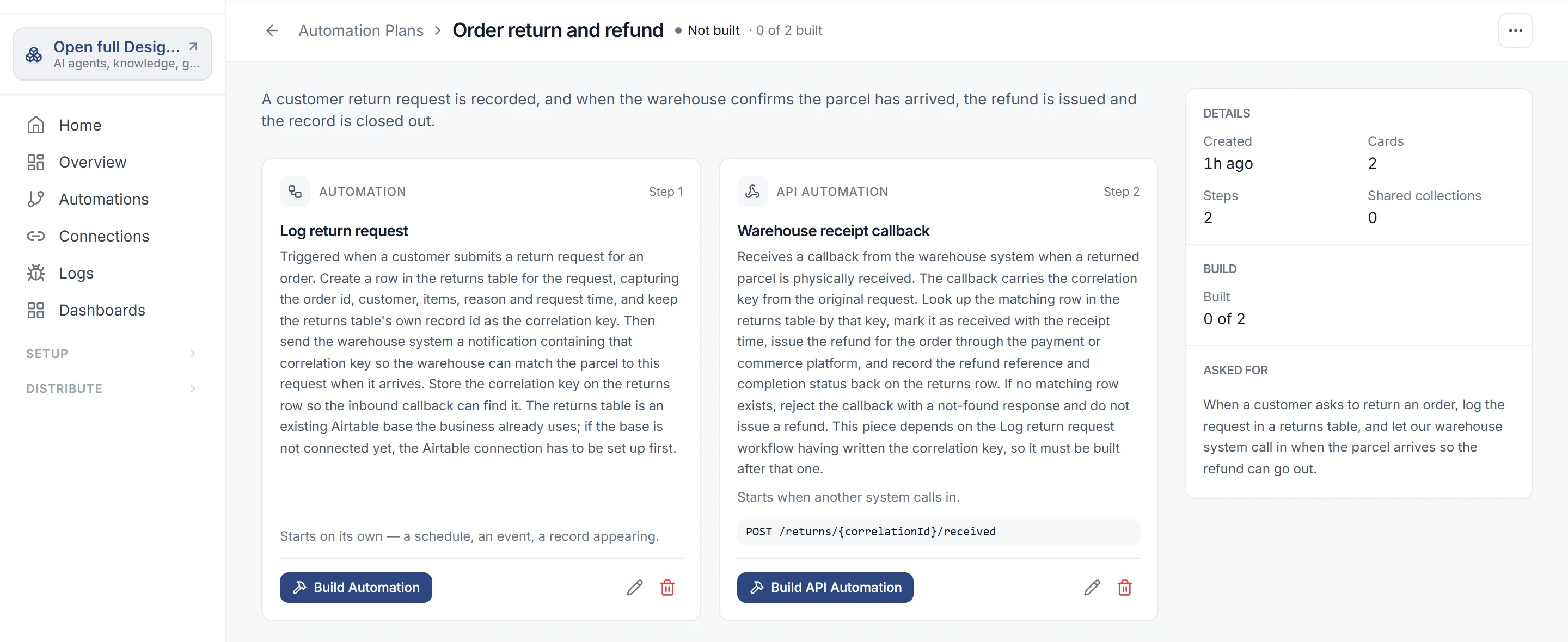
Section titled “Read a plan”A plan is a set of cards, one per piece. Each card has a kind:
| Kind | What it is |
|---|---|
| Automation | “Starts on its own — a schedule, an event, a record appearing.” |
| API automation | “Starts when another system calls in.” The card shows the endpoint it will have, such as POST …. |
| Data collection | “A table the automations read or write.” The card lists its columns and is marked Shared. |
Each card says what the piece does and lists its steps. The side panel shows the plan’s Details (including how many Shared collections it has), how much of it is Built, and the description you Asked for.
Change a card
Section titled “Change a card”Before a card is built, you can change it:
- Edit this card lets you rename it and rewrite What this piece does. “This text is the instruction the builder receives”, so say exactly what the automation should do. Select Save.
- Remove this card takes it out of the plan.
Build the pieces
Section titled “Build the pieces”-
On a card, select Build Automation, Build API Automation or Create Collection.
-
For an automation, Flow creates it and opens it in the editor, and the AI generator builds it from the card. A bar at the top says Part of plan with the plan’s name. A collection is created straight away.
-
When the generator finishes, the card is marked Built. Select Back to Plan and build the next card.
Build each card on its own; there is no button that builds the whole plan. A card that failed shows the error and a Try Again button. A built card has Open.
The plan’s status follows its cards: Not built, Building, Partly built, Built or Failed. The header shows how many are built, such as “2 of 3 built”.
Find and delete plans
Section titled “Find and delete plans”Automations › Plans lists your plans with their Status.
To delete a plan, open it, select More actions, then Delete Plan. “Any automations it already built are kept.”