

Explore and store data
Flow gives you two places for data: Data Explorer, a SQL client for your database connections, and the Data Store step, which saves and finds records from inside an automation without any SQL.
Data Explorer
Section titled “Data Explorer”Data Explorer queries and manages your databases. In Flow, open Setup › Explorer. In the full Designer view it is Workspace › Operate › Data Explorer.
It works with database connections: PostgreSQL, MySQL, MongoDB and Redshift. To add one, see Connect a database.
Run a query
Section titled “Run a query”-
Open Setup › Explorer.
-
In Select a database connection…, pick a connection. Managed databases are listed under Platform databases, your own under Your connections.
-
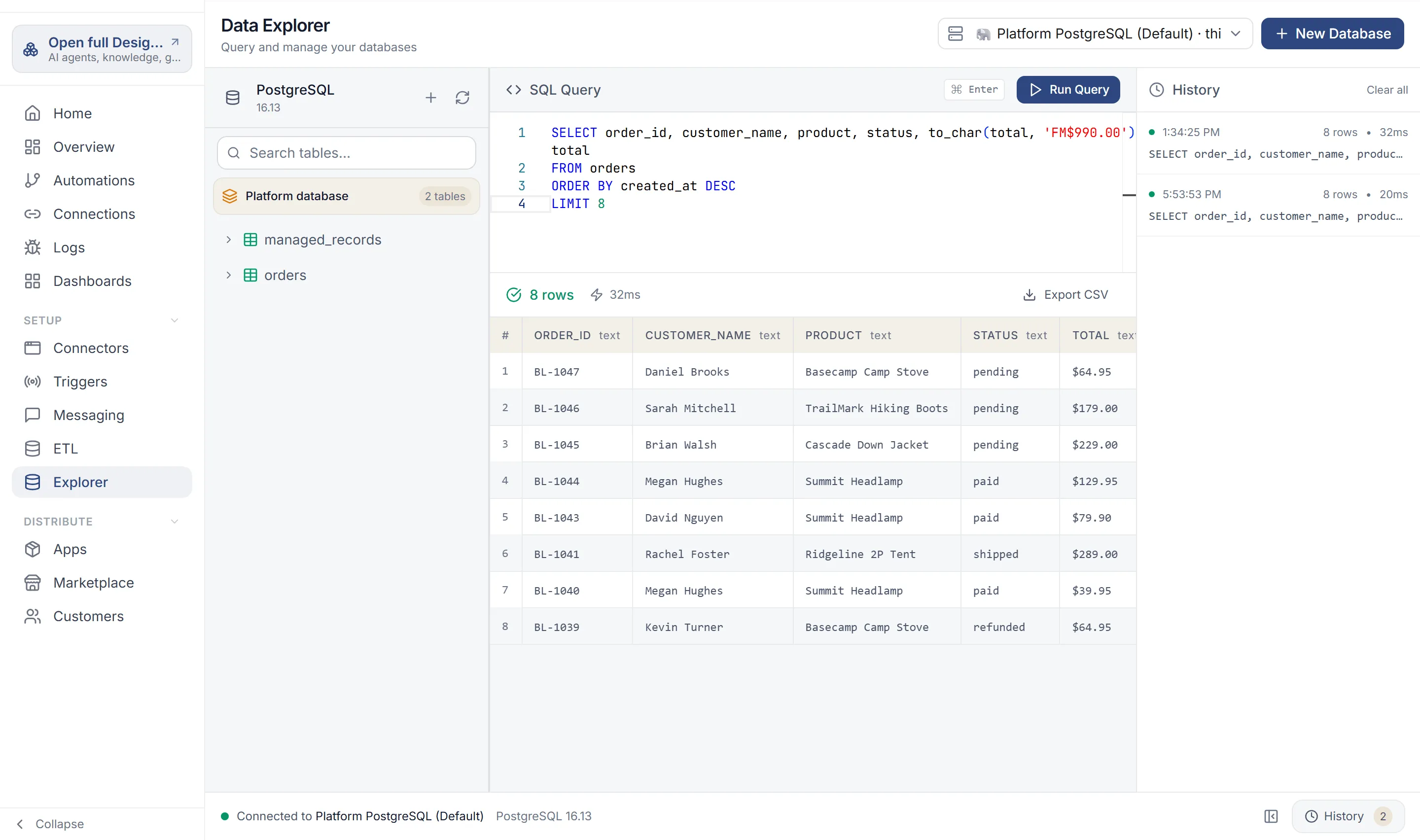
Browse the tables in the schema tree on the left. Hover a table and select Preview data to see its first 100 rows.
-
Write SQL in the SQL Query editor and select Run Query (Ctrl+Enter or Cmd+Enter).
-
To download the results, select Export CSV.
A query returns at most 1,000 rows and stops after 60 seconds. Longer results are marked “(truncated)”.
History at the bottom lists your recent queries. They are kept in your browser, up to 50 per organization.
Who can read rows in Platform databases
Section titled “Who can read rows in Platform databases”Your environment’s built-in data store is one of the Platform databases. It holds your Apps’ people’s records as well as what your automations save. So rows in Platform databases are for your organization’s Owner and Admin only:
- An Owner or Admin of the whole organization can run SQL and Preview data. Each query is recorded in the audit log: who ran it, which tables, how many rows came back, and which Apps’ people were in the result. The rows themselves and the values in the query aren’t recorded.
- Anyone else, including an admin of one environment only and every API key, still sees the tables and their columns. A query or preview is refused: “This is your environment’s built-in data store, which holds your Apps’ people’s records. Only an organization owner or admin can query its rows; every query is audited.”
Your own database connections, under Your connections, aren’t affected.
Create a table
Section titled “Create a table”Select New Table above the schema tree. Enter the Schema, Table Name and Columns (Add Column for each), and turn on Show SQL Preview to see the statement. Select Generate & Run.
Turn on a managed database
Section titled “Turn on a managed database”If you don’t have a database of your own, work.studio can run one for you. Select New Database next to the connection picker. In the Platform Databases window, choose an engine (PostgreSQL, MySQL, MongoDB or Amazon Redshift) and select Activate.
The database then appears under Platform databases, ready to use from Data Explorer and from automations.
Store records from an automation
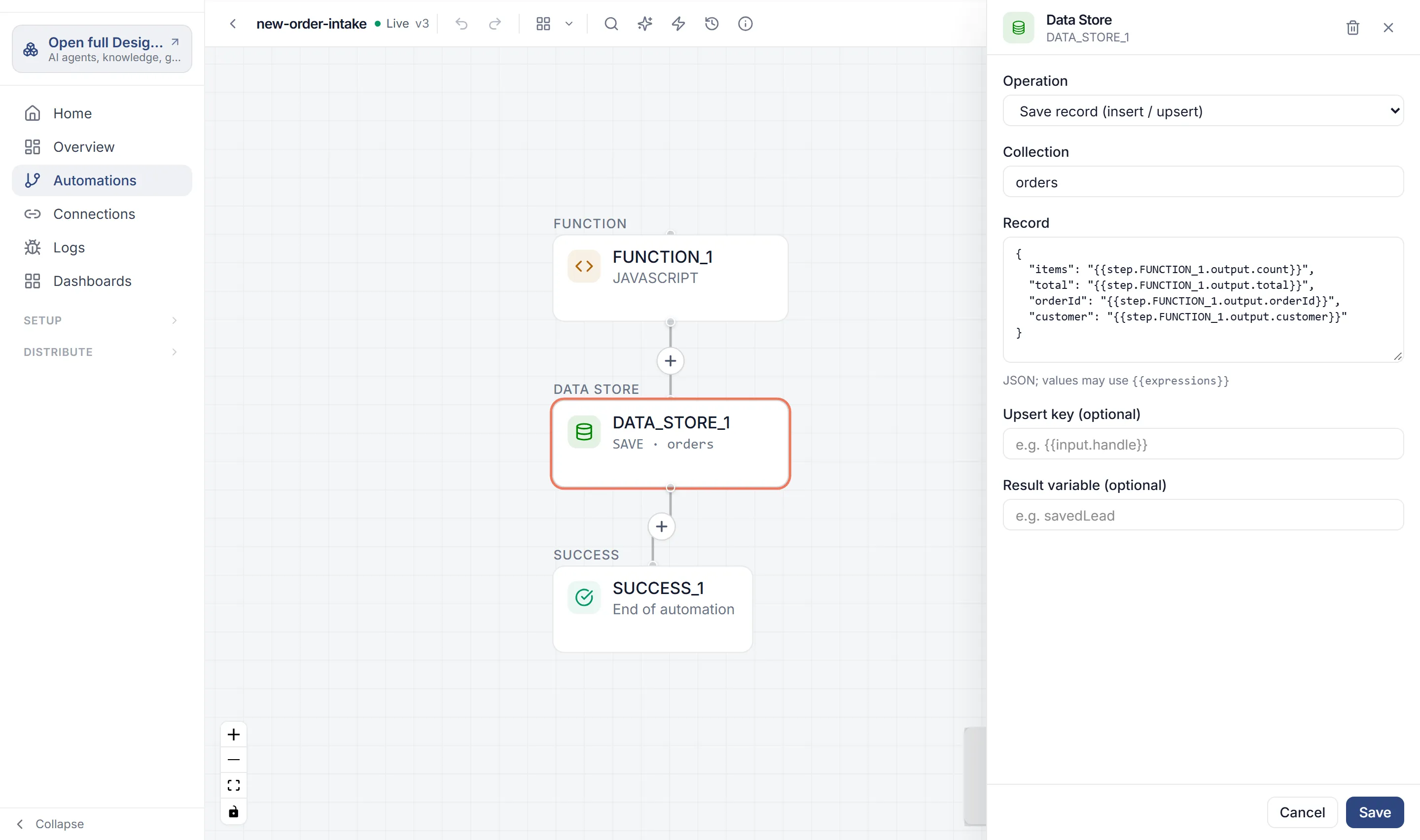
Section titled “Store records from an automation”The Data Store step saves and finds structured records with no SQL. It is in the step palette’s Logic category, and works the same in both views.
Records live in collections, such as leads. Pick what the step does under Operation:
| Operation | What it does | Fields |
|---|---|---|
| Define collection (schema) | Creates a collection and its fields. | Collection, Fields (a JSON array of { name, type, required, description }), Store connection (optional) |
| Save record (insert / upsert) | Adds a record, or updates it if the Upsert key (optional) matches. | Collection, Record (JSON) |
| Find records (query) | Returns records that match. | Collection, Filters (JSON, equality on declared fields), Limit (optional) |
| Get record by id | Returns one record. | Collection, Record id |
| Update record by id | Changes one record. | Collection, Record id, Record |
| Delete record by id | Removes one record. | Collection, Record id |
| List collections | Lists the collections. | — |
| Describe collection | Returns a collection’s schema. | Collection |
The Record JSON can use expressions, for example { "email": "{{input.email}}" }. Result variable (optional) stores the step’s result in an automation variable.
By default, records are kept in your environment’s built-in store (“Environment default (auto-provisioned store)”). To keep a collection in your own database, pick a database connection under Store connection (optional) when you define it.