

Pass data between steps
Each step can use what came before it: the data that started the run, the results of earlier steps, and values you store along the way. You reach them with expressions in double braces, such as {{input.email}}.
Where data comes from
Section titled “Where data comes from”| Expression | What it reads |
|---|---|
{{input.x}} |
The run’s input: the webhook body, the schedule’s details, or what you entered for a test. |
{{step.<stepId>.output.x}} |
The result of an earlier step. |
{{var.x}} |
A value set by a Variable step. |
{{config.x}} |
A configuration value. |
{{loop.current}}, {{loop.index}}, {{loop.size}} |
Inside a loop: the current item, its position and the number of items. See Loops. |
There is no secret. An automation can’t read secrets: keep credentials in a connection, which a connector step uses for you. {{secret.x}} fails the step with “has no value”.
The full syntax, including filters, is in the expression reference.
When an expression points at nothing
Section titled “When an expression points at nothing”- A name that isn’t one of these is listed under Problems. The editor names the fix: “Unknown expression
steps.CONNECTOR_1.output- did you meanstep.CONNECTOR_1.output?”. The same goes forvariables.,inputs.and a bare{{name}}. Fix these before you run: at run time the value is empty. Older spellings such astrigger.input.xare listed as warnings: writeinput.x. - A right name with a missing part is empty. A step ID that hasn’t run, a typo in a field name, or a field the webhook didn’t send (such as
{{input.body.x}}: the body’s fields are at the top level) becomes an empty string, and the step carries on. - A value is never an expression. If a step’s output contains
{{ … }}or{% … %}(an email with merge tags, a scraped page), it is passed on as that text, not filled in.
If a step gets a blank value, open the test panel’s Step tab on the step that produced the data and check the exact field names. See Check what a step produced.
Insert an expression
Section titled “Insert an expression”In a step’s settings, type {{ in a field that takes expressions. A list of what’s available opens: pick one to insert it.
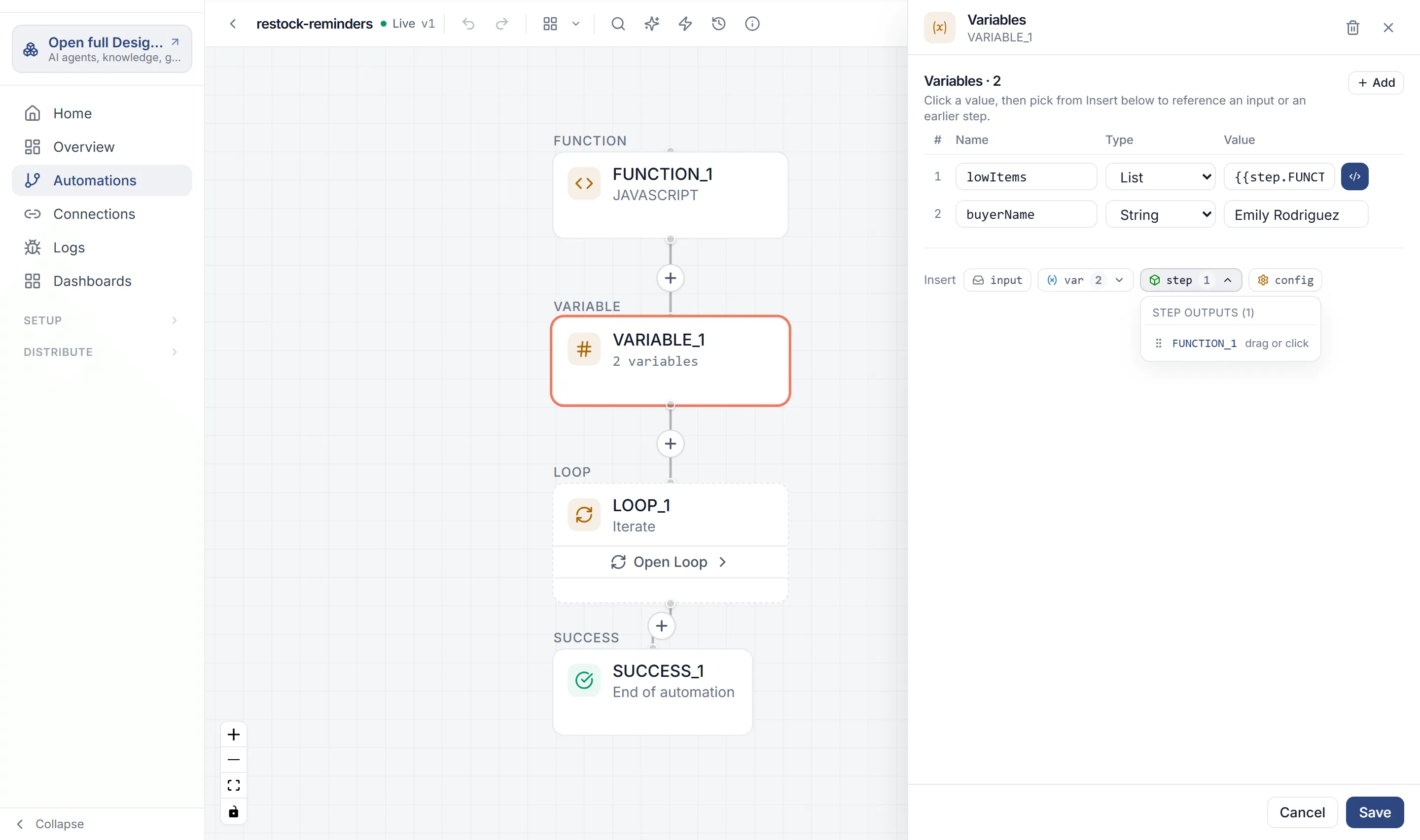
Most settings panels also show an Insert row at the bottom with input, var, step and config. step and var open a list of the steps and variables that come before this step.
Read the trigger’s input
Section titled “Read the trigger’s input”input holds what started the run:
- Webhook: the fields of the JSON body. A body of
{"customer": {"email": "dana@example.com"}}is{{input.customer.email}}. - Schedule:
triggerType,scheduleId,executionCountandexecutedAt. - Test: the JSON or form you fill in on the test panel’s Input tab.
- API endpoint: the JSON body you send.
To describe the inputs an automation expects, use the trigger’s Run Inputs.
Read an earlier step’s output
Section titled “Read an earlier step’s output”A step’s result is under step.<stepId>.output. For a step with the ID CONNECTOR_1 that returns a ticket with an id, use {{step.CONNECTOR_1.output.ticket.id}}.
Hover a step to see its ID. See Step IDs.
A step can read only steps that run before it. The Insert list for step shows those steps.
Keep a value with a Variable step
Section titled “Keep a value with a Variable step”A Variable step stores values under names you choose, so later steps can use {{var.name}} instead of a long step path.
-
Add a step from Logic › Variable.
-
Select Add, then enter a Name, such as
email. -
Pick a Type: String, Number, Boolean, List or Object. (A variable saved with the old Secret type keeps it, but its value is stored in the automation as typed, like any other.)
-
Enter the Value. To use an expression, select the value, then pick from Insert, for example
{{input.customer.email}}. -
Select Add Step.
The type matters. A Number value must turn into a number, or the step fails with “could not be converted to a number”. A List or Object keeps its structure, so a later Loop can go through a list.
Shape a value with filters
Section titled “Shape a value with filters”Expressions are templates, not JavaScript. Code such as input.items.join(", ") or ?. doesn’t work. Use a filter after a | instead. (x || "default" does work: it gives x, or "default" when x is empty, 0 or false.)
| You want | Write |
|---|---|
| A fallback when a value is missing | {{input.name|default('there')}} |
| A list as text | {{input.tags|join(', ')}} |
| How many items a list has | {{input.items|length}} |
| An object or list as JSON text | {{step.CONNECTOR_1.output|tojson}} |
For anything more involved, use a Function step and write JavaScript.
Check what a step produced
Section titled “Check what a step produced”- Save the automation, select Test, then Run Test.
- When the run ends, select a step on the canvas. The test panel switches to its Step tab.
- Read the Output section. The field names there are the ones to use after
output..