

Connect your apps and data
A connection is a signed-in account on a connector. Automations and agents use it to reach the service.
- A connector is the definition of one system, such as Slack or Salesforce. Flow lists them under Setup › Connectors.
- A connection is your access to that system: an API key, a token or a signed-in account. Flow lists them under Connections.
Both pages are in the simplified Flow view and the full Designer view.
Connections lists your organization’s own connections. Databases that work.studio runs for you, such as Platform PostgreSQL (Default), aren’t listed there: you find them in Data Explorer under Platform databases, and in the database steps of an automation.

Connect an app or API
Section titled “Connect an app or API”-
In the sidebar, open Setup and select Connectors.
-
Find the app. Use the category buttons, Search connectors…, or the publisher filter (All publishers, Platform, Custom).
-
On the connector’s card, select Connect. If the connector already has connections, the button reads N Connected and opens a list of them. Select New Connection at the bottom of the list.
-
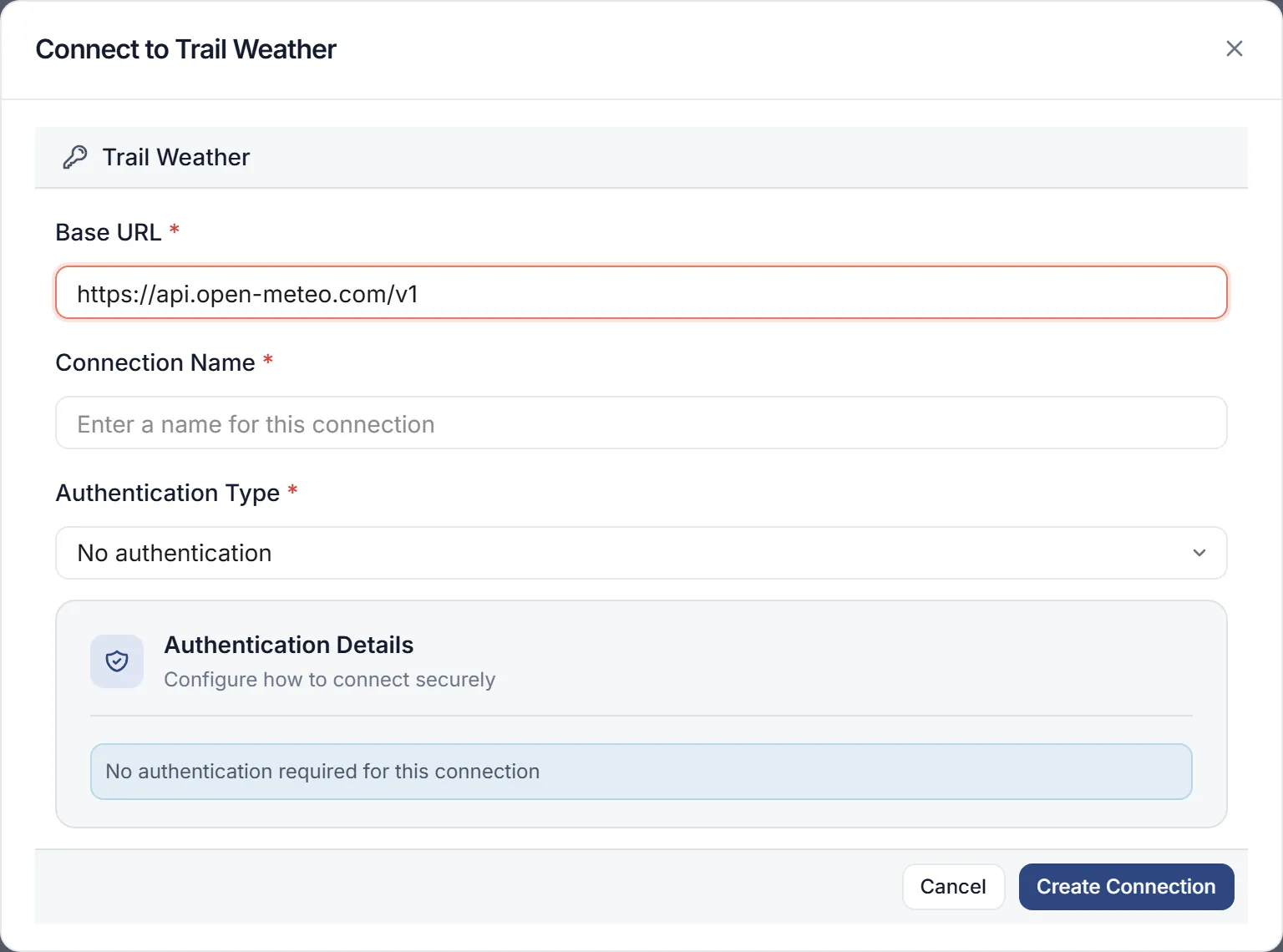
Enter a Connection Name. If the connector asks for a Base URL or other parts of its address, fill those in too.
-
Choose the Authentication Type and fill in its fields (see the table below).
-
Select Create Connection.
The Authentication Type list shows only the types that connector supports. The options appear as raw codes, such as APIKEY and OAUTH2.
| Authentication Type | Fields |
|---|---|
APIKEY |
API Key |
BEARER |
Bearer Token |
BASIC |
Username, Password |
OAUTH2 |
OAuth Provider, Grant Type, Client ID, Client Secret, Redirect URI, Scopes |
AWSCREDENTIAL |
Access Key, Secret Key, Region, Session Token, AWS Service |
IAM_ASSUME_ROLE |
Instructions for your AWS account, then IAM Role ARN |
Connections that sign in with OAuth
Section titled “Connections that sign in with OAuth”OAuth connections take two passes: create the connection, then sign in an account on it.
-
With Authentication Type set to
OAUTH2, pick an OAuth Provider. Choose one under Platform Providers or Custom Providers, or – No provider (manual config) –. -
Choose a Grant Type: Authorization Code, Client Credentials or Refresh Token.
-
Enter the Client ID, Client Secret and Redirect URI of your OAuth app. All three are required. For Scopes, enter a comma-separated list, or select Use required scopes to fill in the scopes the connector declares.
-
Select Create Connection.
-
Open the connection again: in Connections, open the row’s menu and select Edit. The Connected Accounts panel appears on the right.
-
Under Connect for, choose Just me or Everyone here. Everyone here needs the
connection:sharepermission. -
Select Add Account and sign in to the app in the window that opens. When it works, you see “Connection authorized successfully!”
work.studio refreshes OAuth tokens for you, both when a token is needed and ahead of time on a schedule. If the provider refuses an account, the connection shows Reconnect. Open it and sign in again.
If the app runs on your own server, such as GitHub Enterprise Server or a self-managed GitLab, select Add self-hosted / custom provider under the provider list. Fill in Vendor, Server URL, Provider name and the OAuth endpoints, then select Create & select.
Your organization’s custom OAuth apps are managed in the avatar menu under OAuth Providers (New OAuth Provider).
Connect a database
Section titled “Connect a database”-
In the sidebar, select Connections, then New Connection.
-
In “What type of connection do you want to set up?”, select Database.
-
Fill in Connection Name, Database Engine, Host, Port, Database Name, Schema (optional), Username and Password. The engines are PostgreSQL (port 5432), MySQL (3306), MongoDB (27017) and Redshift (5439).
-
Optional: open Advanced Options for SSL/TLS Encryption (on by default) and Additional JDBC Parameters.
-
Select Test Connection, then Create Connection.
You can query a database connection in Data Explorer or from the SQL Query step.
Only your organization’s own database connections can be used. work.studio’s own platform databases are never handed to an organization: asking for one answers 403 PLATFORM_CREDENTIAL, or 404 where the connection isn’t visible to you.
The other connection types
Section titled “The other connection types”New Connection offers four types:
- API Connector opens the connectors list. Continue as in Connect an app or API.
- Database is described above.
- LLM Provider sets up model credentials for agents. See Agents.
- VoIP Provider is for phone numbers. Voice features aren’t available yet.
Check and fix a connection
Section titled “Check and fix a connection”The Status column tells you whether a connection works. Hover a status to see its hint.
| Status | Meaning |
|---|---|
| Healthy | The last test reached the service. |
| Failing | The last test could not reach the service. Open it to fix the credentials. |
| Testing | A test is running now. |
| Not tested | No test has run yet. Use Test in the row menu. |
| Not connected | Nobody you can use has signed in to this connection. Connect an account. |
| Reconnect | The provider refused this account. Reconnect it. |
Each row’s menu has Test, Edit and Delete. A test ends with “Connection works.” or “Connection failed.”
Use a connection in an automation
Section titled “Use a connection in an automation”-
In the automation editor, open the step palette and choose the Connectors category. Pick the connector, then an operation under Operations.
-
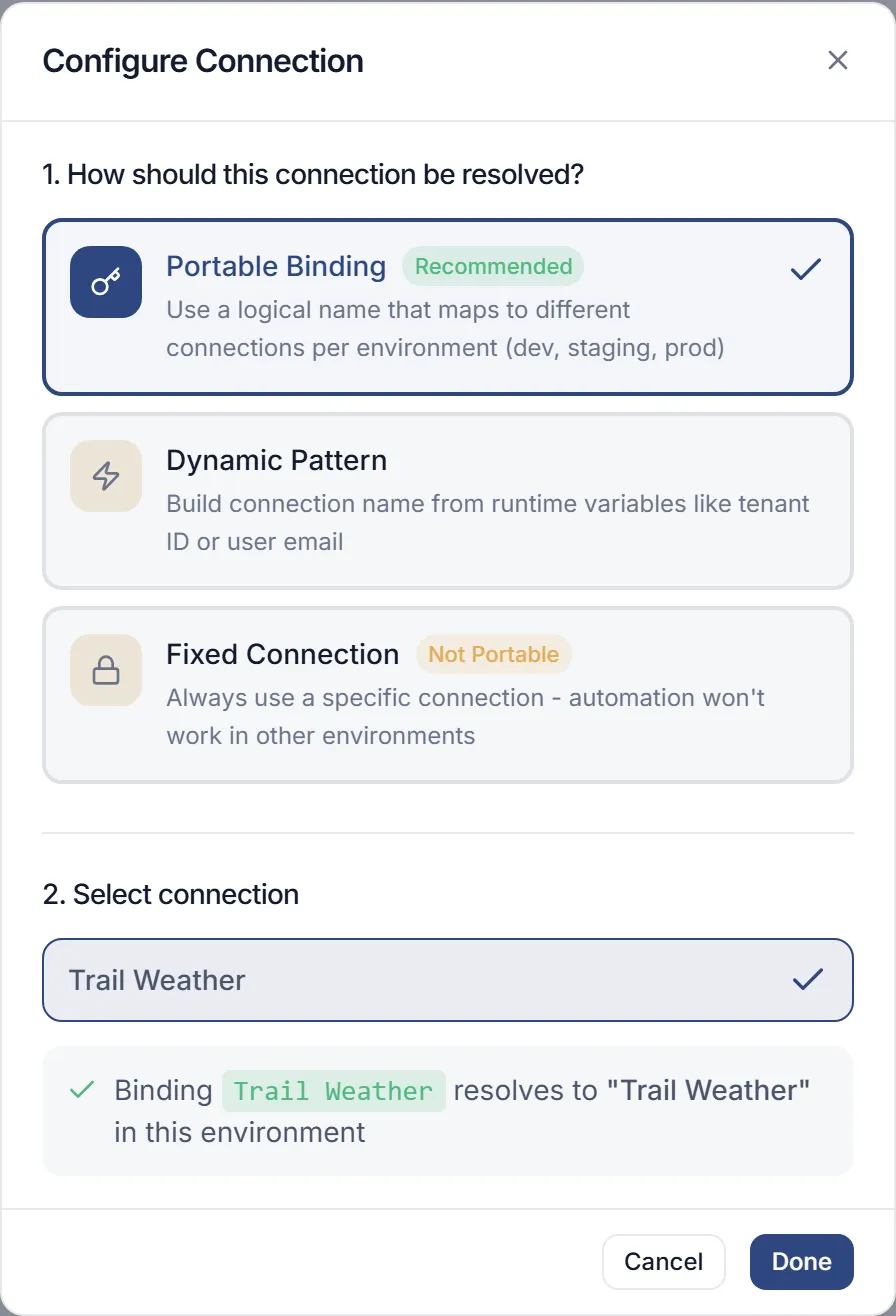
In the step, select Connect. The Configure Connection window opens.
-
Under “1. How should this connection be resolved?”, choose one:
- Portable Binding (recommended, the default): the step refers to a name that maps to a different connection in each environment.
- Dynamic Pattern: the connection name is built at run time from values such as a tenant ID or a user’s email.
- Fixed Connection: always the same connection. The automation won’t work in other environments.
-
Under “2. Select connection”, pick the connection. For OAuth connections, also pick the account under “3. Select OAuth account”. Select Done.
If the connector has no connections yet, the window says “No connections available for this connector” and offers New Connection.
Connection bindings
Section titled “Connection bindings”A binding maps a name to a connection, so automations can use the name instead of a fixed connection. That keeps an automation working when it moves between environments, and lets each customer use their own account.
When Portable Binding is chosen in a step, the binding name is the name of the connection you picked. At run time work.studio looks for, in order:
- a binding with that name for the customer the run is for;
- a binding with that name further up, ending with the Default binding for all users;
- a connection whose name equals the binding name.
So the simplest portable setup is to give the connection the same name in every environment.
To map a name to a different connection, or to give one customer their own, create a binding. The Connection Bindings page has no menu entry: open /integration-hub?tab=bindings in Flow.
-
Select New Binding.
-
Enter the Binding Name and pick the Connection.
-
Under Scope (who should this binding apply to?), choose Default (all users) or Customer (a specific customer).
-
Select Create Binding.
Connector steps call public addresses only. A connector or connection whose address is localhost, a private network, a cloud metadata address or an internal name is refused when the step runs, and when you select Test. See Troubleshooting.
Build your own connector
Section titled “Build your own connector”If the system you need isn’t in the list, select New Connector on Setup › Connectors. AI Assist opens the AI Connector Builder: describe the API and it drafts the connector.
Select Details on a card to see a connector’s definition, or APIs to see its operations.