

Build an agent
An agent is an AI model with your instructions, your knowledge, the tools it may use and the guardrails that check it. You build it once and use it in chat and as a step in your automations.
The AI Agents steps are in the automation editor in both views, so a Flow user can use an agent someone built in the full view.
Create an agent
Section titled “Create an agent”-
Open Agents and select New Agent. The agent editor opens on the Identity tab.
-
Enter an Agent Name (3 to 99 characters) and a Description.
-
Pick the LLM Provider, the model account the agent uses. If the list is empty, New LLM Provider opens the provider setup.
-
Write the System Instructions: the agent’s role, what it may do and how it should answer. Markdown works, up to 100,000 characters.
The instructions can use template logic such as
{% if %}. Notes in{# ... #}are removed before the model sees the instructions. The same limits as automation templates apply. For example,range()stops at 1,000 numbers and fails when asked for more. If the instructions can’t be prepared, the chat shows an error instead of sending them unfinished. This happens when a filter fails on a value or a limit is hit. A text example that isn’t valid template code, such as{{var.<name>}}, is sent as written, but only in instructions without{% %}logic. -
Select Create Agent. After that the button reads Save.
You can also select AI Assist on the Agents list and describe the agent you want. The Agent Architect drafts it, and the new agent is highlighted in the list.
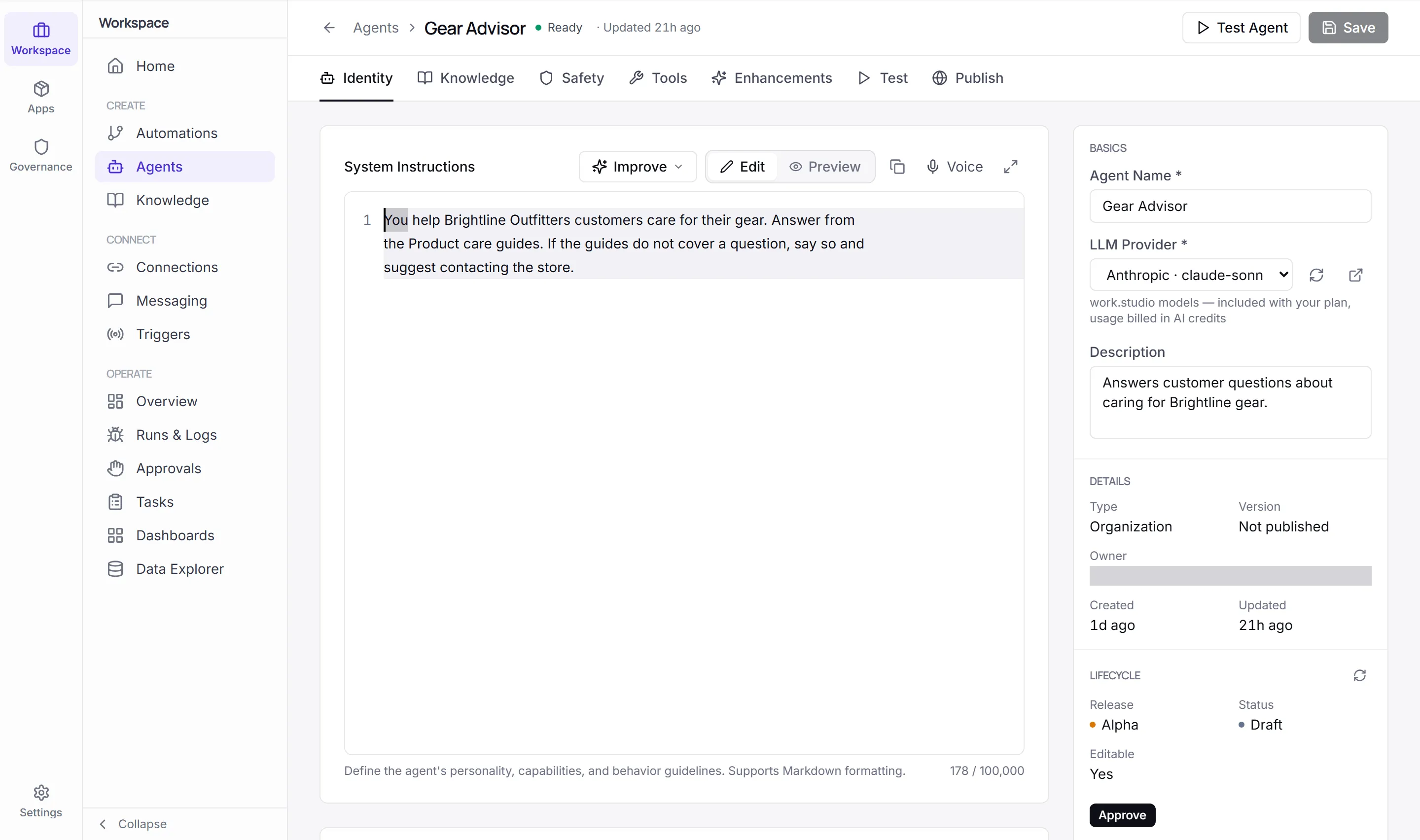
The agent editor
Section titled “The agent editor”The editor has seven tabs: Identity, Knowledge, Safety, Tools, Enhancements, Test and Publish.
Identity
Section titled “Identity”Besides the name, provider and instructions, the Behaviour & Enhancements card holds:
| Setting | What it does |
|---|---|
| Model | The model the agent calls. |
| LLM routing mode | Fixed always uses the configured provider and model (the default). Auto routes each request by task type. |
| Prompt caching | Off by default. Details are on the Enhancements tab. |
| Require code approval | Off by default. |
| Include connected-source tools | On by default. |
| Enable action proposals | On by default. |
| Restrict permissions (least privilege) | Off means the agent acts with the permissions of the person using it. On lets you narrow what it may do: use tools and connectors, run automations and pipelines, delegate to other agents, query knowledge bases. |
| Max output tokens | Empty means automatic. |
| Temperature | 0 to 1, default 0.7. |
Knowledge
Section titled “Knowledge”Attach the content the agent can draw on. The tab has three lists: Skills, Knowledge Bases and Code Workspaces. Pick the list, then select Add.
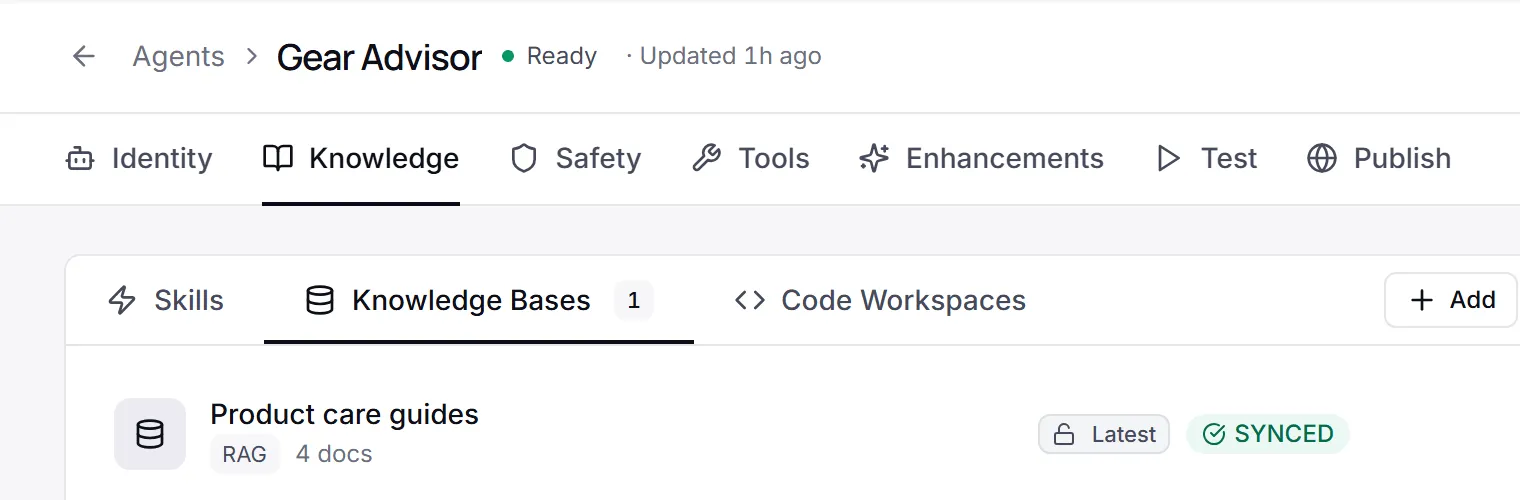
For each item you choose an Activation Mode:
| Mode | When the content is used |
|---|---|
| Always | Injected in every prompt. |
| RAG Retrieval | Searched when relevant. |
| On Demand | When the user explicitly activates it. |
| Goal Based | When the request matches the Activation Keywords you enter. |
You can also give a Purpose and a Priority (lower numbers are checked first). Knowledge is covered in full on Knowledge.
Safety
Section titled “Safety”Pick a Protection level. Each level attaches a set of your environment’s standard guardrails, installing any that are missing:
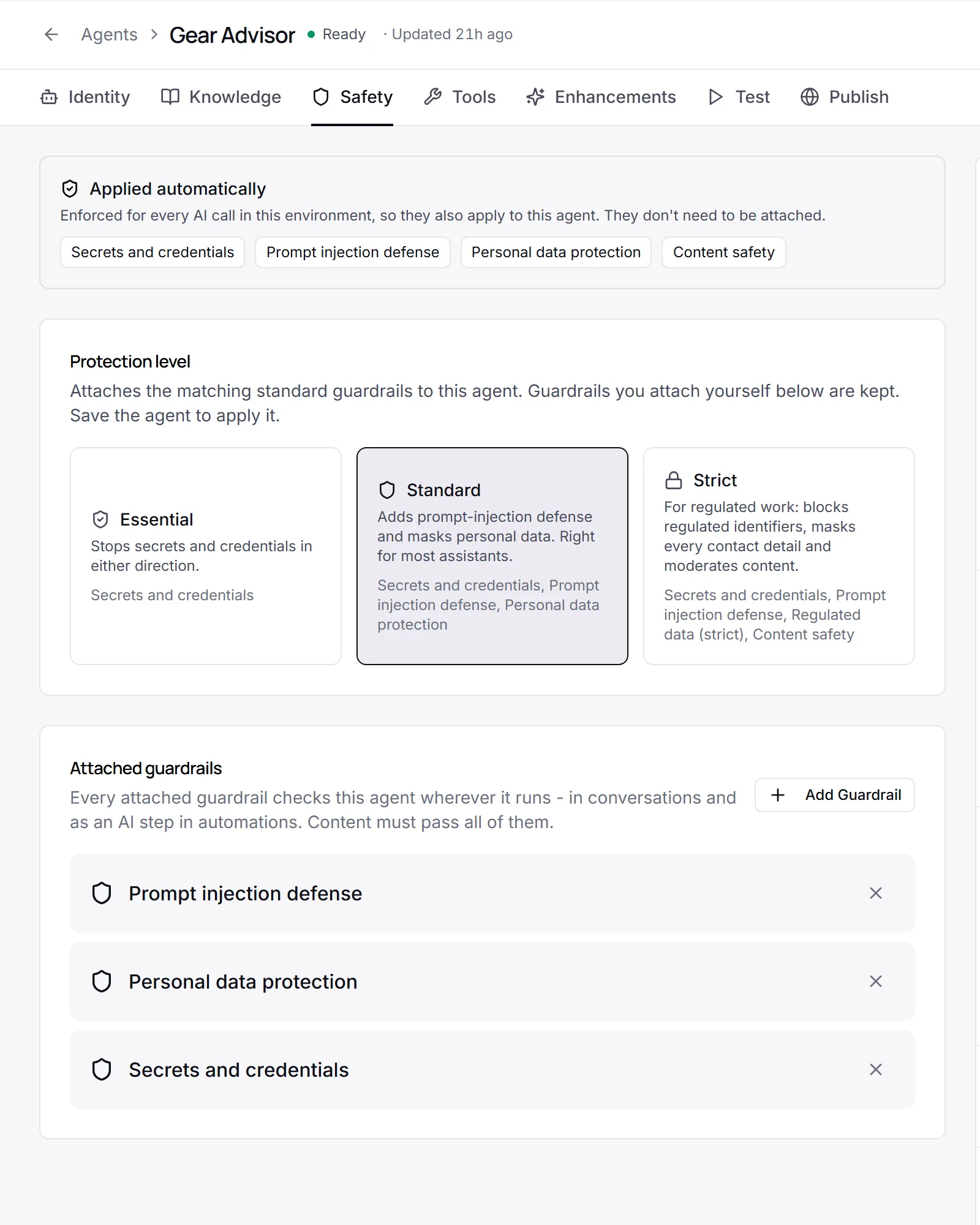
| Level | What it adds |
|---|---|
| Essential | Stops secrets and credentials in either direction. |
| Standard | Adds prompt-injection defense and masks personal data. Right for most assistants. |
| Strict | For regulated work: blocks regulated identifiers, masks every contact detail and moderates content. |
Under Attached guardrails, select Add Guardrail to attach others. If the attached set matches no level, the card shows Custom. Save the agent to apply the change.
Guardrails your organization enforces for the whole environment are listed under Applied automatically. You can’t detach them. See Guardrails.
Tools are what the agent can do, not only say. Add them with Add Automation, Add Connector, Add Agent, Add Pipeline or Add Custom Function.
Each tool has an invocation mode. For an automation, the choices are:
| Mode | Meaning |
|---|---|
| Agent Tool | The agent decides on its own when to use it. |
| Suggested | The agent suggests it, and the user confirms. |
| Intent Match | It runs when the request matches a pattern. |
| Button Click | Only when the user starts it. |
An automation tool can also Require Approval before it runs. The labels differ a little by tool type: connectors say Explicit for the last mode, and pipelines say Agent decides, Agent suggests, Intent match and Explicit only.
Add MCP Server is also on this tab, but MCP Servers is off by default, so its list is usually empty.
Enhancements
Section titled “Enhancements”Advanced settings for long conversations: Prompt Caching (strategy and cache lifetime), Context Window Management and Conversation Summarization. Reset to Defaults restores them.
Test the agent
Section titled “Test the agent”-
Save the agent. Testing needs a saved agent (“Save your agent first to enable testing.”).
-
Open the Test tab, or select Test Agent in the header.
-
Optional: under Test as:, pick a customer, so the agent uses that customer’s connections.
-
Select Start Test and chat with the agent.
Session Metrics shows messages, tokens, latency, tool calls and guardrail results for the session. Previous Sessions lets you Resume an earlier test.
Turn the agent on
Section titled “Turn the agent on”An agent must be active before people or automations can use it. On the Agents list, open the row menu and select Activate. Deactivate asks you to confirm first, because users can no longer reach the agent until it is reactivated.
The list’s tabs are Active, Ready, Inactive and All. Ready means the agent is prepared to run, whether or not it is active.

Use an agent in an automation
Section titled “Use an agent in an automation”-
In the automation editor, open the step palette and choose AI Agents. Each active agent in your environment is listed there, after AI Pipeline.
-
Add the agent. In the AI Agent panel, write the Prompt. Use
{{...}}expressions for values from the trigger or earlier steps, such as{{input.message}}. -
Optional: open Advanced Settings to set Temperature, Max Tokens, Response Format (Text, JSON, Markdown), Retry Count (0 to 5), System Prompt Override and On Failure.
On Failure decides what happens if the agent errors: Fail automation, Skip (continue) or Use default response. The last one needs a Default Response.
The step shows which guardrails check it. What they did in a test run is on the test panel’s Checks tab.
Publish and reuse
Section titled “Publish and reuse”The Publish tab shows how to reach the agent from your own code: a Python SDK example (pip install workstudio), a REST API example with an X-API-Key header, and an embed widget snippet. Version history lists the versions captured each time you publish.