

Tasks and approvals
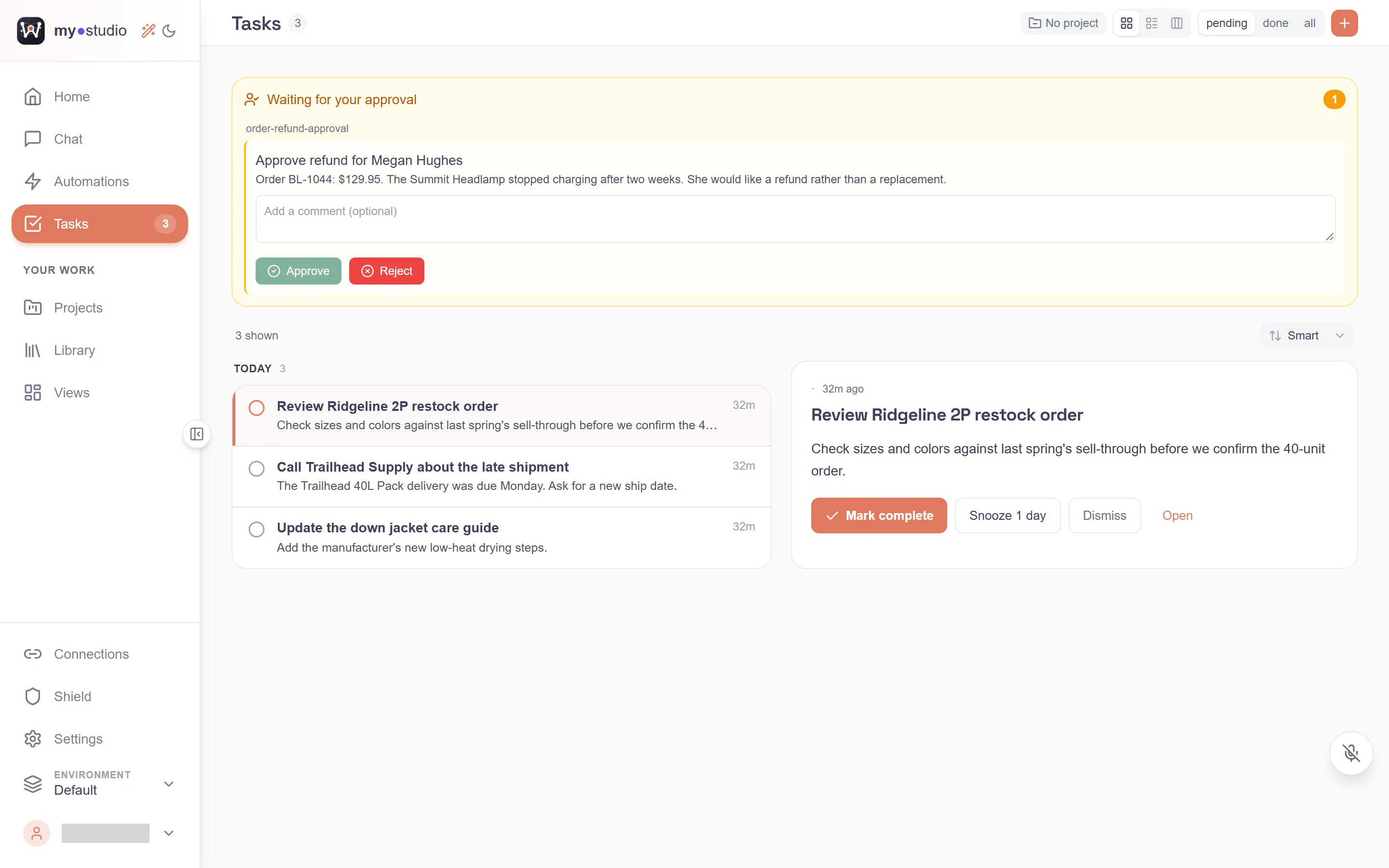
When an automation reaches a step that needs a person, it stops and waits for that person’s answer. That’s an approval. In my.studio, approvals assigned to you show at the top of Tasks, with your to-dos below them.
Where approvals show up
Section titled “Where approvals show up”- Home › Needs you, with an All tasks link.
- Tasks, in the Waiting for your approval section at the top. The Tasks item in the sidebar shows a count of what’s pending.
- Needs you in the work.studio mobile app, which also sends a push notification.
You see the approvals assigned to you, across all your automations: ones that name you, ones for a role you have, and ones from automations you started. An approval assigned to someone else doesn’t show, and you can’t answer it.
Answer an approval
Section titled “Answer an approval”- Select Tasks in the sidebar.
- Find the card under Waiting for your approval. It shows what the step is asking, or Action required if the step has no title, and any details the automation added.
- Optionally, type a note in Add a comment (optional). The automation receives it with your answer.
- Select Approve or Reject. The automation picks up from where it stopped.
Some steps ask for more than yes or no. When the step offers options, wants a written answer or is a form, the card shows the choices or fields and a Submit button instead. A form shows each of its fields.
Approvals that open as a task
Section titled “Approvals that open as a task”Some approvals arrive as a task with the status Awaiting Approval. Open the task to see an Approval Required panel. It can include the changes that approving makes, such as a list of Code changes, and what happens On Approval.
- Approve takes effect in one step.
- Reject opens Reject Task. Pick a Reason for rejection: Incorrect data, Needs revision, Not relevant, Duplicate request or Other. Optionally add Additional comments, then select Reject Task.
If you see “You don’t have permission to approve this task”, the approval belongs to someone else.
Work through your tasks
Section titled “Work through your tasks”Below the approvals is your task list. Tasks come from your automations, from the assistant and from you.
- Show: pending, done or all.
- No project: shows only tasks that aren’t in any project (“Tasks that are not in a project”). Each one gets an Assign to project control, so you can file it.
- Show tasks from every project: clears a project filter when you arrived from a project.
- Views: Full view, Compact view or Board view. The board has the columns Backlog, In Progress, Completed and Closed.
- Sort: Smart, Newest, Oldest or Priority. Smart groups tasks by when they arrived, with the highest priority first in each group.
Add a task
Section titled “Add a task”- Select Quick Add.
- Enter a Title, and optionally a Description (optional) and a Priority.
- Select Create Task.
Act on a task
Section titled “Act on a task”On each task card:
- Mark Complete, or swipe the card right.
- Snooze 1 day puts it off for 24 hours.
- Dismiss, or swipe the card left.
A task left alone for a while is flagged “Stale for N days - needs attention!”.
Open a task to see where it came from (“From: …” or “From Workflow: …”), an AI Suggestion, and any Artifacts such as an AI Draft. The task has its own chat (“Ask AI for help with this task…”). From here you can also Mark Complete, Dismiss, Cancel Task or Refresh.
When nothing is left, the page says All caught up!