

Your automations
Automations in my.studio is where you set up work that runs on its own. You describe what you want in plain English and the AI builds the automation. Then you run it, schedule it, and check how its runs went. Builders who want the full editor use Flow.
Create an automation
Section titled “Create an automation”-
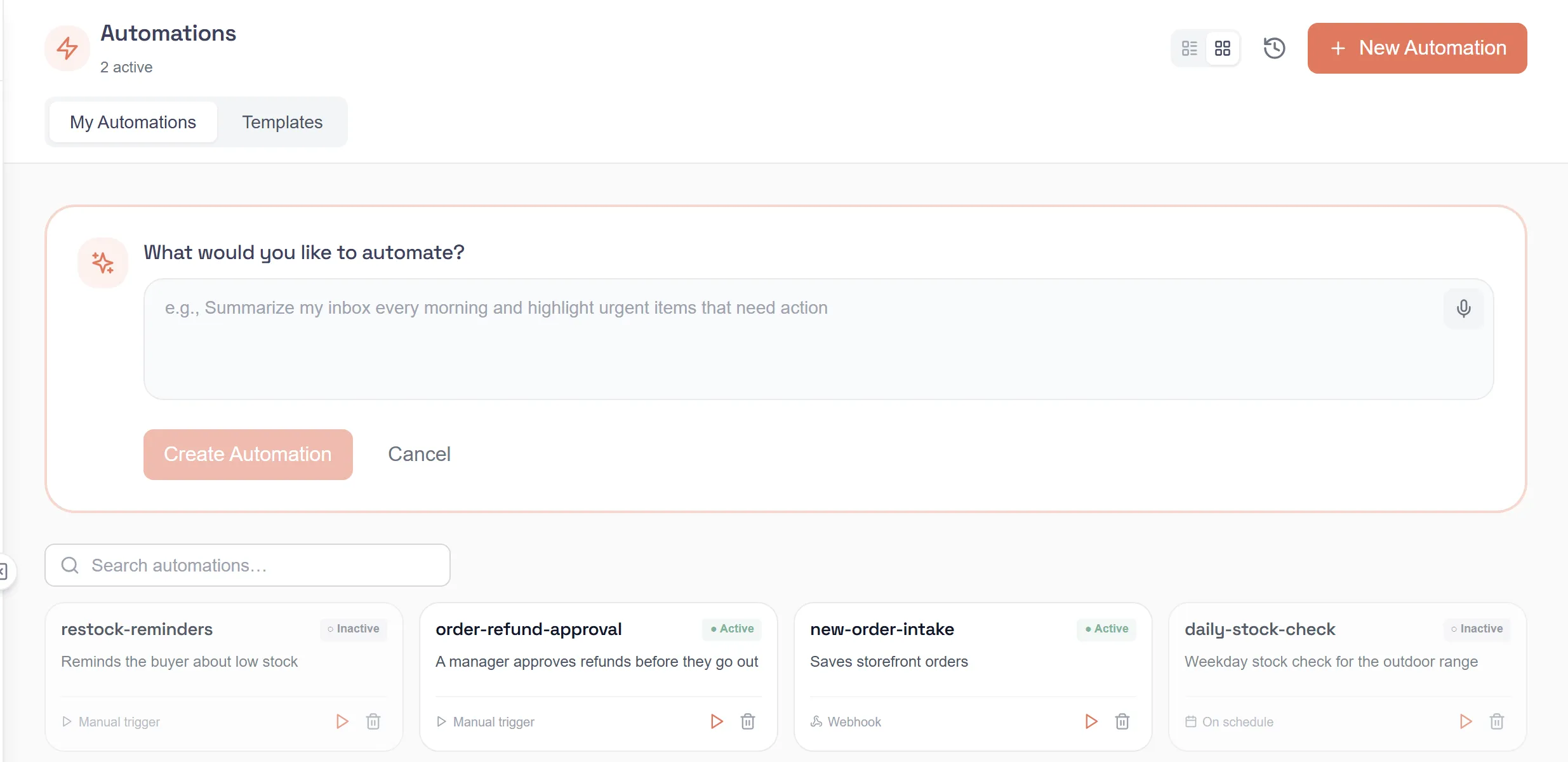
Select Automations in the sidebar, then New Automation.
-
Under What would you like to automate?, describe it. For example: “Summarize my inbox every morning and highlight urgent items that need action”.
-
Keep typing until the AI has enough to work with. It shows an AI Summary, the Suggested Actions and, if a tool needs one, Connection Required, and works out from your words whether the automation runs on a schedule, from a webhook, or when you start it.
-
Under Connection Required, select Connect for each tool that needs a connection. You can skip this: “You can still create this automation — connections can be added later.”
-
Select Create Automation. It takes a few seconds to save and deploy. Then the automation opens.
-
Under Connection Setup, pick a connection for each step that shows Choose a connection or Not connected yet, until it says All connections are ready!
You can also start from a ready-made one. Open the Templates tab on the Automations page. my.studio makes your own copy and opens it.
Change an automation
Section titled “Change an automation”Select an automation in the list to open it. The canvas shows its steps. Next to it is a chat where you describe a change (“Describe what you want to change…”) and the AI makes it.
To rename it, select Edit name next to the name.
Personal automations
Section titled “Personal automations”An automation is personal when one of its triggers receives a person’s own captured messages (Slack, Teams or another messaging account), or when it runs on a person’s own connections, as the kits’ Gmail and Calendar automations do. It belongs to that person, and only they can change it: not another member, not an admin, and not an API key. An admin can only switch it off. In Flow, someone else who opens it sees Personal automation · Owner: with the owner’s name, and no editing controls.
- Runs on your captured messages are visible only to you.
- An automation that belongs to several people can’t be changed by anyone. An admin can still switch it off.
- If it’s personal only because of a Slack or messaging trigger, someone else can take that trigger over. It then receives their messages instead of yours.
- An API key runs it only when the key acts as you. See API keys.
Run it now
Section titled “Run it now”- From the list, select the run button on the automation’s card (Run now). A scheduled automation keeps its schedule.
- Inside an automation, select Run now, or Run on one of its triggers.
Turn it on with a trigger
Section titled “Turn it on with a trigger”A trigger decides when the automation runs. The list shows each automation as Active or Inactive.
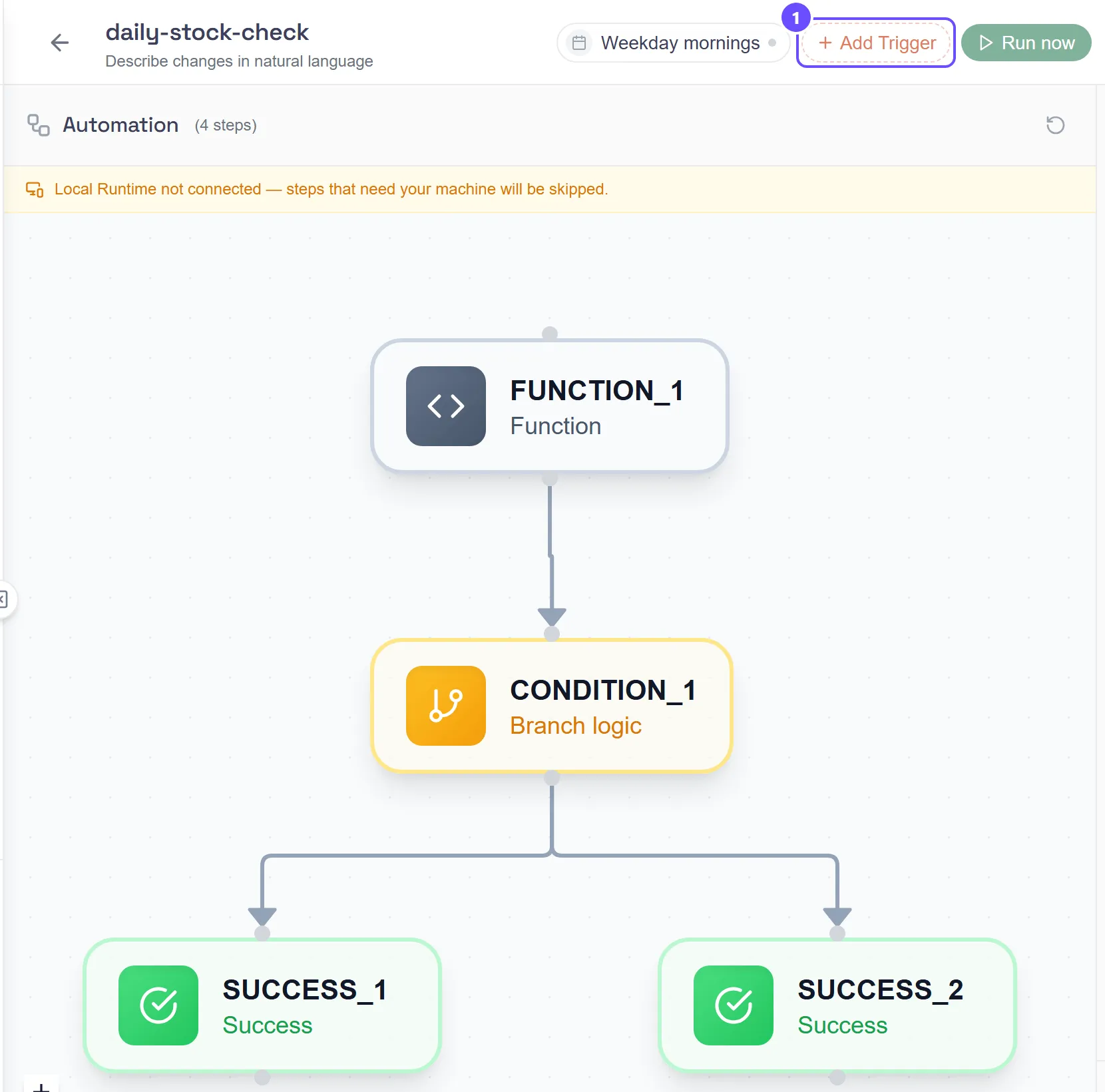
- Open the automation and select Add Trigger.
- Under How should this trigger?, pick a type. Manual means “You start it yourself with the Run button.” Scheduled “Runs automatically on a recurring schedule.” Webhook “Runs when an external service calls a URL we generate.” Social message “Runs when a DM or comment arrives”, and Slack “Runs on a Slack message or event in a channel”, each through your own connected account.
- Under Set it up, give it a Trigger Name. For a schedule, pick a Run Frequency: Every hour, Daily 4am, Weekdays 4am or Weekly (Mon 4am). Times are in your local time zone.
- Save the trigger. To turn it on or off, select the trigger’s pill at the top of the automation to open Trigger details, and select Pause or Resume. my.studio confirms with Trigger paused or Trigger resumed, or shows the reason when it can’t, for example because the trigger belongs to someone else.
A webhook’s URL is created the first time you turn the trigger on, and only people who can edit the automation see it. A JSON body’s or form’s fields become the run’s input as {{input.field}}, next to input._headers and input._query; a JSON array arrives as input._body and any other body as input._raw. See Webhooks.
A Slack or Social message trigger starts a run only for messages you wrote or brought in through your own connected account, and the runs it starts are private to you. See Slack and Incoming Message.
Trigger details also shows the trigger’s live state:
- Paused after failures, with the reason and Resume, when the trigger stopped itself after three failed starts in a row, for example because the automation was never published.
- Not published: won’t run when the automation has no published version.
- On a paused webhook or message trigger, how many deliveries are waiting, with Discard all. They run in order when you resume it.
- Deliveries: what the trigger received in the last 30 days, what ran, what waited and what was refused, with the reason in words.
See how runs went
Section titled “See how runs went”-
Inside an automation, select the history button (View execution history) for its runs, or the version button (View version history) for earlier versions.
-
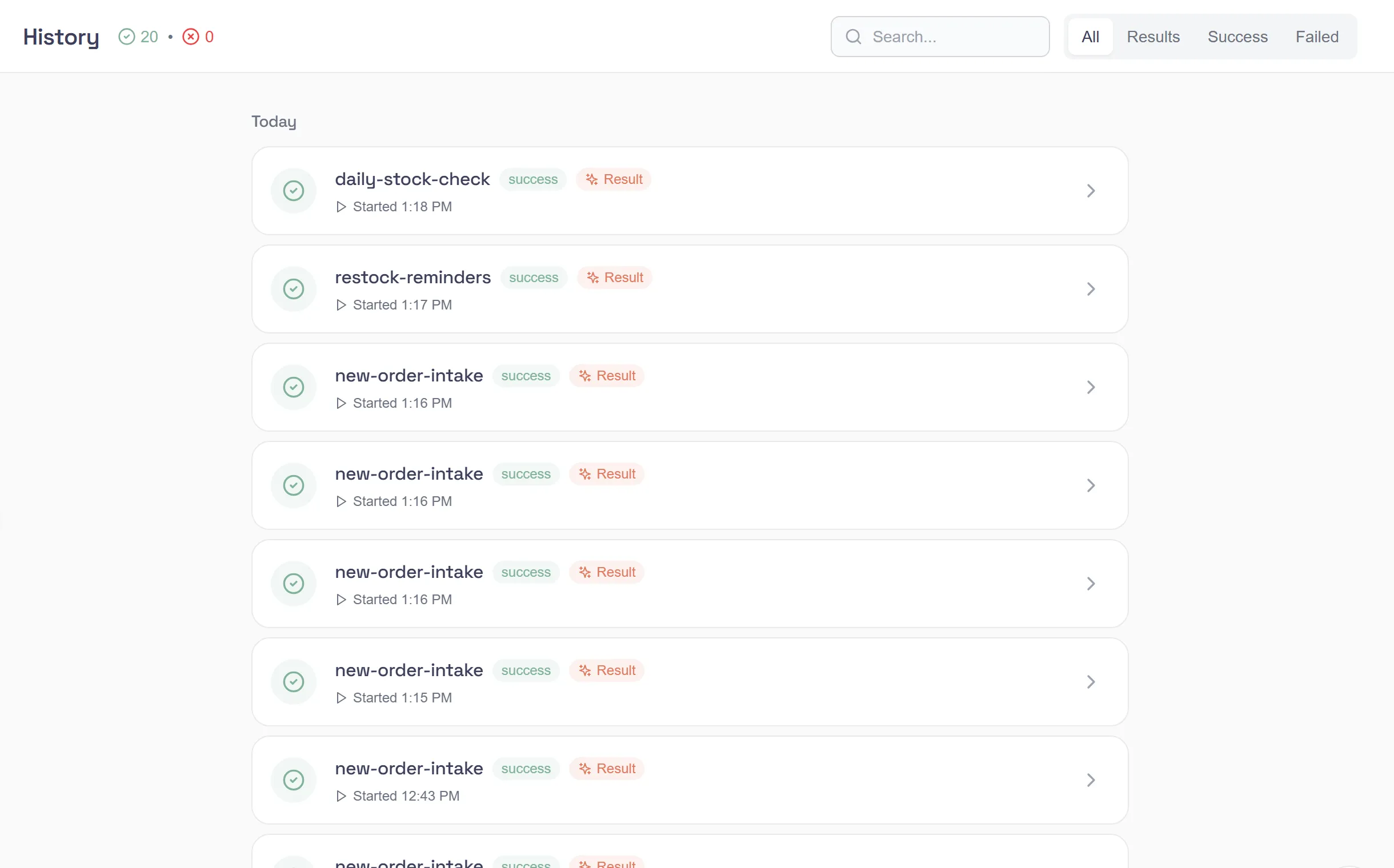
On the Automations page, the history button (Run History) opens History, a list of runs from all your automations. Filter it to successful or failed runs and open one to see its result, its steps and any approvals it waited on.
-
A card whose last run failed shows a red mark. Point at it to see Last run error and the reason.
Deliveries
Section titled “Deliveries”The automation’s history (View execution history) also has a Deliveries section: what its triggers received in the last 30 days, 20 at a time and newest first, with the same statuses as in Flow, such as Ran, Waiting (trigger paused), Refused with the reason, or Sample only (not run). If you can edit the automation:
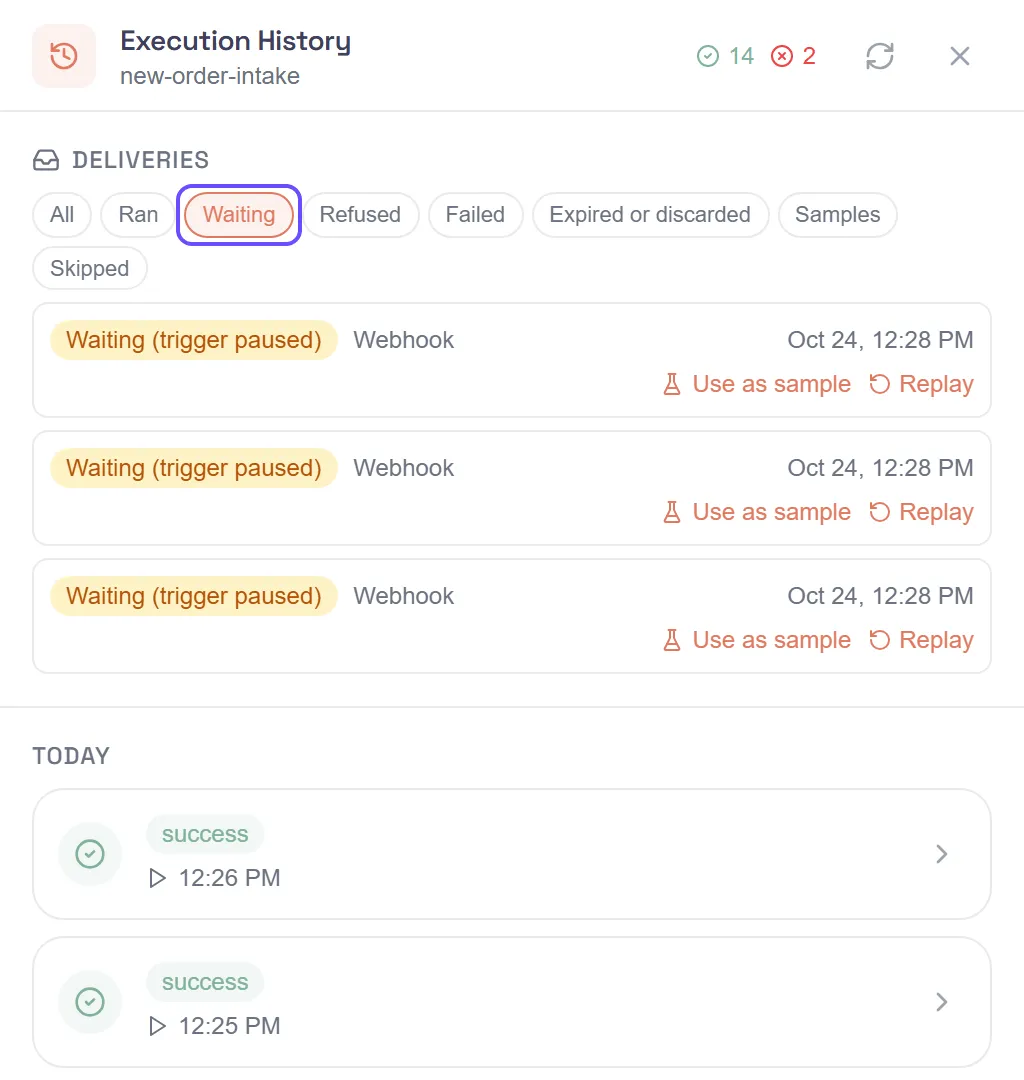
- Replay runs a delivery again on the current published version. While the trigger is paused, my.studio asks first: “This trigger is paused; run this one delivery anyway?” You can replay a delivery that was refused because the automation wasn’t published, once you publish it. You can’t replay one refused for failed authentication or another reason, or one older than 30 days.
- Use as sample saves the delivery’s fields as the trigger’s input fields, and fills Run inputs with them, so a manual run starts from a real example (“Sample saved. Its fields are now this trigger’s inputs.”).
- View run opens the run a delivery started.
Deliveries from your own accounts, such as your Slack messages, are private to you and marked Private to you. Others who can see the automation see only how many there are. See Deliveries.
Delete an automation
Section titled “Delete an automation”Select the delete button on its card (Delete) and confirm.