

Chat with the assistant
Chat is where you talk to the assistant. It can answer questions, read the files you attach, and propose actions such as building an automation, which run only after you confirm them.
Ask something
Section titled “Ask something”- Select Chat in the sidebar.
- Type in the Ask me anything… box and press Enter, or select the send button.
- The reply streams in. To stop it early, select the stop button (Stop generating). The reply ends at once and what it wrote so far stays. AI it would have used after you stopped it isn’t charged.
You can also start from Home: anything you type in Ask or tell me what to do that isn’t a reminder or an automation opens in Chat and sends right away.
Which assistant you’re talking to
Section titled “Which assistant you’re talking to”Chat always uses the my.studio Assistant. The header shows Personal Assistant until you send the first message. There’s no agent picker in Chat.
To talk to a different agent:
- In a project, set Settings › Default Agent, then use the project’s Chat tab. See Projects.
- Or open Settings › Advanced › Agents, pick an agent, and chat with it there.
Speak instead of typing
Section titled “Speak instead of typing”- Select the microphone (Voice input) to dictate. The box says Listening… while it records. Select it again to stop.
- Select the hands-free button next to it (its tooltip reads Hands-free — read replies aloud) to have replies read to you. Select it again to turn it off.
Attach files
Section titled “Attach files”Attach a file in any of three ways:
- Select the paperclip.
- Drag files onto the chat.
- Paste an image.
The assistant looks at images directly. From documents, it reads the text.
| Kind | File types |
|---|---|
| Images | PNG, JPEG, GIF, WebP |
| Documents | PDF, Word (DOCX, DOC), Excel (XLSX, XLS), PowerPoint (PPTX, PPT), RTF |
| Text and code | TXT, Markdown, CSV, HTML, CSS, JavaScript, TypeScript, JSON, XML |
Limits: each file can be up to 10 MB. You can attach up to 20 files at a time (“Maximum 20 attachments allowed per session.”). A file of any other type is refused with “File type not supported”.
Generated images and other media from the conversation collect in the Chat Media gallery.
Confirm what the assistant proposes
Section titled “Confirm what the assistant proposes”When the assistant wants to do something, it shows a card in the chat instead of doing it. Nothing runs until you confirm on the card. Cards include:
- choosing or creating a project
- linking a code repository, and Scaffold starter files
- Build this workflow, with Build & open in Automations
- Create this view
- Connect an account: sign in right there, and the conversation carries on
- Continue in project workspace
Select Dismiss to turn a card down.
If you also use the mobile app, a card answered on one device shows as answered on the other (“Already confirmed on another device.”).
Conversations
Section titled “Conversations”my.studio saves each conversation.
- Select Conversations to see your earlier conversations. From the list you can open, rename or delete one.
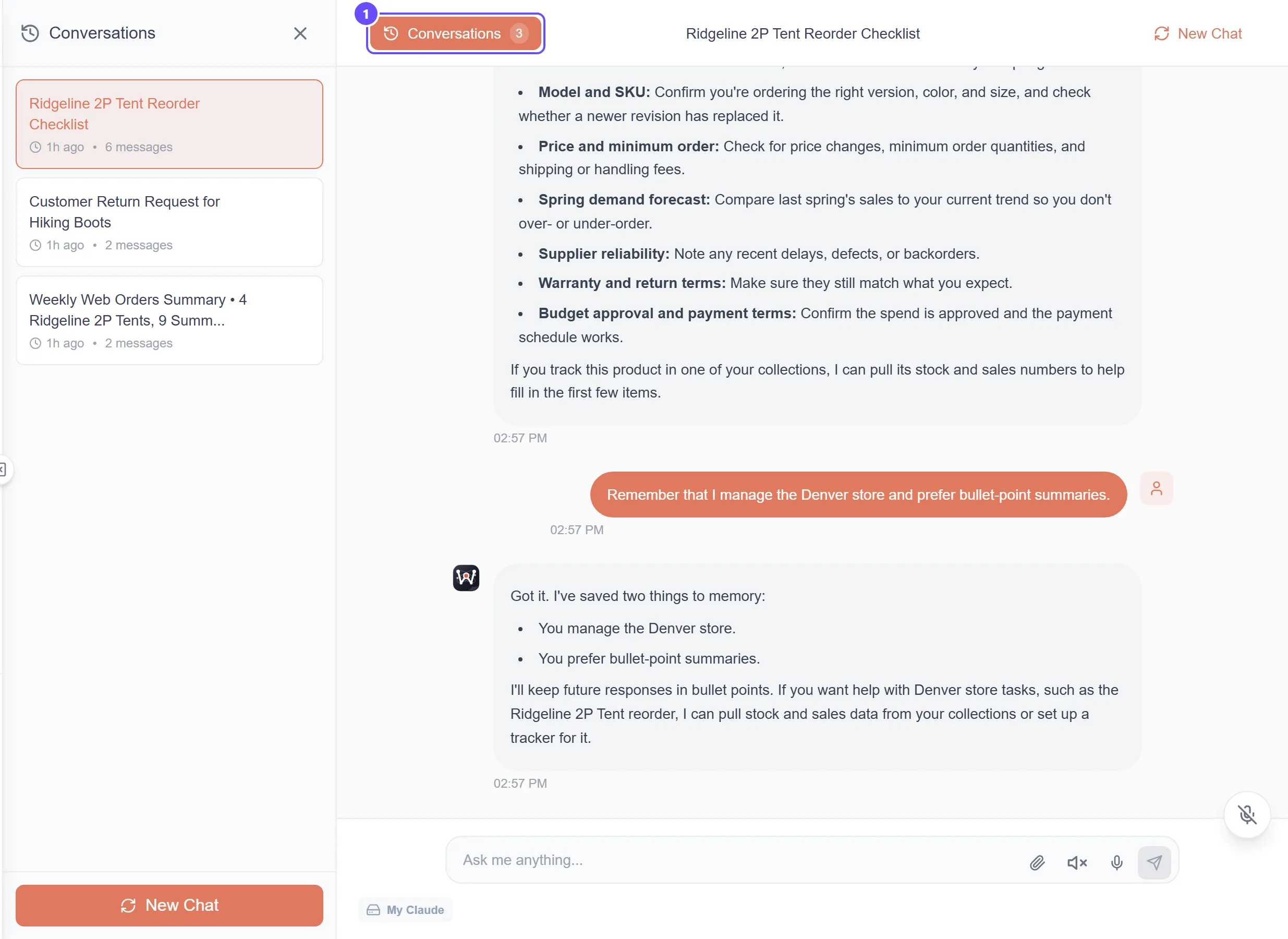
- Select the conversation title in the header to rename the current one. A new one is called Conversation until you rename it.
- Select New Chat to start fresh. my.studio asks “Start New Chat?” first. Your current conversation is saved and stays in Conversations.
The mobile app picks up the same general conversation, so you can start on your laptop and continue on your phone.
Run turns on your own machine
Section titled “Run turns on your own machine”If you use the Local Runtime, a My Claude chip appears under the box. It can hand each turn to Claude Code on your computer, on your own Claude subscription, instead of using work.studio credits. See Local mode.