Connections and Shield
Connections are your signed-in accounts in other systems, such as your Gmail, Zendesk or GitHub. The assistant, your automations and your kits use them to act for you. Shield (your guardrail settings) decides what happens when a message you send contains personal information or secrets.
Connections
Section titled “Connections”A connector is the definition of a system, such as Slack or Salesforce. A connection is your own signed-in access to it. You connect once, and every automation and conversation in that environment can use it.
Add a connection
Section titled “Add a connection”-
Select Connections at the bottom of the sidebar.
-
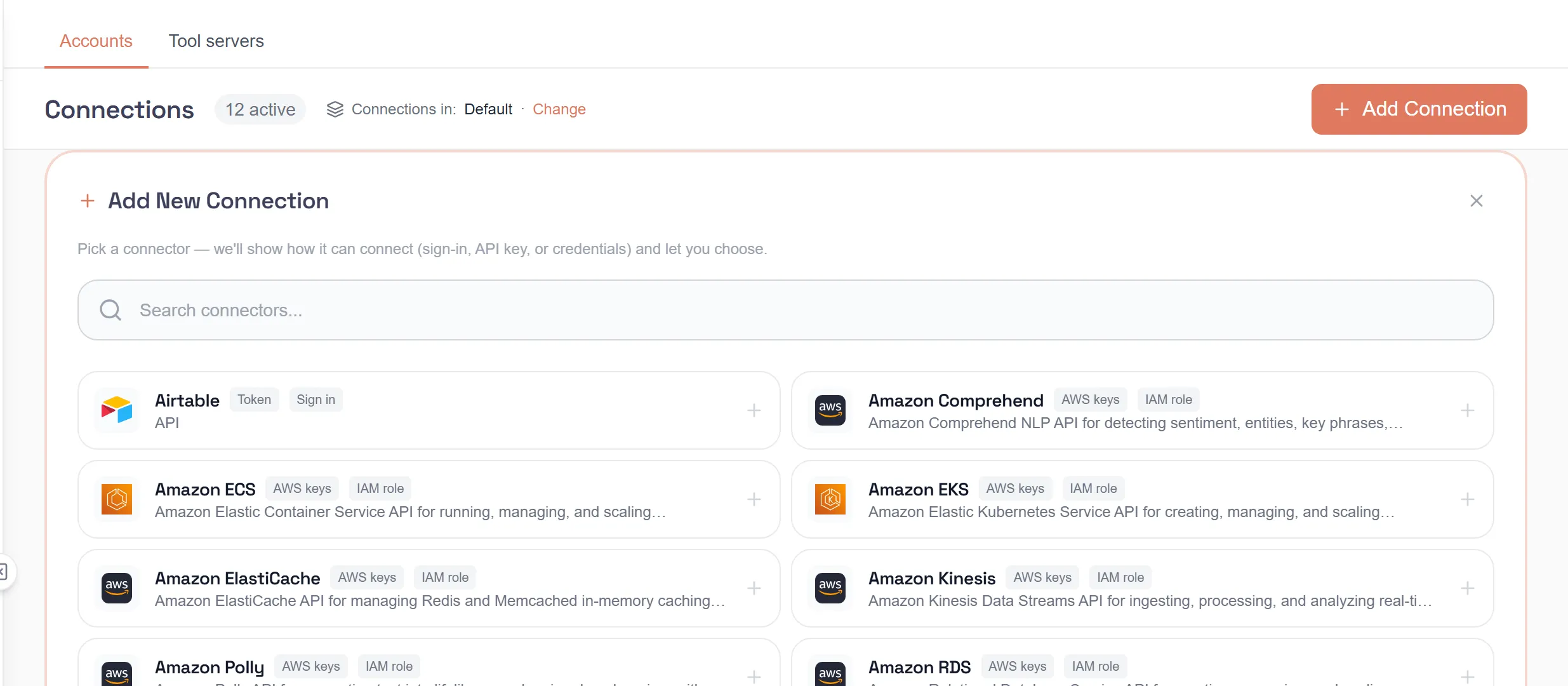
Select Add Connection.
-
Search for the system (“Search connectors…”) and pick it.
-
If you have several environments, choose the one you’re connecting to (“Which environment are you connecting to?”).
-
Sign in to the system in its own window. Some systems ask for a credential instead, such as an API key, a username and password, or a token. Enter it and select Connect.
The connection appears under Your connections as Connected.
You don’t always have to come here first. A starter kit, an automation’s Connection Setup, and the assistant’s Connect an account card all start the same sign-in from where you are.
Who a connection belongs to
Section titled “Who a connection belongs to”Each connection shows where it came from:
| Label | Meaning |
|---|---|
| Yours | “You connected this. No one else’s credential will be used in its place.” |
| Provided by your workspace | “An admin connected this for the whole workspace. Your automations can use it as-is.” |
| Built in | “Ships with the platform and is available to everyone. You cannot change it.” |
| Installed | “Published by someone else and installed into this workspace.” |
When a shared connection exists for a system, my.studio asks “Use shared connection?”. Choose Use shared connection, or Connect your own account to use yours instead.
Fix or remove a connection
Section titled “Fix or remove a connection”- A connection that needs attention shows Connect instead of Connected. Select it to sign in again.
- Use Update credentials on the connection to replace a key or password.
- Use Remove connection, then confirm with Delete. This removes its stored credentials and can’t be undone.
Shield
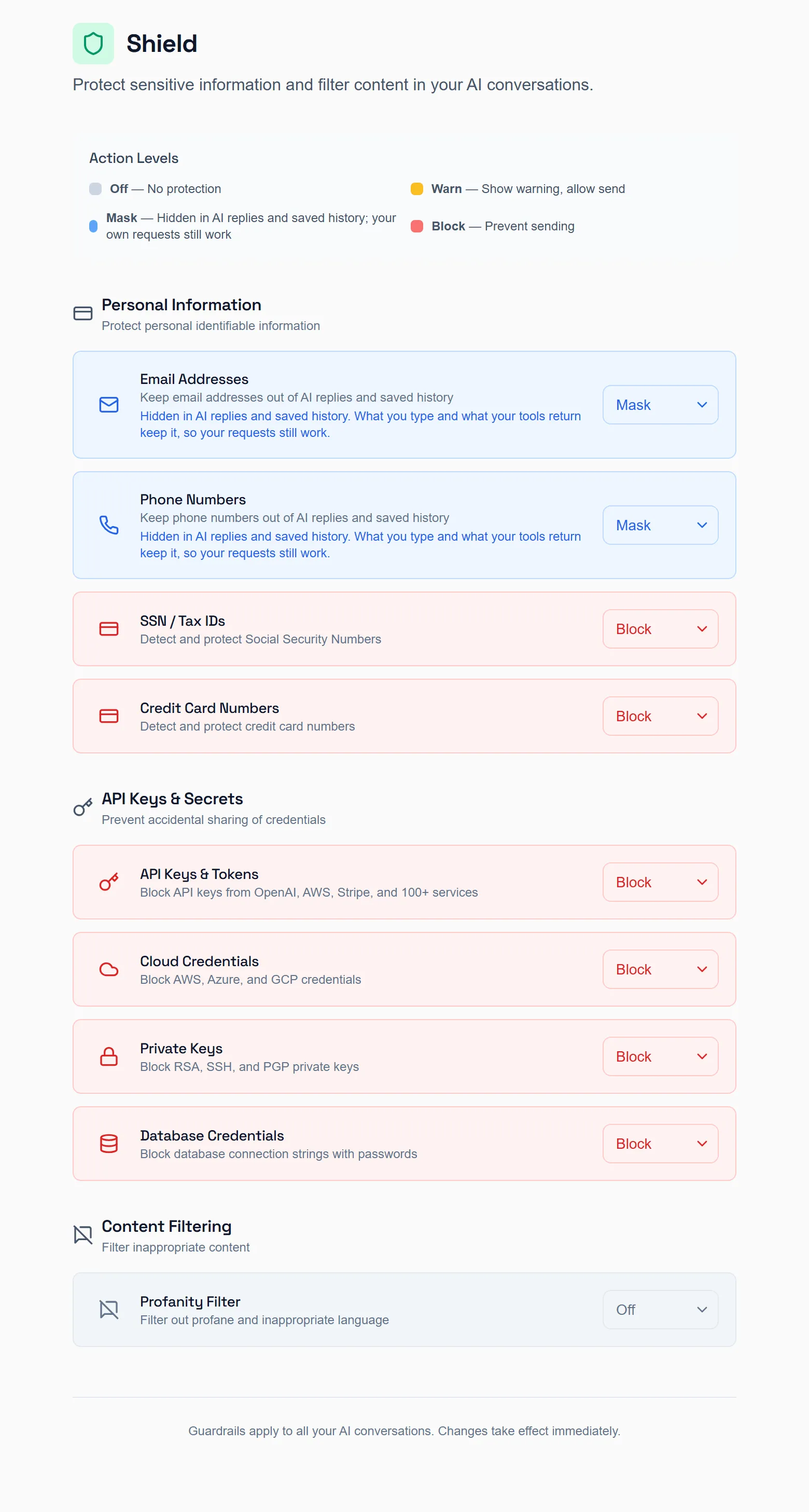
Section titled “Shield”Shield is your guardrail settings for AI conversations. “Guardrails apply to all your AI conversations. Changes take effect immediately.”
Before a message is sent, Shield scans it for sensitive information. What happens next depends on the level you pick for each kind of information:
| Level | What happens |
|---|---|
| Off | No protection. |
| Warn | Shows a warning, and lets you send. |
| Mask | Replaces the text with [REDACTED]. |
| Block | Stops the message from being sent. |
What it checks, and the defaults
Section titled “What it checks, and the defaults”| Section | Check | Default |
|---|---|---|
| Personal Information | Email Addresses | Mask |
| Personal Information | Phone Numbers | Mask |
| Personal Information | SSN / Tax IDs | Block |
| Personal Information | Credit Card Numbers | Block |
| API Keys & Secrets | API Keys & Tokens | Block |
| API Keys & Secrets | Cloud Credentials | Block |
| API Keys & Secrets | Private Keys | Block |
| API Keys & Secrets | Database Credentials | Block |
| Content Filtering | Profanity Filter | Warn |
Change a setting
Section titled “Change a setting”- Select Shield at the bottom of the sidebar.
- Find the check, for example Phone Numbers.
- Pick Off, Warn, Mask or Block from its menu. my.studio shows Changes saved.
Your Shield settings are your own. They don’t change anyone else’s.