

Starter kits and project kits
my.studio has two kinds of kit:
- A starter kit is a ready-made automation with a clear job. You see it work on sample data, connect your tools, and it runs on a schedule. There are two: Morning brief and Support escalations.
- A project kit is a recipe the assistant follows inside a project, such as a status report or a risk register.
Starter kits
Section titled “Starter kits”You see the starter kits the first time you sign in. After that, open them from Home (See all kits).
Switch on a kit
Section titled “Switch on a kit”Setup has four stages: See it, Connect, Set up and First run.
- Pick a kit and select See it with sample data. The banner reads “Sample data. Nothing is connected yet.” How it works explains each step. When you’re ready, select Set this up.
- Under Connect your tools, select Connect next to each tool and sign in. Tools marked Optional can be skipped. You can disconnect any of them later from Connections.
- Under Set it up, choose the time and any other settings for this kit.
- Select Switch it on and run it now. my.studio saves the automation, schedules it, publishes it and starts the first run. That usually takes under a minute. You can leave the page; the result appears on Home.
On Home, each kit you switched on shows its status, such as On · next run …, Off or Last run failed, with its latest result underneath. Run now runs it again.
The kit is a normal automation, so it also shows in Automations, where you can open it, run it and change it.
If a tool’s sign-in shows “…sign-in isn’t set up for this workspace yet”, connect it with an API token on the Connections page instead.
Morning brief
Section titled “Morning brief”“Here’s what needs you today.” Every weekday morning it puts a brief on your Home: the emails that need a reply, today’s meetings with context, and anything waiting more than two days.
What it does:
- Reads up to 8 unread emails from your inbox from the last week. It reads the sender, subject and preview only, never the whole message.
- Reads today’s events from your main Google Calendar.
- The AI picks out the emails that need a reply from you and adds a line of context to each meeting.
- Lists emails waiting more than two days separately, so they don’t slip.
- Puts the brief on your Home every weekday at the time you choose. It doesn’t send, archive or change anything, unless you turn on the email copy to yourself.
You need: Gmail and Google Calendar. The Outlook and Microsoft calendar version is shown but isn’t available yet: “the Microsoft 365 connection doesn’t include mail or calendar access.”
Settings:
| Setting | What it does | Default |
|---|---|---|
| Have it ready at | The time on weekdays, in your time zone. | 7:30 |
| Also email it to me | Also sends the brief from your own Gmail to your address. | Off |
If the AI isn’t available for a run, the brief still arrives and lists every unread email (“AI notes weren’t available for this brief, so every unread email is listed.”).
Support escalations
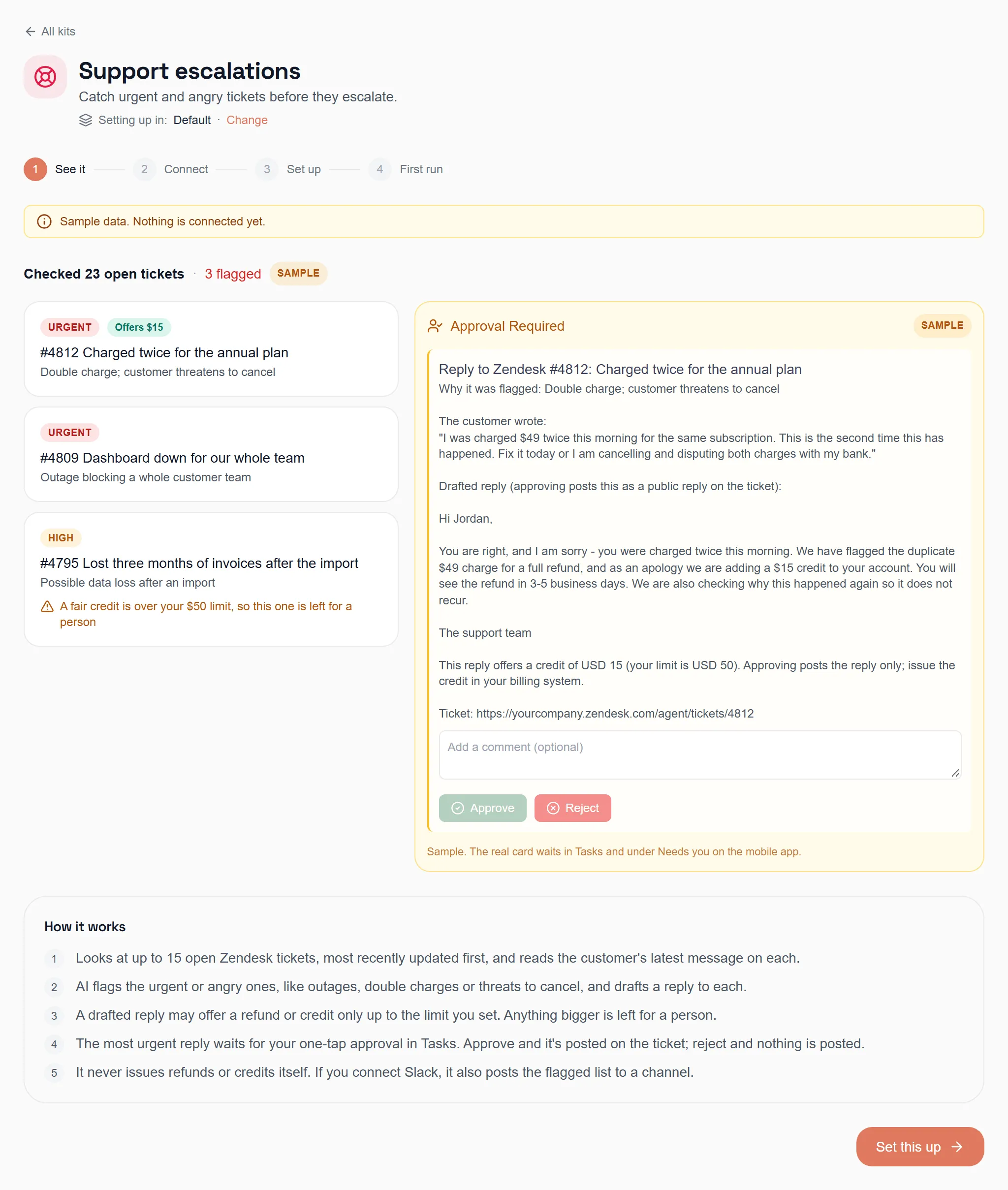
Section titled “Support escalations”“Catch urgent and angry tickets before they escalate.” Every weekday it flags urgent or angry Zendesk tickets and drafts a reply. Nothing is posted until you approve it.
What it does:
- Looks at up to 25 open Zendesk tickets, most recently updated first.
- The AI flags the urgent or angry ones, like outages, double charges or threats to cancel, and drafts a reply to each.
- A drafted reply may offer a refund or credit only up to the limit you set. Anything bigger is left for a person.
- The most urgent reply waits for your one-tap approval in Tasks. Approve and it’s posted on the ticket. Reject and nothing is posted.
- It never issues refunds or credits itself. If you connect Slack, it also posts the flagged list to a channel.
The approval is assigned to you, the person who switched the kit on. It shows in Tasks in my.studio and under Needs you in the mobile app. If nobody answers within 20 hours, it expires and nothing is posted. A ticket the kit has already replied to isn’t proposed again.
You need: Zendesk. You enter your Zendesk address before you sign in. Slack is optional.
Settings:
| Setting | What it does | Default |
|---|---|---|
| Refund or credit limit (USD) | Drafted replies never offer more than this. Set 0 to never offer one. | 25 |
| Check every weekday at | The time, in your time zone. | 9:00 |
| Slack channel | Where the flagged list is posted, or Don’t post to Slack. | — |
Project kits
Section titled “Project kits”A project kit is a recipe the assistant follows inside a project. It keeps the structured half as records you can query, and writes the readable half into your own systems.
There are eight:
- Project plan
- Status report
- Meeting notes & actions
- Risk register
- Incident review
- Release notes
- Decision log
- Account plan
Use a project kit
Section titled “Use a project kit”- Open a project and go to the Context tab.
- Under What you can produce here, pick a kit.
- The project’s Chat tab opens and the assistant starts on it. There’s no wizard. Answer its questions in the chat.
A kit marked needs setup names what to connect (“Needs … connected first.”). You can still start it. The assistant asks for what’s missing.
What a kit builds shows up in the project’s Workspace tab.