

Guardrails
Guardrails check what goes into and comes out of your AI agents, and act on what they find. They run on work.studio’s servers, so they apply whatever app or device the conversation comes from.
In my.studio, each person also has Shield (your guardrail settings). See Connections and Shield.
Where a guardrail checks
Section titled “Where a guardrail checks”| Point | What is checked |
|---|---|
| User messages | Before the message is searched, routed or sent to the model. |
| AI answers | Before the answer is shown or stored in history. |
| Tool calls | The tool and its arguments, before the tool runs. |
| Tool results | What a tool returned, before the model reads it. |
| Retrieved knowledge | Knowledge base and code search results, before they join the prompt. |
A guardrail with no point selected never runs. The editor warns you: “This guardrail applies nowhere, so it never runs.”
What a guardrail can do
Section titled “What a guardrail can do”Each rule has an action, set under When it matches:
| Action | Result |
|---|---|
| Block | Stops the message or answer and shows the guardrail’s message. |
| Mask | Replaces what matched, for example with [EMAIL_REDACTED], and continues. |
| Tokenize (reversible) | Replaces the value with a token the AI model sees, such as [EMAIL_1]. The user still sees the real value. |
| Warn | Lets it through and records a warning. |
| Log Only | Lets it through and records it. |
| Escalate for review | Stops it and asks a reviewer to look. A tool call waits for approval. |
Mask and Tokenize (reversible) work only with checks that can find the exact text: Word list, Regex match, Personal data (PII), Secrets and credentials, Content moderation and Valid URLs.
The first enforced Block or Escalate for review stops the remaining rules. If no message is set, a blocked user sees “This content was blocked by policy.”
An escalated message or answer goes to the Escalation reviewer you set in the guardrail’s Advanced settings, or to an administrator if none is set.
What a guardrail can check
Section titled “What a guardrail can check”The rule editor groups its checks into Text, Data, Privacy, Security, Request, Provider and Safety.
- Personal information (Personal data (PII)): emails, phone numbers, card numbers, SSNs, IBANs, passport numbers, street addresses, IP addresses, dates of birth and more, 20 types in all. With no types chosen, it checks email, phone, SSN and payment cards.
- Secrets (Secrets and credentials): API keys, tokens, private keys and connection strings with passwords.
- Prompt injection: attempts to override an agent’s instructions.
- Content: a Word list, Restricted topics and Regex match patterns. Content moderation has a model judge categories such as hate, harassment, violence, sexual content, self-harm, weapons and extremism.
- Format: Length, Language, JSON schema, JSON keys, Valid URLs (optionally, that hostnames resolve), plus Starts / ends with, Not empty, Contains code, Letter case and Gibberish.
- Policy: Tool policy and Model policy (which tools and models may be used), and Required metadata on the request.
- Your own logic: an AI judge with a rule you write in plain words, a Webhook (bring your own), a Workflow (one of your automations), or an AWS Bedrock guardrail.
Create a guardrail
Section titled “Create a guardrail”You need the guardrail:manage permission. Owners, Administrators and Compliance Officers have it.
-
On Guardrails, select New Guardrail. Choose Platform Managed and select Continue.
-
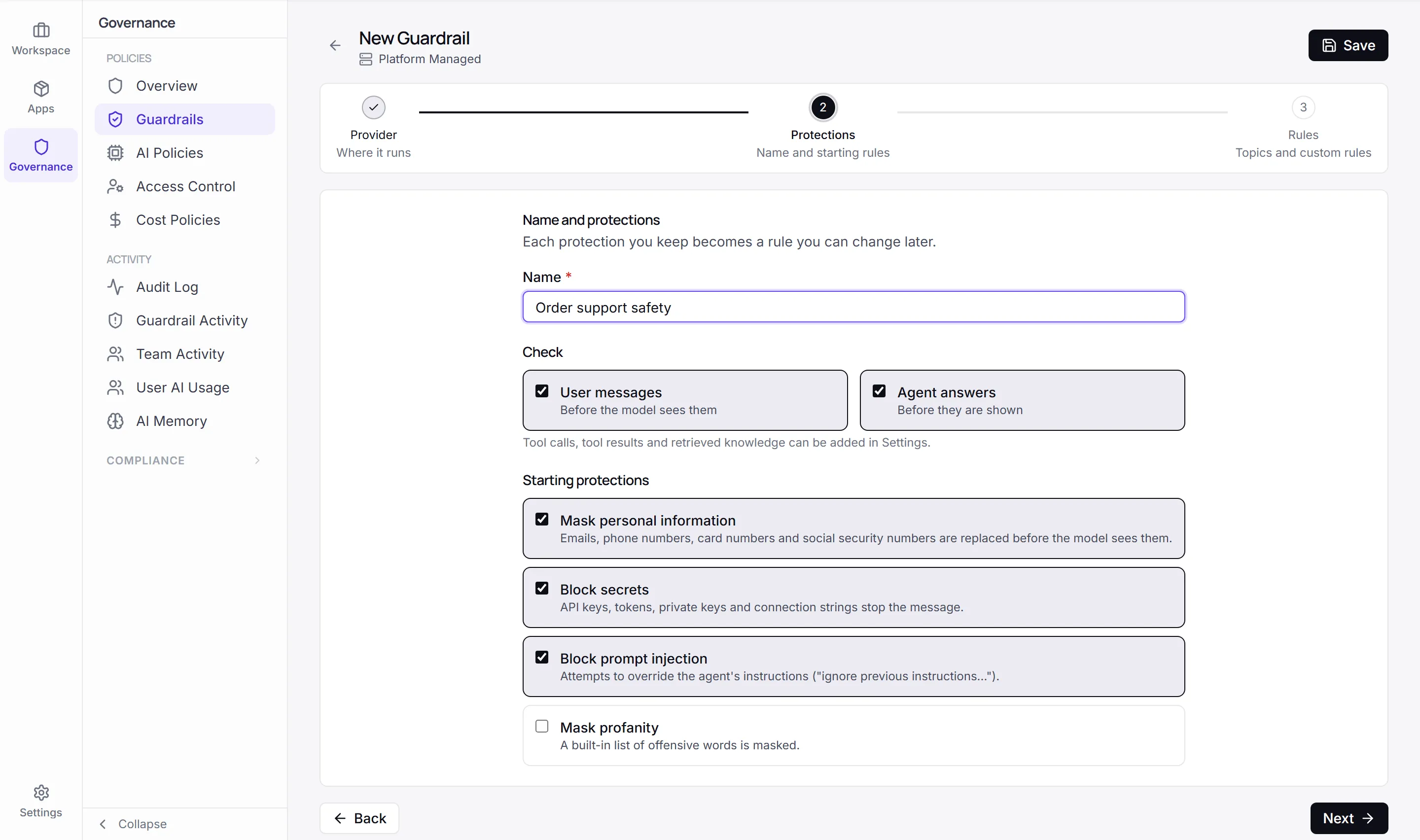
Under Name and protections, enter a Name. Under Check, choose User messages, Agent answers or both.
-
Under Starting protections, keep the ones you want: Mask personal information, Block secrets and Block prompt injection are on by default; Mask profanity is off. Each one becomes a rule you can change later. Select Next.
-
Under Topic blocking and custom rules, optionally add a Description, Blocked topics and Custom rules (regex patterns).
-
Select Create Guardrail.
The guardrail opens in the editor. Its tabs are Settings, Rules, Test, Test cases and Versions. A guardrail that runs an automation has an Automation tab in place of Rules.
- Rules: add rules with New Rule or From Template, and edit, disable or delete them.
- Settings: tool calls, tool results and retrieved knowledge (Where it applies), enforcement (Scope), mode (How it acts) and the Message shown when content is stopped.
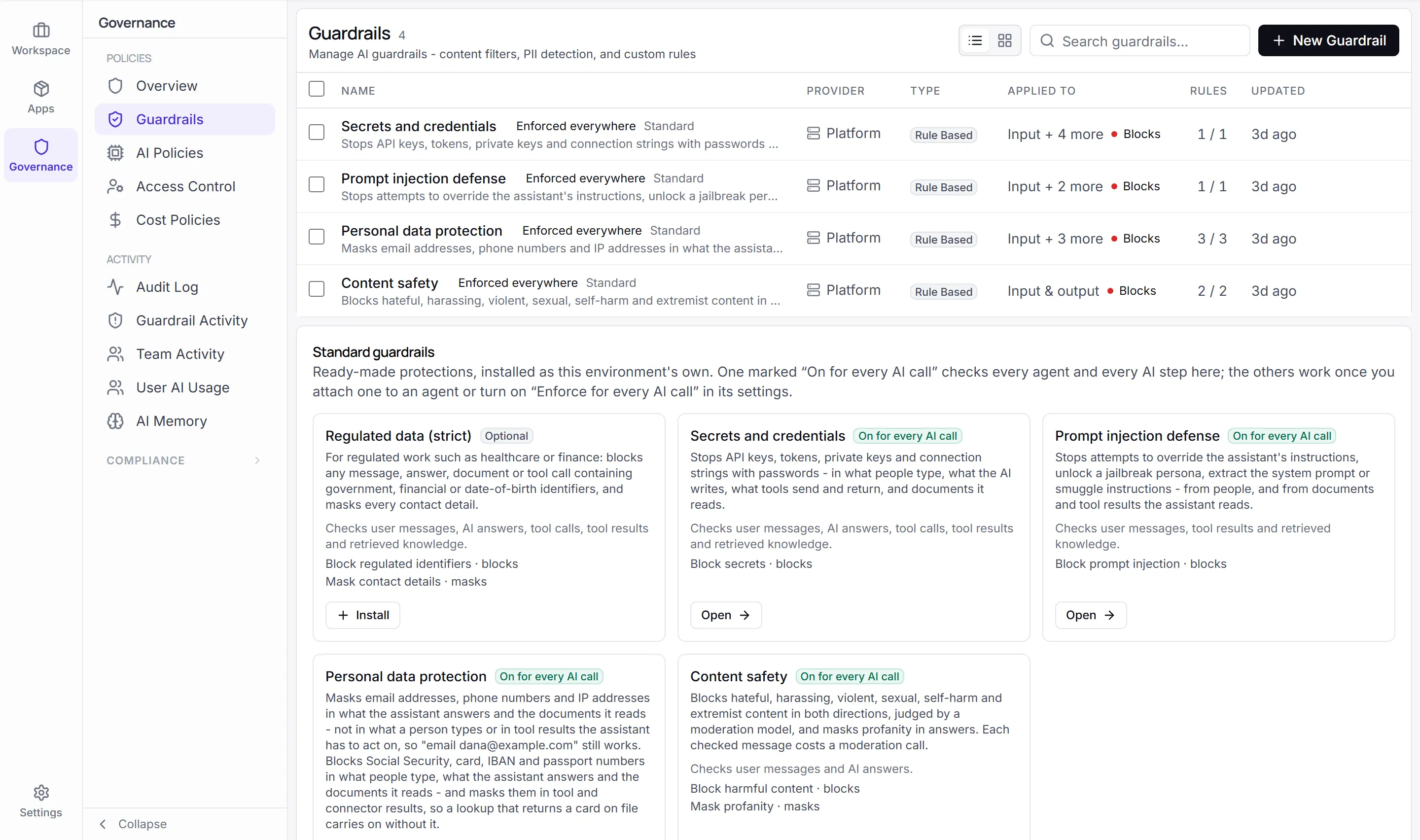
The Standard guardrails panel on the Guardrails list offers ready-made ones: Secrets and credentials, Personal data protection, Prompt injection defense, Content safety, and the optional Regulated data (strict). Select Install to add one to your environment.
Attach or enforce
Section titled “Attach or enforce”- Attach a guardrail to an agent on the agent’s Safety tab. It then applies to that agent’s conversations, and to every automation step that uses the agent. See Build an agent.
- Enforce a guardrail for an environment to apply it to every AI call there: every agent, automation AI step and generator, whether or not it is attached. Turn on Enforce for every AI call in this environment in the guardrail’s settings. Users can’t turn an enforced guardrail off. Enforcing needs the
guardrail:managepermission.
If an enforced guardrail also checks retrieved knowledge, documents are checked as they are indexed into a knowledge base. A blocked chunk isn’t stored, and a masked one is stored masked.
Background AI calls, such as titles, summaries and fact extraction, are checked only if Also check background AI calls is on.
In the automation editor, an AI Agent step shows how many guardrails check it, including enforced ones.
Try a guardrail before you rely on it
Section titled “Try a guardrail before you rely on it”- Monitor only mode records what every rule would have done, and changes nothing. Use it to try a guardrail on real traffic.
- The Test tab runs the guardrail on Sample content and shows each rule’s verdict, action and time. Tests are not recorded as guardrail activity. Select Keep as a test case to save a sample.
- Test cases run when the guardrail is approved. Approval is refused if one fails. Cases that use a model, Bedrock or automation check come back Not verified and don’t block approval.
- Guardrail Activity, under Governance › Activity, lists every finding: which rule matched, what happened, and whether it took effect. The matched text itself is never recorded. View activity in the guardrail editor opens it filtered to that guardrail.
Approve and version
Section titled “Approve and version”The Lifecycle panel moves a guardrail from Draft to Approved with Approve. Promote to Beta and Promote to GA mark later release stages, and Deprecate retires it. Approving runs the test cases first.