

Build your first automation
You’ll build an automation for an outdoor store. Every weekday morning it checks stock levels, decides whether anything needs reordering, and returns either a reorder list or “all stocked”. Along the way you’ll use a trigger, a Function step, a Condition and a response step, then test the automation, publish it, and read its run in Logs. The stock levels live in the Function step’s code, so you don’t need to connect any other system.
Before you start
Section titled “Before you start”- A work.studio account that can sign in to Flow at flow.work.studio.
- Permission to publish automations. The Publish button only appears for people who can change an automation’s lifecycle. If you don’t see it in step 7, ask an admin in your organization.
- About 15 minutes.
- No other accounts. Every step here runs inside work.studio.
1. Create the automation
Section titled “1. Create the automation”-
In the Flow sidebar, select Automations.
-
Select New Automation.
-
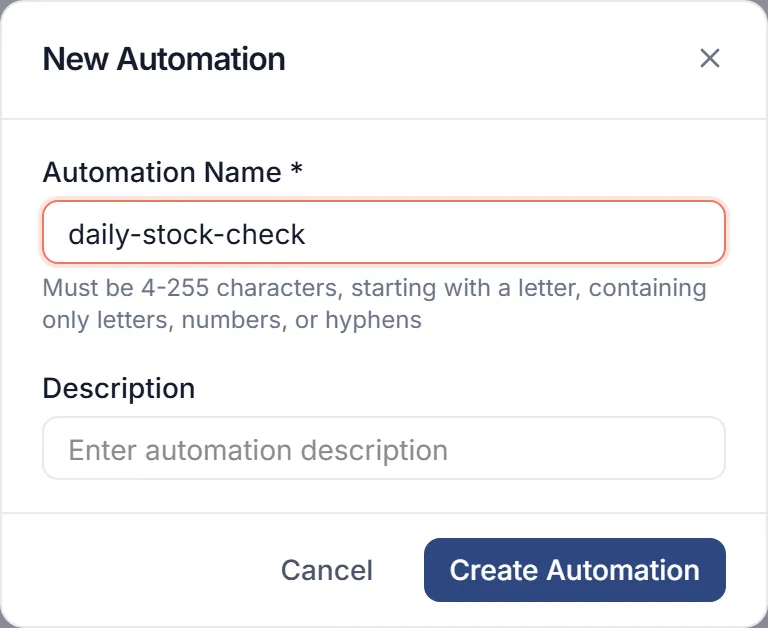
In Automation Name *, enter
daily-stock-check.The name must be 4 to 255 characters, start with a letter, and contain only letters, numbers and hyphens. Spaces aren’t allowed.
-
Leave Description empty, or add a short note. Then select Create Automation.
-
The editor opens with the AI Automation Generator panel on top of the canvas. You’ll build this automation by hand, so close the panel with its Close (X) button.
You now have an empty canvas, a Steps panel on the right, and a toolbar along the top.
The pill next to the name reads Draft v1 until you publish in step 7.
2. Add a Schedule trigger
Section titled “2. Add a Schedule trigger”A trigger decides when an automation runs. This one runs it every weekday morning.
-
In the toolbar, select Triggers (the lightning-bolt button). The Trigger Management window opens: “Choose what starts this automation”.
It already lists one card, API endpoint, marked Created automatically. Every automation gets one. You don’t need it here.
-
Select Create Your First Trigger.
-
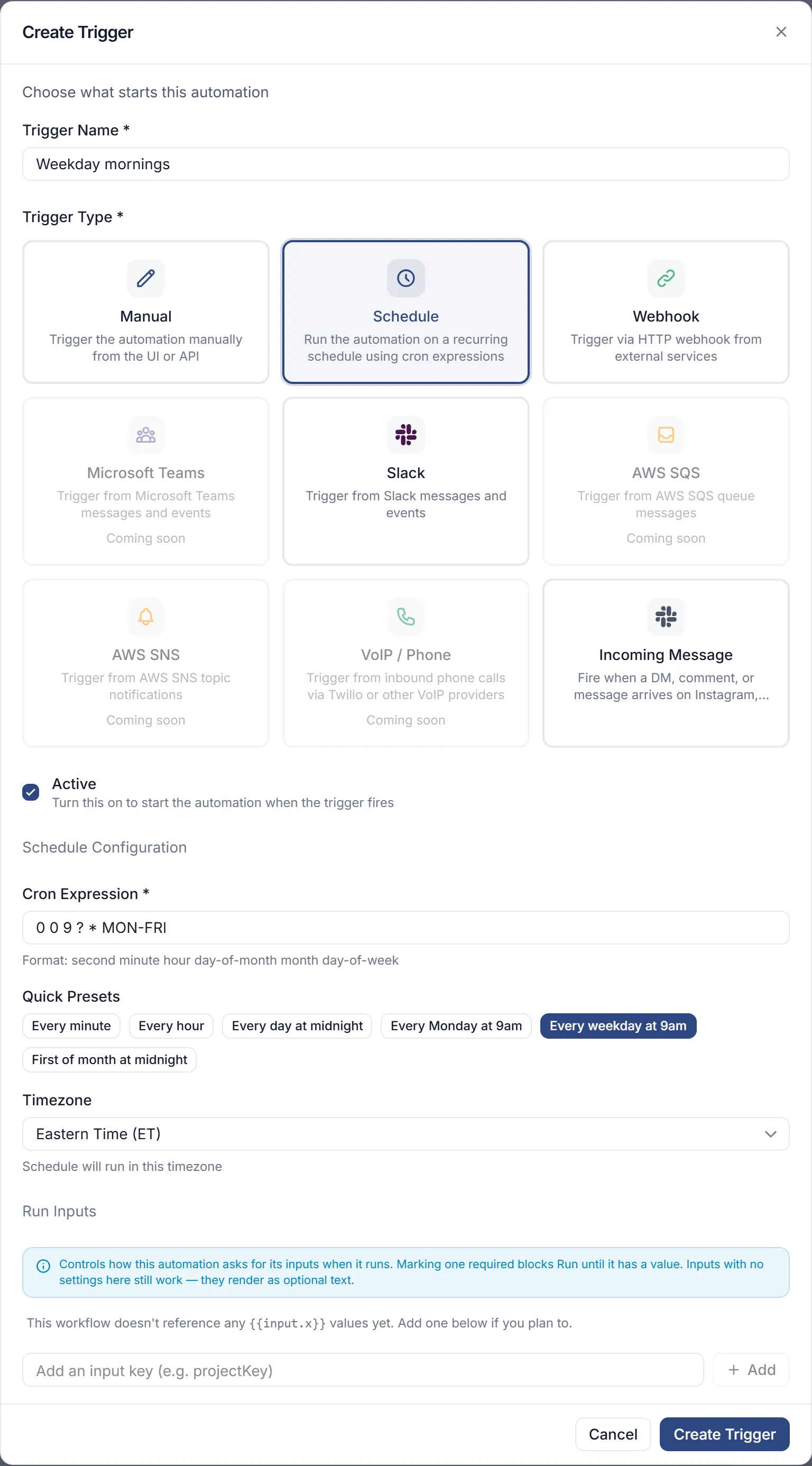
In Trigger Name *, enter
Weekday mornings. -
Under the trigger types, select Schedule.
-
Leave Active checked.
-
Under Schedule Configuration, select the quick preset Every weekday at 9am. It fills Cron Expression * with
0 0 9 ? * MON-FRI. -
In Timezone, pick your time zone, for example Eastern Time (ET). The default is UTC.
-
Leave the Run Inputs section empty. This automation needs no input.
-
Select Create Trigger. A Weekday mornings card appears, marked Schedule and Active. Close the Trigger Management window.
The cron expression has six fields: second, minute, hour, day of month, month and day of week. So 0 0 9 ? * MON-FRI means 9:00:00 AM, Monday to Friday.
Scheduled runs use the published version of the automation. Until you publish in step 7, the schedule has nothing live to run.
3. Check stock levels with a Function step
Section titled “3. Check stock levels with a Function step”A Function step runs JavaScript. Here it holds four products and finds the ones below their reorder point. In a real automation, the stock levels would come from an earlier step that reads your inventory system.
-
In the steps panel on the right, select Logic.
-
Drag Function (“Run custom code”) onto the empty canvas. The Function panel opens.
-
Leave Language set to JAVASCRIPT. PYTHON appears in the list but doesn’t run yet.
-
Replace everything in Code with this:
// Sample stock levels. In a real automation these would come// from an earlier step that reads your inventory system.const products = [{ sku: 'TENT-2P', name: 'Two-person tent', onHand: 3, reorderAt: 10 },{ sku: 'BAG-20F', name: 'Sleeping bag', onHand: 18, reorderAt: 12 },{ sku: 'STOVE-1', name: 'Backpacking stove', onHand: 5, reorderAt: 8 },{ sku: 'LAMP-HD', name: 'Headlamp', onHand: 40, reorderAt: 25 },];const low = products.filter((p) => p.onHand < p.reorderAt);return {lowCount: low.length,items: low.map((p) => p.sku),summary: 'Reorder ' + low.length + ' items: ' +low.map((p) => p.name + ' (' + p.onHand + ' left)').join(', '),};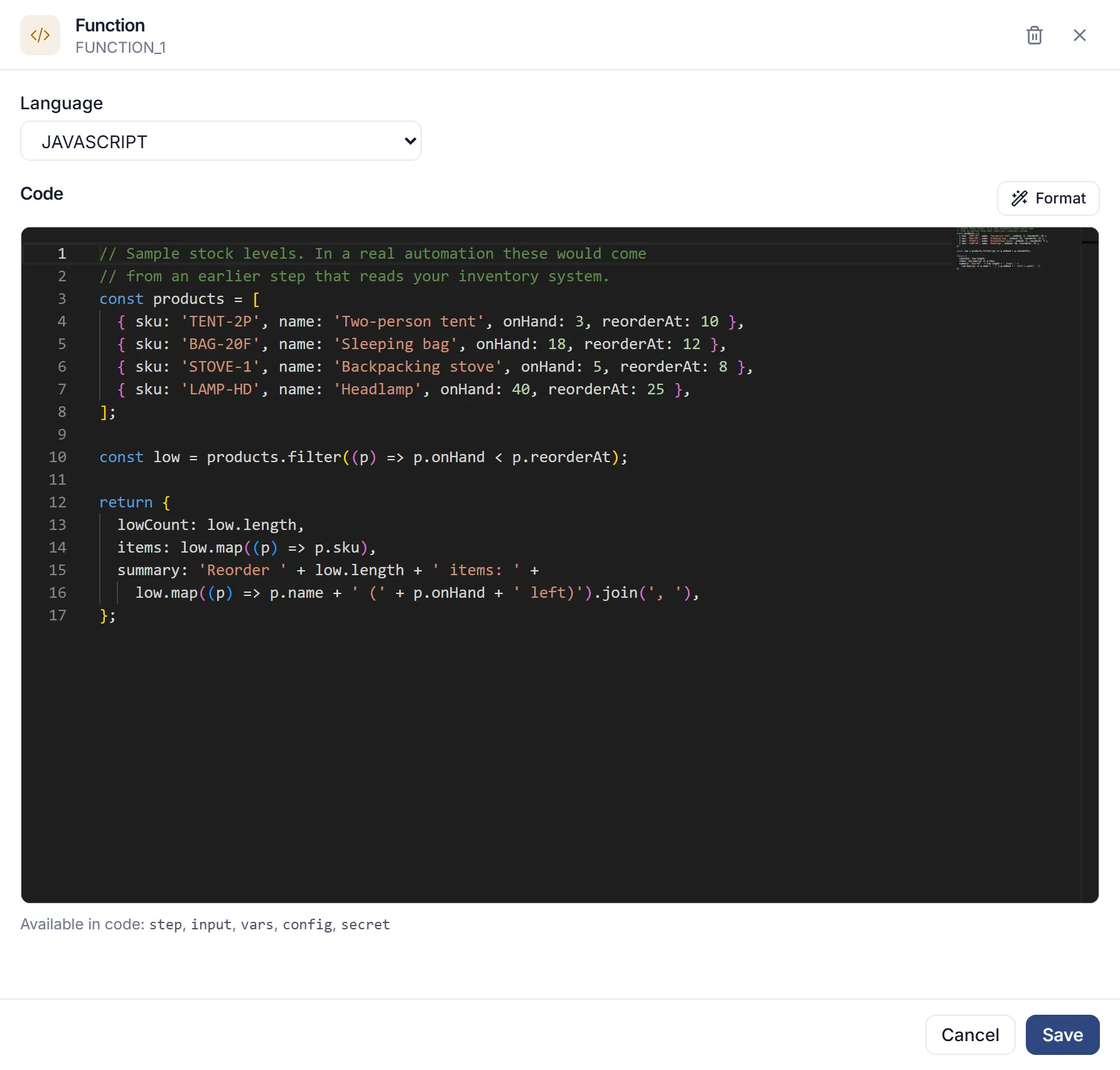
-
Select Add Step. The step appears on the canvas as FUNCTION_1.
-
In the toolbar, select Save (or press Ctrl+S). The save state next to the name changes to Saved and the time, such as Saved 12:04 PM.
Flow runs your code as the body of an async function, so a top-level return is how the step hands back its result. The object you return becomes the step’s output, which later steps read as step.FUNCTION_1.output. Return an object, not a bare list or number.
4. Branch with a Condition
Section titled “4. Branch with a Condition”A Condition step sends the run down one of several branches. You’ll add two: reorder when something is low, and stocked when nothing is.
-
The Steps panel still shows the Logic group. Drag Condition (“Branch automation based on logic”) onto the canvas and drop it just below FUNCTION_1, close to the step. Flow attaches a dropped step after the nearest step.
-
The Condition panel opens with one empty row, Condition 1.
-
Fill in Condition 1:
- Name:
reorder - Expression:
{{step.FUNCTION_1.output.lowCount}} - Operator: greater than
- Value:
0
- Name:
-
Select Add Condition, then fill in Condition 2:
- Name:
stocked - Expression:
{{step.FUNCTION_1.output.lowCount}} - Operator: equals
- Value:
0
- Name:
-
Select Add Step. The canvas shows the Condition with two branches,
reorderandstocked.
Flow checks the rows in order and follows the first one that matches. Both sides are compared as text, and greater than compares them as numbers when it can.
5. Return a result on each branch
Section titled “5. Return a result on each branch”A Success Response ends the run and returns a value to whoever started it.
-
In the Steps panel, select the back arrow, then Response. Drag Success Response onto the canvas and drop it just below the
reorderbranch. The Success panel opens. -
Leave HTTP status code at
200. Under Response, leave Type set to String. -
In Value, replace the default text with
{{step.FUNCTION_1.output.summary}}, then select Add Step. -
Drag another Success Response to just below the
stockedbranch. In Value, enterAll items are above their reorder point.Select Add Step. -
Select Save. Point to the problems indicator in the toolbar (the check mark left of Test). It should read No problems found.
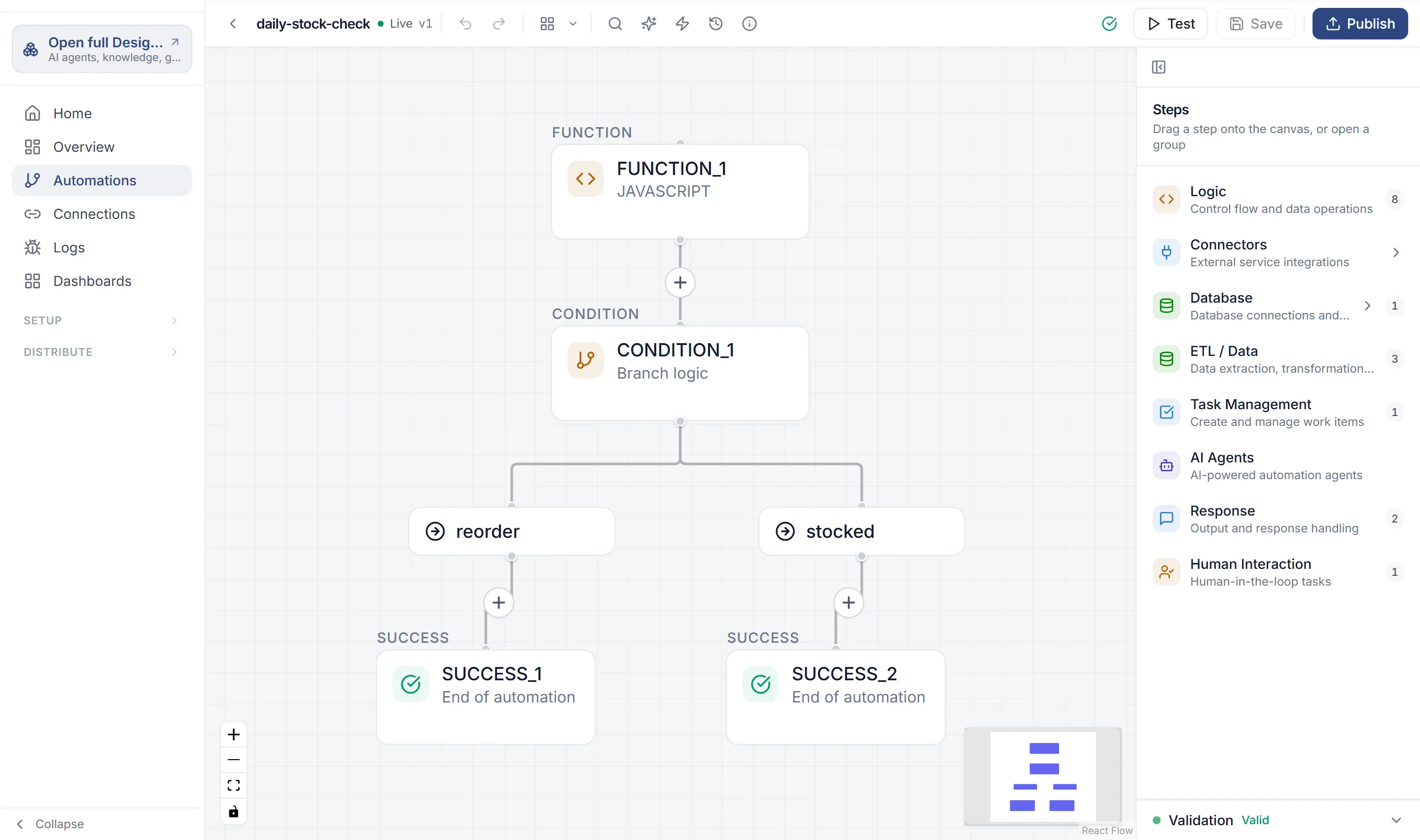
The Validation bar at the foot of the Steps panel may warn that FUNCTION_1 has no code defined. The warning is wrong: the code is there, and the test in step 6 runs it.
6. Test it
Section titled “6. Test it”Testing runs the saved draft right away, without waiting for the schedule.
-
In the toolbar, select Test. The test panel opens under the heading Test Automation.
-
Select Run Test. The button shows Running while the run is in progress, then the panel shows Completed.
-
Open the Output tab. It shows one step at a time. The list at the top names the steps the run went through: FUNCTION_1, SUCCESS_1 and CONDITION_1, so the run took the
reorderbranch. Choose 1. ✓ FUNCTION_1 in the list, or use ‹ Prev and Next ›. Its Output JSON Response shows two low items:{"lowCount": 2,"items": ["TENT-2P", "STOVE-1"],"summary": "Reorder 2 items: Two-person tent (3 left), Backpacking stove (5 left)"}The panel shortens long text, so summary ends in “…”.
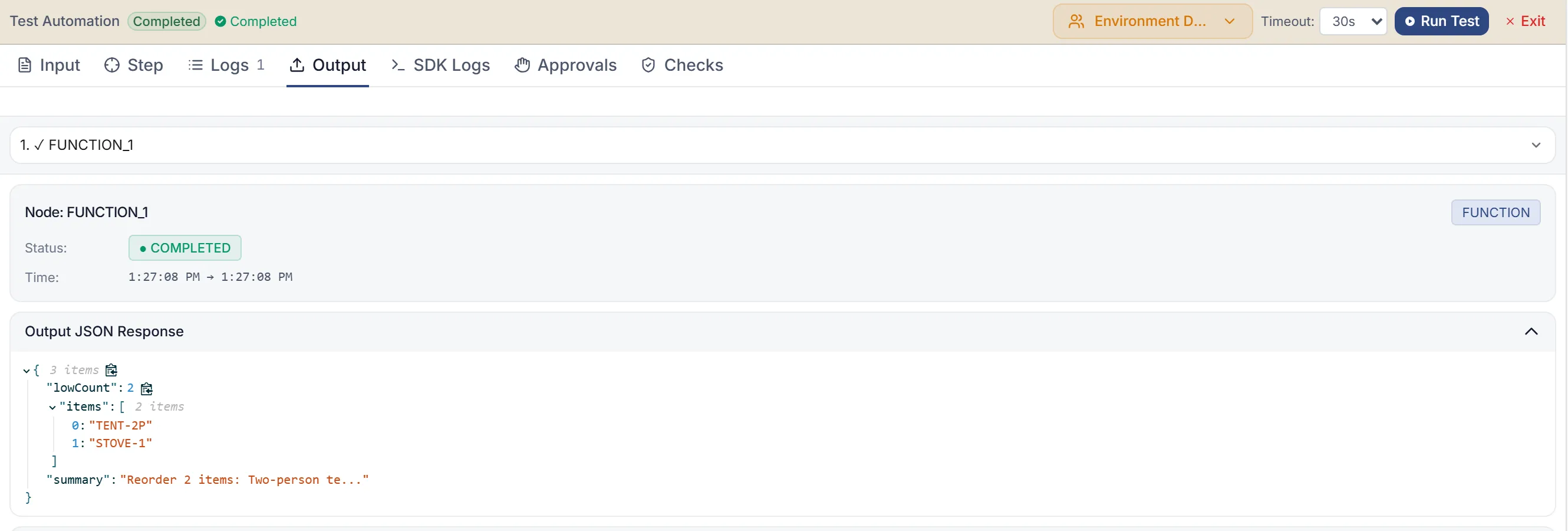
A test runs the saved draft, so select Save before each test. Tests run as Environment Default. You only need to pick a Test Customer when an automation uses your customers’ connections.
If the panel shows Failed instead, open the Logs tab in the test panel to see which step failed and why.
7. Publish it
Section titled “7. Publish it”Publishing makes this version the one that real runs use.
-
Make sure the save state reads Saved. Publish stays disabled while there are unsaved changes (“Save changes before publishing”).
-
Select Publish. The Publish Automation? dialog says it will “Make version 1 live” and “Create a new draft (v2) for future edits”.
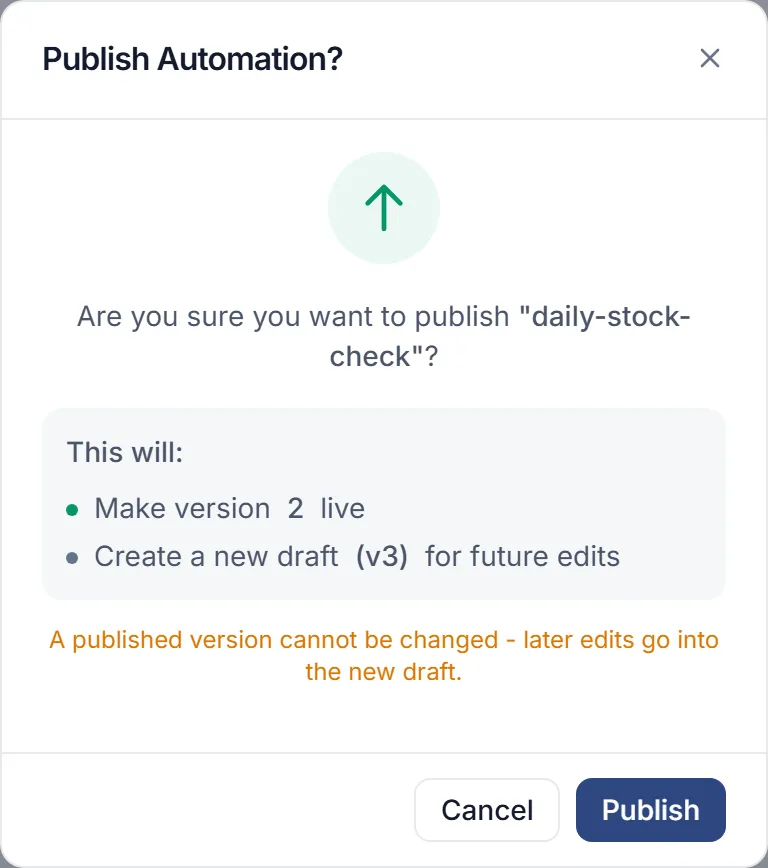
-
Select Publish in the dialog. The pill next to the name now reads Live v1. Version History in the toolbar shows v1 as Live and v2 as the Draft.
A published version can’t be changed. Any edits you make from now on go into the new draft, and they reach real runs only when you publish again.
8. Run it and read the log
Section titled “8. Run it and read the log”You don’t have to wait until 9 AM. The quickest way is the trigger card’s Run trigger now button (the lightning bolt), which starts one run straight away. The steps below instead switch the trigger to run every minute, so you also see the schedule fire on its own; wait for one run, then find it in Logs.
-
In the toolbar, select Triggers. On the Weekday mornings card, select Edit trigger (the pencil). The Edit Trigger form opens.
-
Under Quick Presets, select Every minute. Cron Expression * changes to
0 * * * * ?. Select Update Trigger, then close the Trigger Management window. -
In the Flow sidebar, select Logs. The page opens on the Runs tab.
-
In the automation filter, choose daily-stock-check.
-
Within a minute, a run appears whose Trigger is SCHEDULED_JOB and whose Status is Finished. Your test runs from step 6 are in the list too: they’re tagged Debug, with the trigger SYSTEM. Logs refreshes every 10 seconds, so give it a moment.
-
Select the scheduled run to expand it. You see its Automation ID, Run ID, when it Started and Finished, and the guardrail checks and AI spend for the run (none here). Select View Steps. A window lists each step the run went through, with how long it took.
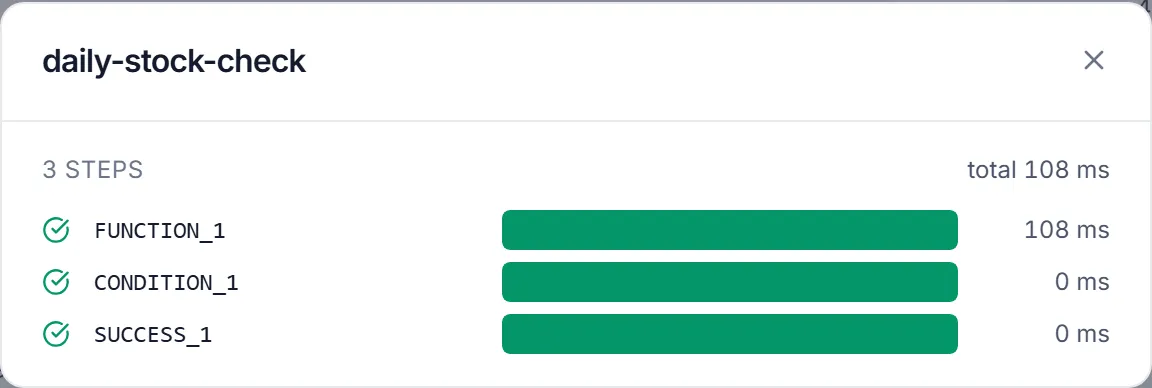
Now go straight on to step 9, so the trigger stops running every minute.
There’s no rerun button in Logs. To run the automation again, test it, or let a trigger fire.
9. Turn off the schedule
Section titled “9. Turn off the schedule”The trigger now runs the automation every minute. Each run counts toward your plan’s usage, so turn it off now. See pricing for how runs are counted.
-
In the editor toolbar, select Triggers.
-
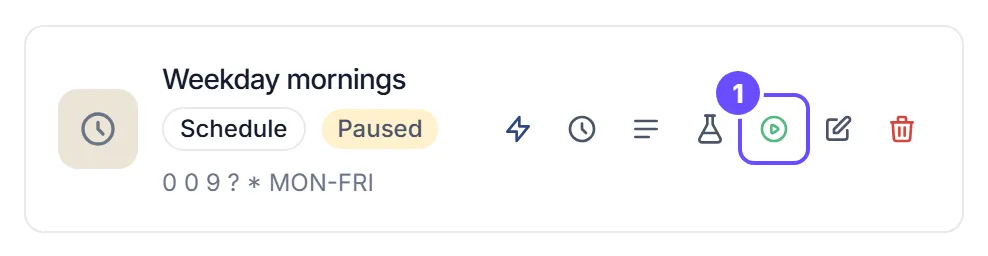
On the Weekday mornings card, select Pause trigger (the pause button). The card now shows Paused.
-
To keep the weekday schedule for later, select Edit trigger, select the Every weekday at 9am preset, and select Update Trigger. Active is unchecked in the form, so the trigger stays off. When you want it back, select Resume trigger on the card.
What you learned
Section titled “What you learned”- A trigger decides when an automation runs. A Schedule trigger uses a six-field cron expression and a time zone.
- A Function step runs JavaScript. What it returns becomes
step.<stepId>.outputfor the steps after it. - A Condition sends the run down the first branch whose row matches. Expressions use
{{step.…}}, and a misspelled name becomes empty without an error. - Test runs the saved draft. Publish freezes that version and makes it the one real runs use.
- Logs shows every run, with its status and steps.