Team and roles
Open the avatar menu and select Team. The page says “Manage team members, roles, permissions, and access controls” and has these tabs: Team Members, Roles, Environments, Permissions, Invitations, Cross-Tenant Access and Data Classification.
Add a person
Section titled “Add a person”- On the Team Members tab, select Add Member.
- In Add Team Member, enter the Email Address, optionally the First Name and Last Name, and pick a Role.
- Select Add Member. The person gets an email and sets up their password to sign in.
You can also use the Invitations tab:
- Invite Member opens Invite Team Member, with First Name, Last Name, Email Address and Role. Select Send Invitation.
- Bulk Invite takes several Email Addresses, separated by commas or new lines, and one Role for All Invitees. Select Send Invitations. You can change each person’s role after they join.
Both forms have Personal Message (optional), up to 500 characters, which is included in the invitation email as plain text.
Accepting an invitation
Section titled “Accepting an invitation”The invitation email links to a page that says who invited the person and to which organization, with the Role and the Invited Email.
- Someone who isn’t signed in selects Sign In to Accept. After they sign in, they come straight back to the invitation and select Accept Invitation.
- Accepting needs a verified email address. Until the invited person has verified theirs, accepting is refused.
- An invitation that has expired, or was already used, can’t be accepted: ask for a new one with Resend Invitation.
The Invitations tab lists invitations with their status (Pending, Accepted, Expired or Cancelled) and when they expire. On a pending one, Resend Invitation sends it again. Select several and choose Cancel Invitations to withdraw them.
Adding people needs the team:invite permission, which Owners and Administrators have and Members don’t.
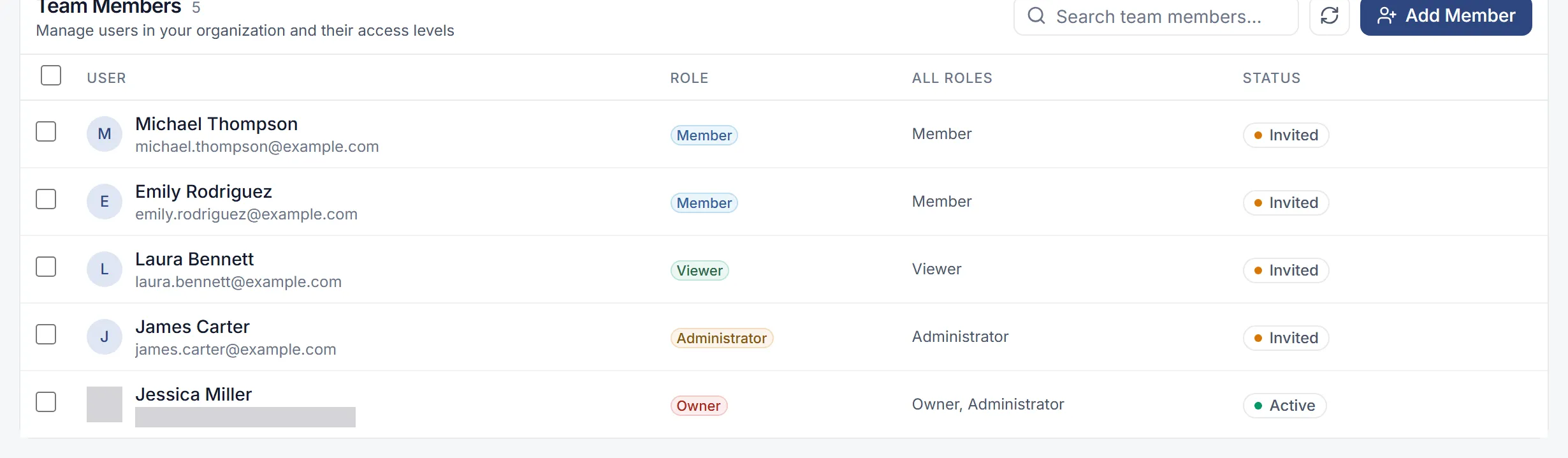
The Status column reads Active for someone who has signed in, and Invited for someone you added who hasn’t signed in yet.
Built-in roles
Section titled “Built-in roles”Every person has one base role, shown by its name: Owner, Administrator, Member or Viewer. Someone who holds several roles is shown with the highest.
| Role | Description in Flow | What it can do |
|---|---|---|
| Owner | “Full access including billing and account management” | Everything |
| Administrator | “Administrative access - can manage users, environments, and resources” | Everything except changing billing (it can read billing) and impersonation |
| Member | “Standard member - can create, edit, and execute resources” | Create, read, update and run. No deleting, managing, sharing or exporting, and no changes to the account, billing or team. No cost policy, audit or compliance permissions |
| Viewer | “Read-only access to view resources” | Read only |
A person’s personal automations are the exception to these roles: only their owner can change them. An Owner or Administrator can only switch them off.
New people get Member unless you choose another role.
Governance roles
Section titled “Governance roles”Governance roles sit on top of a base role and apply across the whole organization. A person can hold several.
| Role | Description in Flow | What it adds |
|---|---|---|
| Cost Administrator | “Sets spending limits and budget alerts. Not the subscription or payment method.” | Reading and managing cost policies, plus reading billing and usage |
| Platform Engineer | “Owns model routing, providers and the connections routed through them.” | Managing model routing, and creating, changing and deleting connections |
| Compliance Officer | “Owns guardrails, the audit log and compliance. Reads everything else.” | Reading everything, managing guardrails and compliance, and exporting the audit log |
Change someone’s role
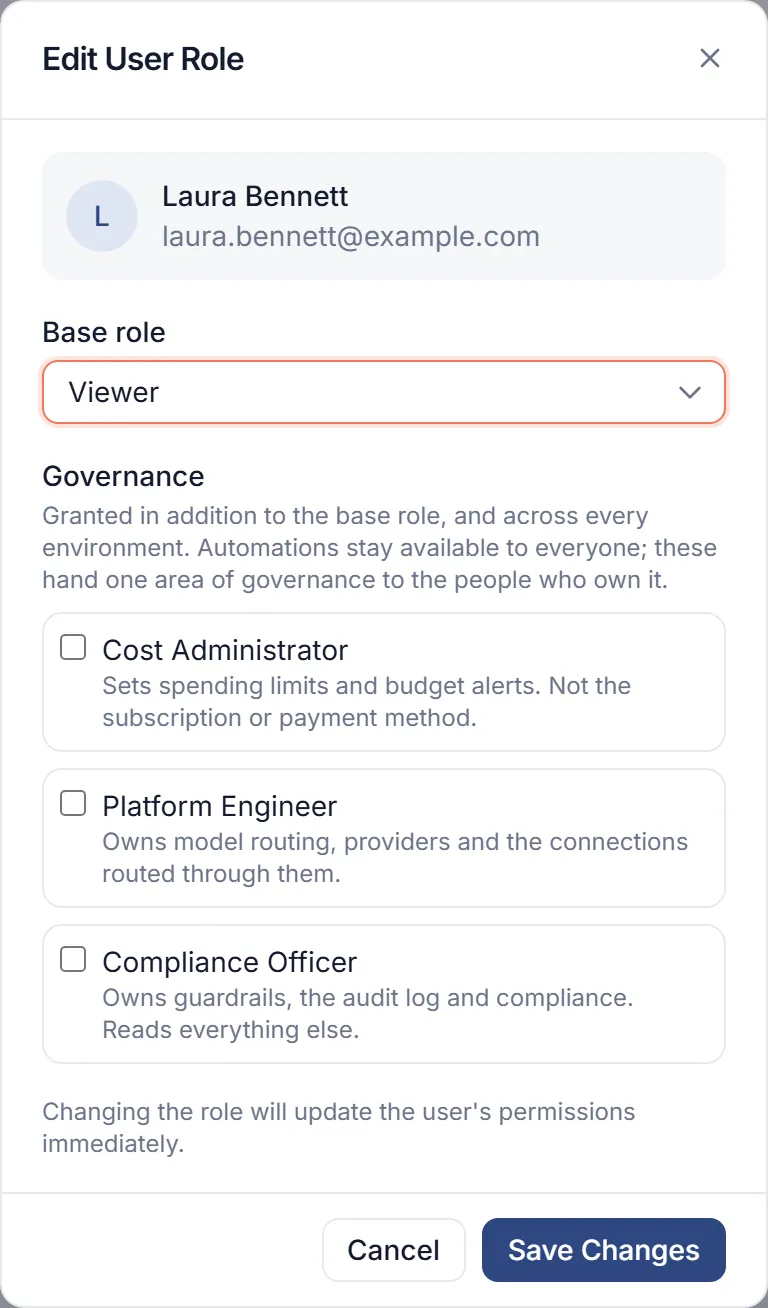
Section titled “Change someone’s role”- On the Team Members tab, find the person and select Edit Role.
- In Edit User Role, choose the Base role.
- Under Governance, tick any governance roles.
- Select Save Changes.
Changing roles needs Owner, Administrator or the team:manage_roles permission.
Remove someone
Section titled “Remove someone”Select the people on the Team Members tab, then select Remove. Confirm in Remove Team Members. This takes away all their roles in your organization.
Removing people needs Owner, Administrator or team:remove. You can’t remove yourself if you’re the only Owner.
Custom roles
Section titled “Custom roles”When the built-in roles don’t fit, make your own.
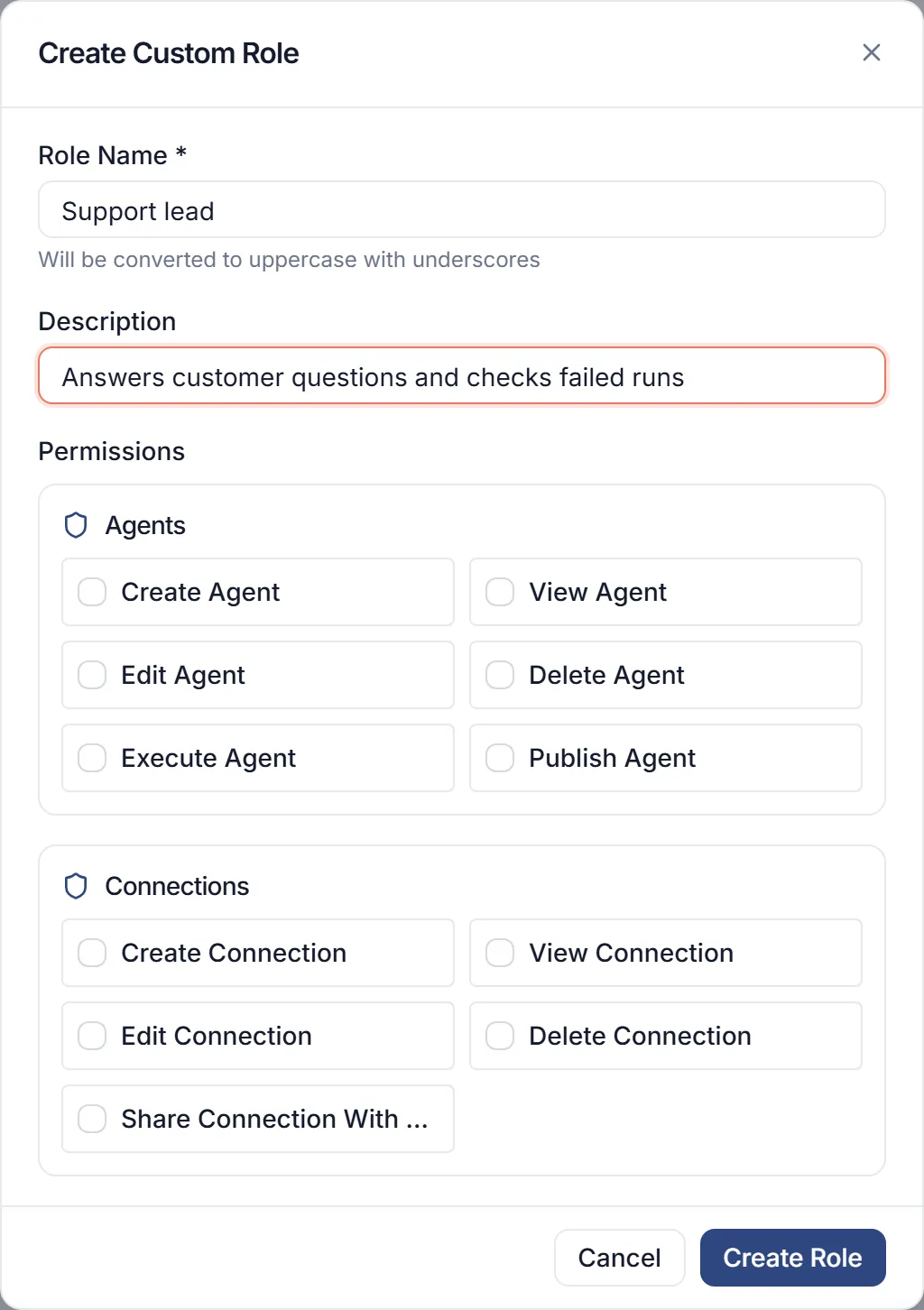
- On the Roles tab, select New Role.
- In Create Custom Role, enter a Role Name. It is turned into capitals with underscores, so “Support lead” becomes
SUPPORT_LEAD. - Add a Description.
- Under Permissions, tick what the role may do. Permissions are grouped by the kind of thing they cover, such as Automations: Create Automation, Run Automation and so on.
- Select Create Role.
Built-in roles carry a Default badge. You can open them to see their permissions, but you can’t delete them.
Creating, changing and deleting roles needs Owner, Administrator or team:manage_roles.