

AI usage and cost
AI work on work.studio uses AI credits. You can see who is using AI, and set cost policies that warn you or stop spending at a limit.
AI credits
Section titled “AI credits”Every plan includes a monthly allowance of AI credits, and you can buy more. For the allowance on each plan and what credits cost, see work.studio/pricing.
What uses credits:
- Language-model calls, priced by the model and the number of tokens.
- Images the AI makes.
- Voice minutes.
Calls made through a connection with your own model provider key are tracked but use no credits. You pay the provider directly.
When your credits run out, new AI sessions are refused with “No credits remaining. Please add credits to continue.” Buy more under Billing › Buy Credits, or wait for your monthly allowance to reset (shown as Next Reset).
See AI use per person
Section titled “See AI use per person”The User AI Usage page is in the full Designer view, under Governance › Activity. It says “Monitor AI consumption by individual users”.
- The tiles at the top show Total Users, Total Tokens, Estimated Cost and Total Sessions.
- The table has one row per person: User, Sessions, Tokens, Cost, Tools, Blocked and Last Active.
- Choose the period: 7, 14, 30, 60 or 90 days. The default is 30.
- Select a person for their token breakdown, tool use, main model and per-session averages.
- Export downloads the table as CSV.
Estimated Cost is an estimate from model prices. Your bill is on the Billing page.
Cost policies
Section titled “Cost policies”A cost policy sets a spending limit for AI and says what happens when it’s reached. Open it from Billing › Manage Cost Policies, from Account › Security › Configure Policies, or in the full Designer view under Governance › Policies › Cost Policies.
To see cost policies you need cost_policy:read. To create or change them, and to turn enforcement on, you need cost_policy:manage. Owners and the Cost Administrator governance role have it (“Requires the Cost Administrator role” otherwise). See Team and roles.
Create a policy
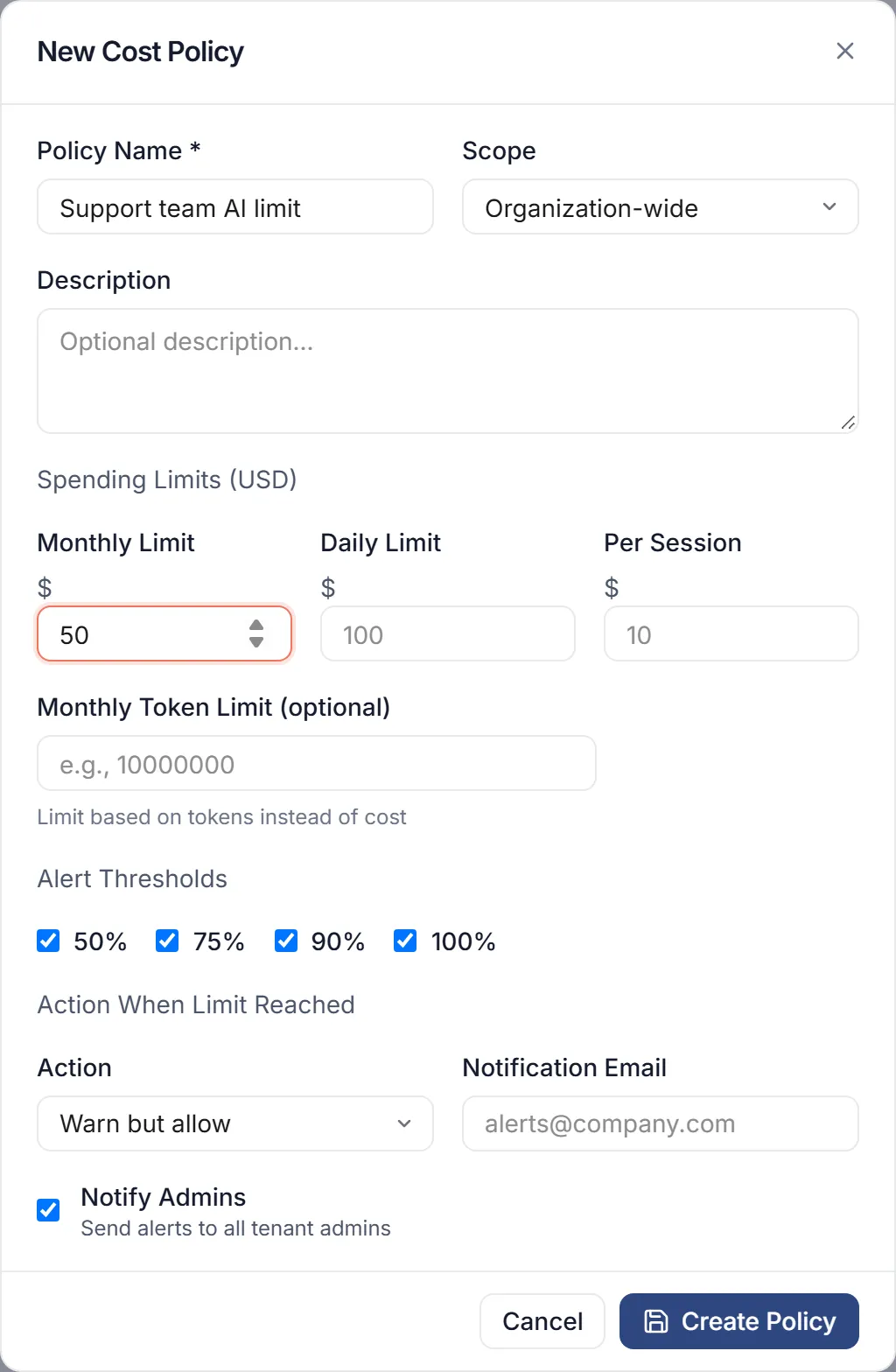
Section titled “Create a policy”- Select New Cost Policy.
- Enter a Policy Name and choose the Scope: Organization-wide, Per Environment or Per Assistant.
- Under Spending Limits (USD), set a Monthly Limit, and a Daily Limit or Per Session limit if you want them. Add a Monthly Token Limit (optional).
- Under Alert Thresholds, keep or change the alert points: 50%, 75%, 90% and 100%.
- Choose the Action When Limit Reached: Block requests, Warn but allow or Log only. The form starts on Warn but allow.
- Enter a Notification Email, or turn on Notify Admins.
- Select Create Policy.
Turn on enforcement
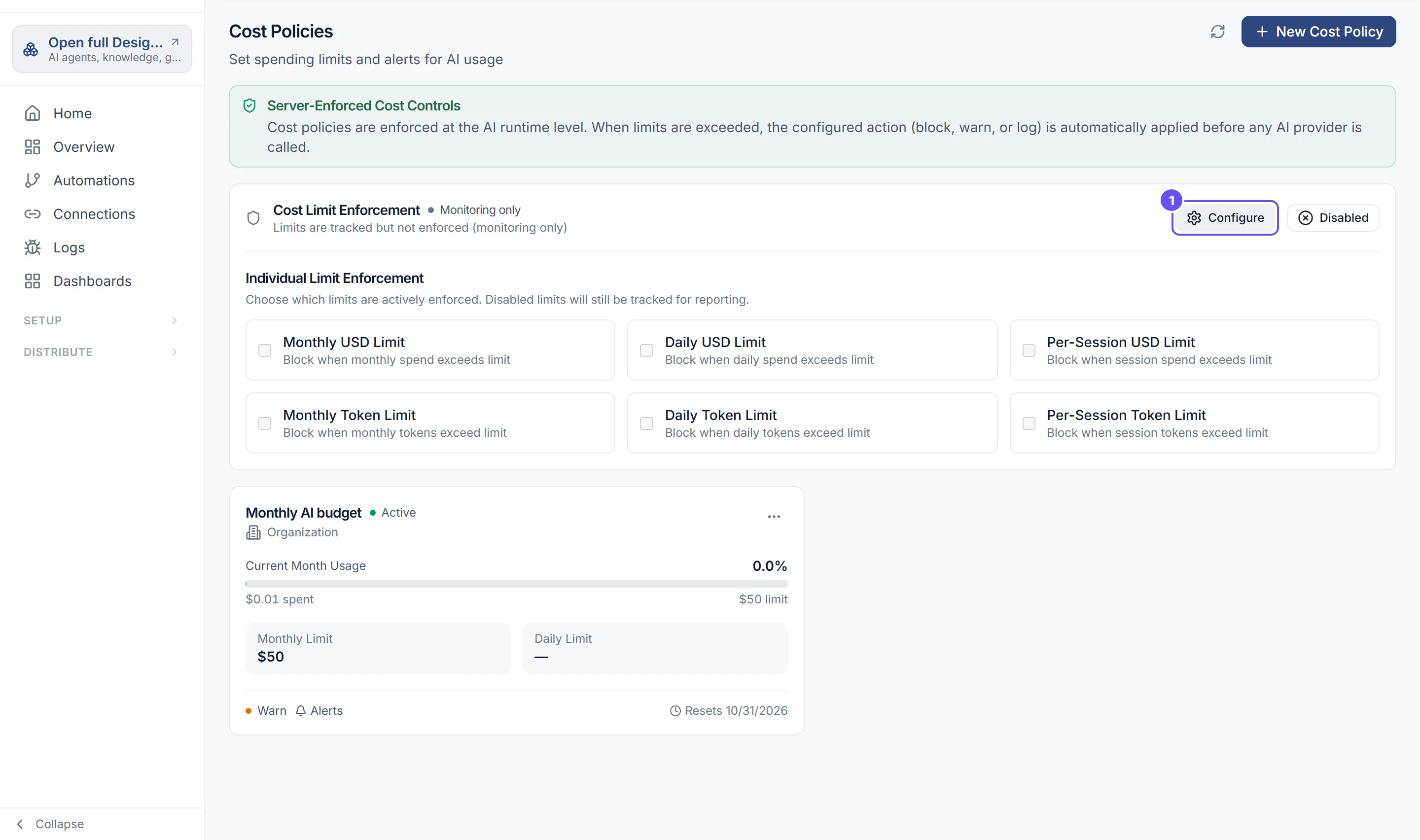
Section titled “Turn on enforcement”- On the cost policies page, find Cost Limit Enforcement. It says Monitoring only while enforcement is off.
- Select its button so it shows Enabled. The panel now says Active.
- Select Configure to open Individual Limit Enforcement.
- Turn on each limit you want enforced: Monthly USD Limit, Daily USD Limit, Per-Session USD Limit, Monthly Token Limit, Daily Token Limit, Per-Session Token Limit.
The Cost & Budget Enforcement switch under Account › Security › Settings shows the same overall setting.