

Account security
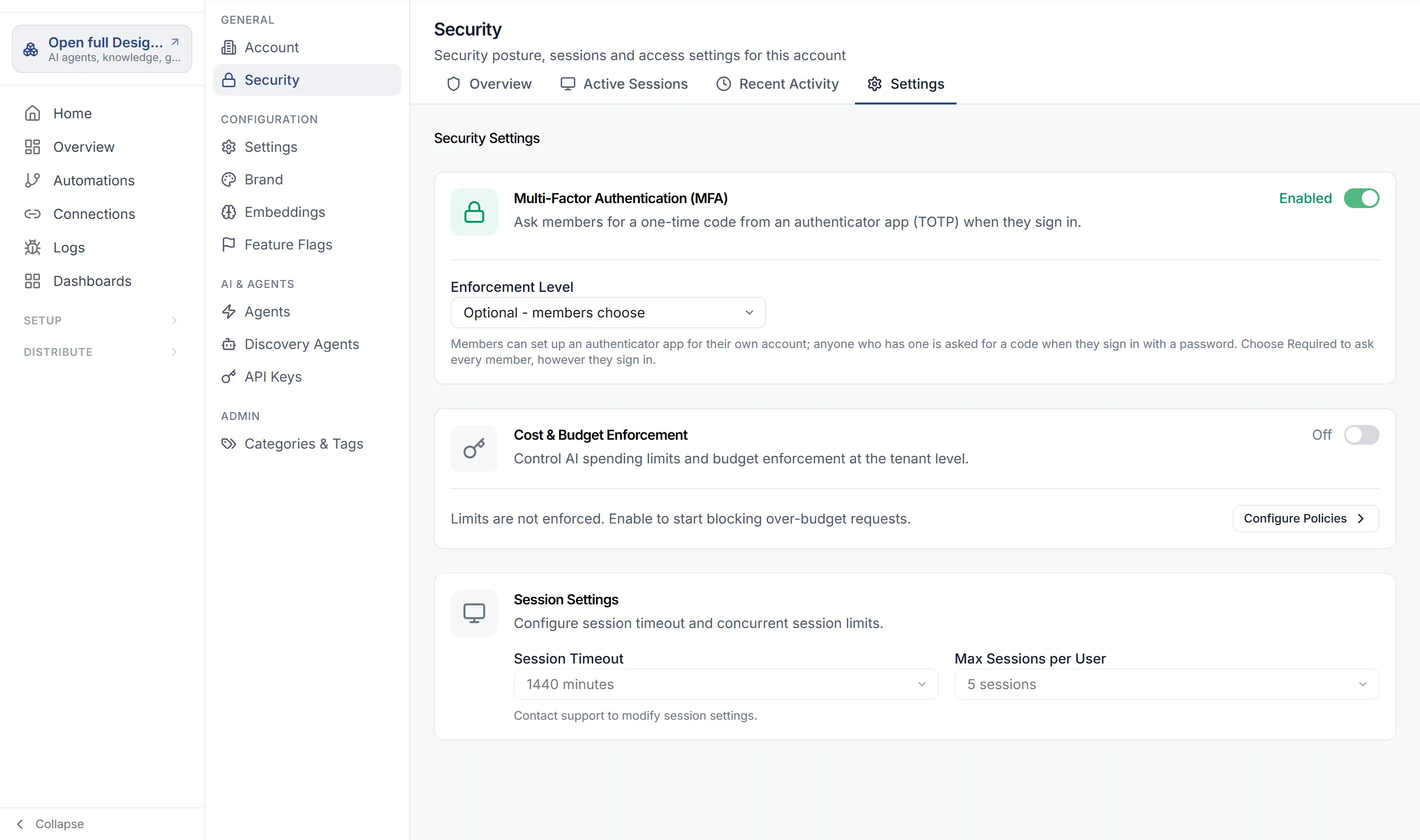
Your organization’s security settings are under the avatar menu › Account › Security. The page has four tabs: Overview, Active Sessions, Recent Activity and Settings.
Multi-factor authentication
Section titled “Multi-factor authentication”On the Settings tab, under Security Settings, the Multi-Factor Authentication (MFA) card asks people to confirm who they are with a one-time code from an authenticator app (TOTP).
- Turn the card’s switch on.
- Choose an Enforcement Level: Optional - members choose, or Required for all members.
- If you chose Required for all members, confirm it. Once it is enforced, it signs every member out, you included.
Changing it needs the account:update permission, which Owners and Administrators have.
With Optional, members can set up an authenticator app for their own account. Anyone who has one is asked for a code when they sign in with a password.
What Required does
Section titled “What Required does”- Every member signs in with a code from an authenticator app. That applies after their password and after Continue with Google, Microsoft, GitHub or Apple. A member who hasn’t set one up is asked to before their sign-in completes.
- Turning it on ends every member’s sessions, including the mobile and desktop apps. Members who join later are signed out the same way.
- A page that’s already open stops working at its next request and signs its person in again, this time with a code.
- Forgot your password? also ends at the code.
- Passkeys, text messages and email codes don’t count. It has to be an authenticator app.
- API keys, customer tokens, embed credentials and the end users of your Apps aren’t affected.
If a member loses their device, contact support@work.studio to reset their code. They set up a new one at their next sign-in.
The card says when Required is saved but sign-in doesn’t ask for a code yet, and why:
- Confirm: require MFA for every member appears when Required was saved before sign-in enforced it. Nothing changes for members until an Owner or Admin confirms it.
- Members who sign in through another identity provider are listed by name. Sign-in here can’t ask them for a code.
Sessions
Section titled “Sessions”The Active Sessions tab lists where people are signed in. Select Revoke on a session to end it, or Sign Out All Others to end every session of yours except this one.
Under Settings › Session Settings, Session Timeout and Max Sessions per User are shown for reference but can’t be edited. To change them, contact support@work.studio (“Contact support to modify session settings.”).
Cost and budget enforcement
Section titled “Cost and budget enforcement”The Cost & Budget Enforcement card on the same tab turns cost-policy enforcement on or off. Configure Policies opens the cost policies page. See AI usage and cost.
How people sign in
Section titled “How people sign in”Everyone in your organization signs in through the same work.studio sign-in, and one sign-in covers Flow and my.studio.
- On the Flow sign-in page, they enter their Email address and select Continue.
- The next page asks which organization to use, if they belong to more than one, and how to sign in. That is a password, or a Continue with button for an identity provider where one is offered.
- Forgot your password? sends a reset email.
New organizations aren’t created from the sign-in page. “Don’t have an account? Request access” leads to work.studio.
Password rules
Section titled “Password rules”A work.studio password must:
- be at least 10 characters long, and no more than 128
- not be your email address or your username
- not be one of your last 3 passwords
The rules apply wherever you set a password: the email that sets up your account, Forgot your password?, and Change Password in my.studio settings. When a password breaks one, the page says which rule.
Your own profile
Section titled “Your own profile”My Profile in the avatar menu shows your name, email and user ID. They come from your sign-in account and can’t be edited there (“Your profile information is managed through your identity provider.”). The page also has Sign Out, your Appearance (Light, Dark or System) and Notifications.
Email notifications
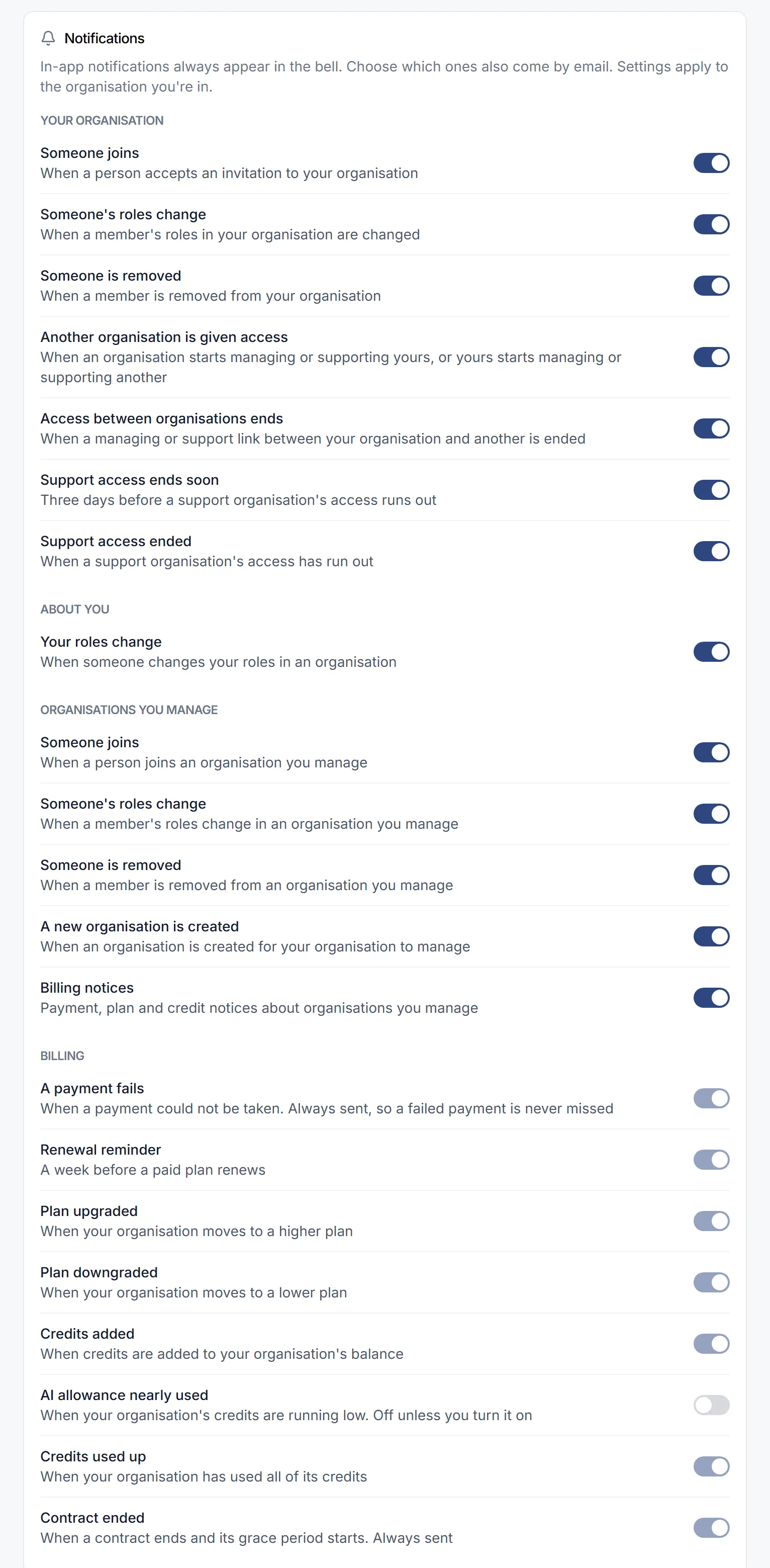
Section titled “Email notifications”Notifications on My Profile chooses which notices also come to you by email. In-app notifications always appear in the bell; only the email is a choice. Your choices are your own: turning one off stops that email for you, not for anyone else, and they apply to the organization you’re in.
| Group | Emails |
|---|---|
| Your organisation | Someone joins, Someone’s roles change, Someone is removed, Another organisation is given access, Access between organisations ends, Support access ends soon, Support access ended. Sent to the organization’s admins |
| About you | Your roles change |
| Organisations you manage | The same member notices for an organization yours manages, A new organisation is created, and Billing notices for those organizations. Sent to its admins |
| Billing | A payment fails, Renewal reminder, Plan upgraded, Plan downgraded, Credits added, Credits used up and Contract ended are always sent (“Always sent”). AI allowance nearly used is off unless you turn it on |
Every switch is on until you turn it off, except AI allowance nearly used. A switch saves at once; if the save fails, it goes back and says so.