

Give agents knowledge
Knowledge gives your agents documents, skills and code context. You add content once, work.studio indexes it, and any agent you attach it to can use it.
Three kinds of knowledge
Section titled “Three kinds of knowledge”When you add content, it becomes one of three kinds:
| Kind | How an agent uses it |
|---|---|
| Knowledge base | Searched for relevant passages when an agent answers. |
| Skill | Loaded whole when an agent needs the guidance. Good for how-to instructions. |
| Code workspace | Repositories agents can navigate, search and propose changes to. |
The Knowledge list has tabs for each: All, Knowledge bases, Skills and Code.
Add content
Section titled “Add content”-
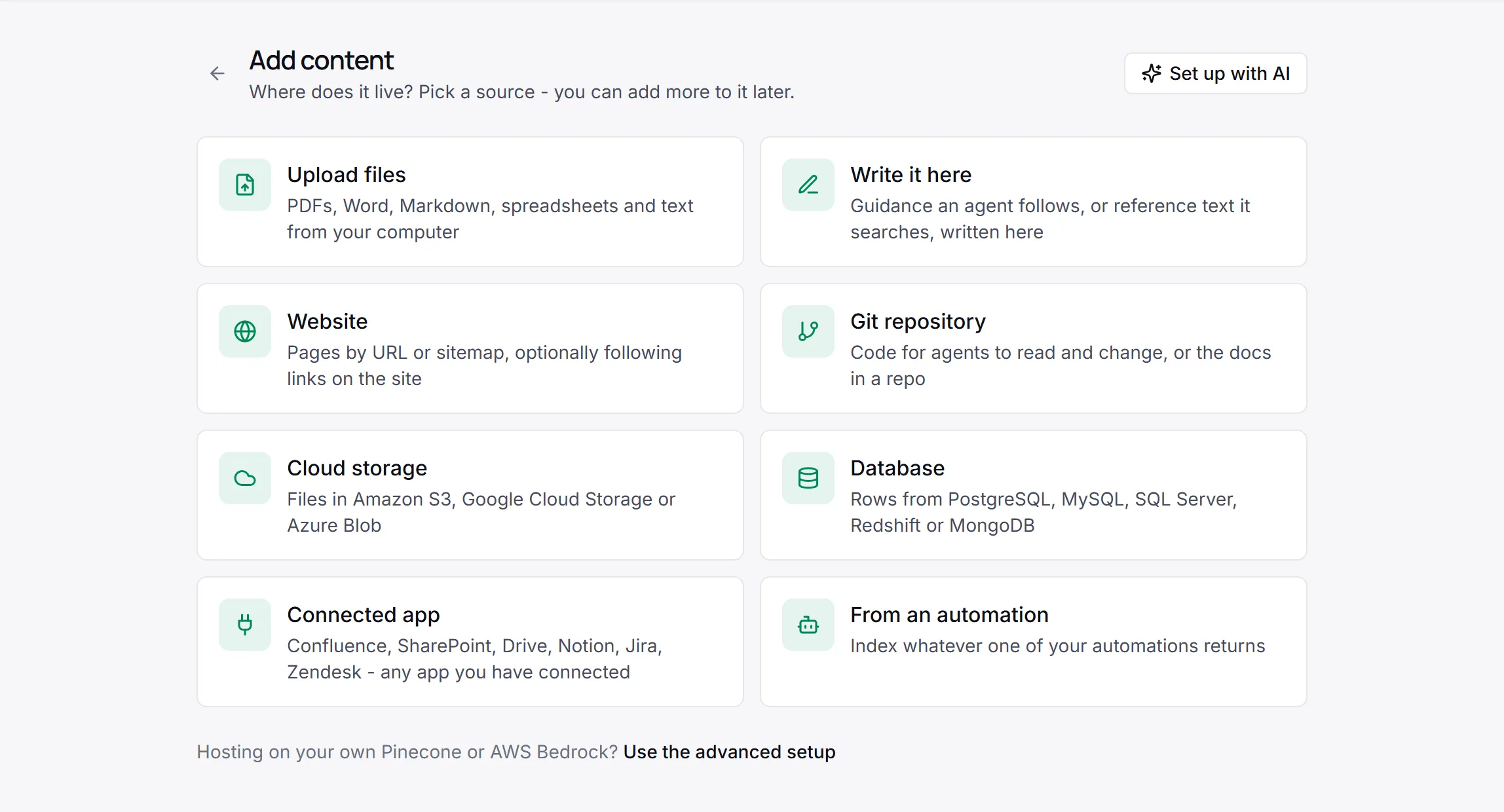
Open Knowledge and select Add content.
-
Pick where the content lives (see the sources below).
-
Fill in the source’s fields under Files, Content or Connect.
-
Under About it, enter a Name and, optionally, a Description. Agents read the description to decide when to use the content, so say what it covers. For a Git repository or an automation, also choose what It becomes.
-
For sources that change, choose how to Keep it up to date: Every day (the default), Every hour, Every week or Only when I sync.
-
Select Create knowledge base, Create skill or Create code workspace. If the button is disabled, the reason shows next to it, for example “Give it a name”.
Synced sources start their first sync right away, and the new item opens.
Set up with AI opens a setup assistant. Tell it what your agents should know. It looks at your connections and fills in the form. Nothing is created until you select the create button.
Sources
Section titled “Sources”| Source | What you give it |
|---|---|
| Upload files | Files from your computer: PDF, Word, PowerPoint, Excel, Markdown, HTML, CSV, JSON or text. |
| Write it here | Text you write in Markdown. It becomes a skill unless you choose a knowledge base. |
| Website | Pages, one URL per line. Turn on Follow links on the same site to read linked pages under the same path; it honors robots.txt. Under more options: a Sitemap and a Page limit (default 100, up to 1,000 pages per sync). |
| Git repository | A GitHub connection and a Repository. Optional Branch (default main), Only these paths and Skip these paths. Becomes a code workspace unless you choose otherwise. |
| Cloud storage | Amazon S3, Google Cloud Storage or Azure Blob: the Bucket or Container, an optional Folder, and Credentials (unless the bucket is public). Optional File types. |
| Database | A Database connection, then A table or A query, plus the ID column, Title column, Text columns and Last-modified column. |
| Connected app | An App you’ve connected, such as Confluence, SharePoint, Google Drive or Notion, and What should it read? in your own words. |
| From an automation | An Automation whose last step returns the documents to index. |
The database query must be a single SELECT. It runs read-only and is capped at 10,000 rows.
Every source that needs credentials uses a connection. The credentials stay in the connection; nothing is copied into the knowledge base.
Content from a connected app
Section titled “Content from a connected app”For Connected app, work.studio builds an automation that fetches what you described. The button reads Create and build the automation. It creates an automation named “name - knowledge source” and opens it in the editor.
Content from an automation
Section titled “Content from an automation”With From an automation, each sync runs the automation once per page of results. It receives cursor and since as input, and its last step must return:
{ "documents": [ { "id": "…", "title": "…", "content": "…", "url": "…", "updatedAt": "…" } ], "nextCursor": "…"}A sync stops after 200 pages or 10,000 documents.
Work with a knowledge base
Section titled “Work with a knowledge base”Open an item from the list to edit it. The tabs depend on the kind:
| Kind | Tabs |
|---|---|
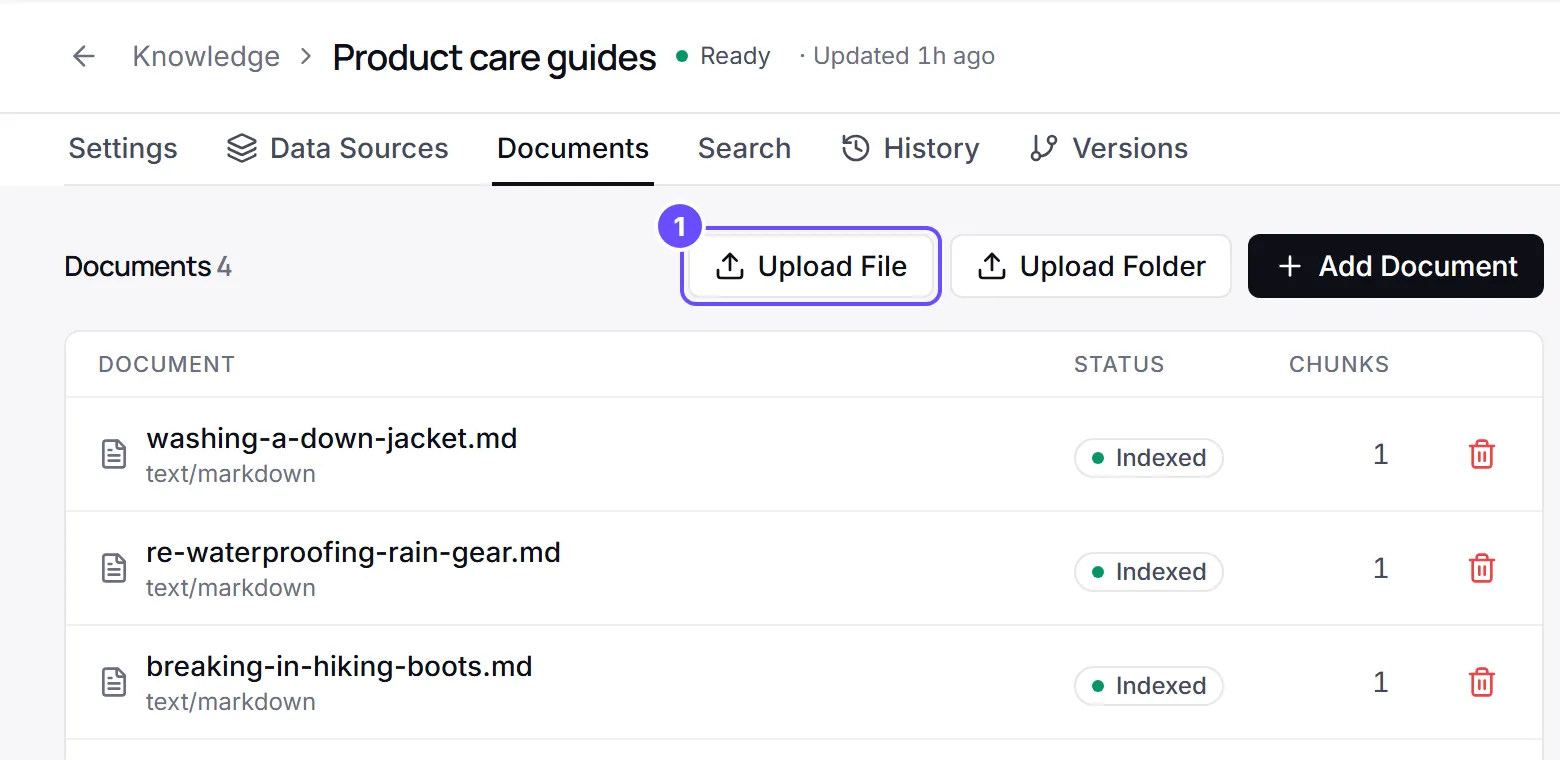
| Knowledge base | Settings, Data Sources, Documents, Search, History, Versions |
| Skill | Settings, Instructions, External Sources, Search, History, Versions |
| Code workspace | Settings, Repositories, Search, History, Versions |
- Documents lists what’s indexed, with each document’s status and chunk count. Add more with Upload File, Upload Folder or Add Document. Retry Failed re-indexes documents that failed.
- Search lets you try a question against the content (Test Search). Each result shows its title and similarity.
- History lists past syncs.
- Settings holds the name, description, Embedding Configuration (model, chunk size and overlap) and the Default Similarity Threshold.
Changing the embedding model means re-indexing everything: select Force Resync in the More actions menu afterwards.
Sync in the editor header picks up new and pending content. On the list, the Sync menu syncs the selected items or all of them, and Force Resync re-indexes every document.
A running sync shows a banner with Cancel Sync.
Versions
Section titled “Versions”On Versions, select Capture current version to save a snapshot. Restore brings an older version back. Restoring doesn’t re-link the agents, guardrails or tools attached to it.
Attach knowledge to an agent
Section titled “Attach knowledge to an agent”-
Open the agent and go to its Knowledge tab.
-
Choose Skills, Knowledge Bases or Code Workspaces, then select Add.
-
Pick the item, then choose its Activation Mode: Always, RAG Retrieval, On Demand or Goal Based.
-
Save the agent.
On a saved agent, each attached item shows Latest or Pinned vN. Select it to choose which version the agent reads: Follow the latest (recommended) or a specific version. You can pin only after capturing a version on the item’s Versions tab.
Automations use knowledge through an agent. There is no separate knowledge step: add an AI Agent step whose agent has the knowledge attached.
Guardrails your organization enforces for the environment also check documents as they are indexed. A blocked chunk isn’t stored, and a masked chunk is stored masked. See Guardrails.